
1: Overview
The MoKo Bluetooth Wireless Keyboard is designed to enhance your Microsoft Surface Pro experience, offering a comfortable typing solution with advanced features. This keyboard provides a seamless wireless connection, a practical trackpad, and customizable 7-color backlighting, making it suitable for various environments and tasks.

Image: MoKo Bluetooth Wireless Keyboard attached to a Microsoft Surface Pro tablet, showcasinիր նրբագեղ դիզայնով և ինտեգրացիայով։
2. Փաթեթի բովանդակությունը
Խնդրում ենք ստուգել փաթեթի վրա հետևյալ կետերը.
- MoKo Bluetooth Wireless Keyboard
- USB լիցքավորման մալուխ
- Օգտագործողի ձեռնարկ (այս փաստաթուղթը)

Image: A USB Type-C charging cable, included for recharging the keyboard's internal battery.
3. Համատեղելիություն
This keyboard is designed for specific Microsoft Surface Pro models. Please verify your device model before use.
- Microsoft Surface Pro 7 Plus (2021)
- Microsoft Surface Pro 7 (2019)
- Microsoft Surface Pro 6
- Microsoft Surface Pro 5 (Pro 2017)
- Microsoft Surface Pro 4
- Microsoft Surface Pro 3
Note: This keyboard is NOT compatible with Surface Go (2018) or Surface Go 2.
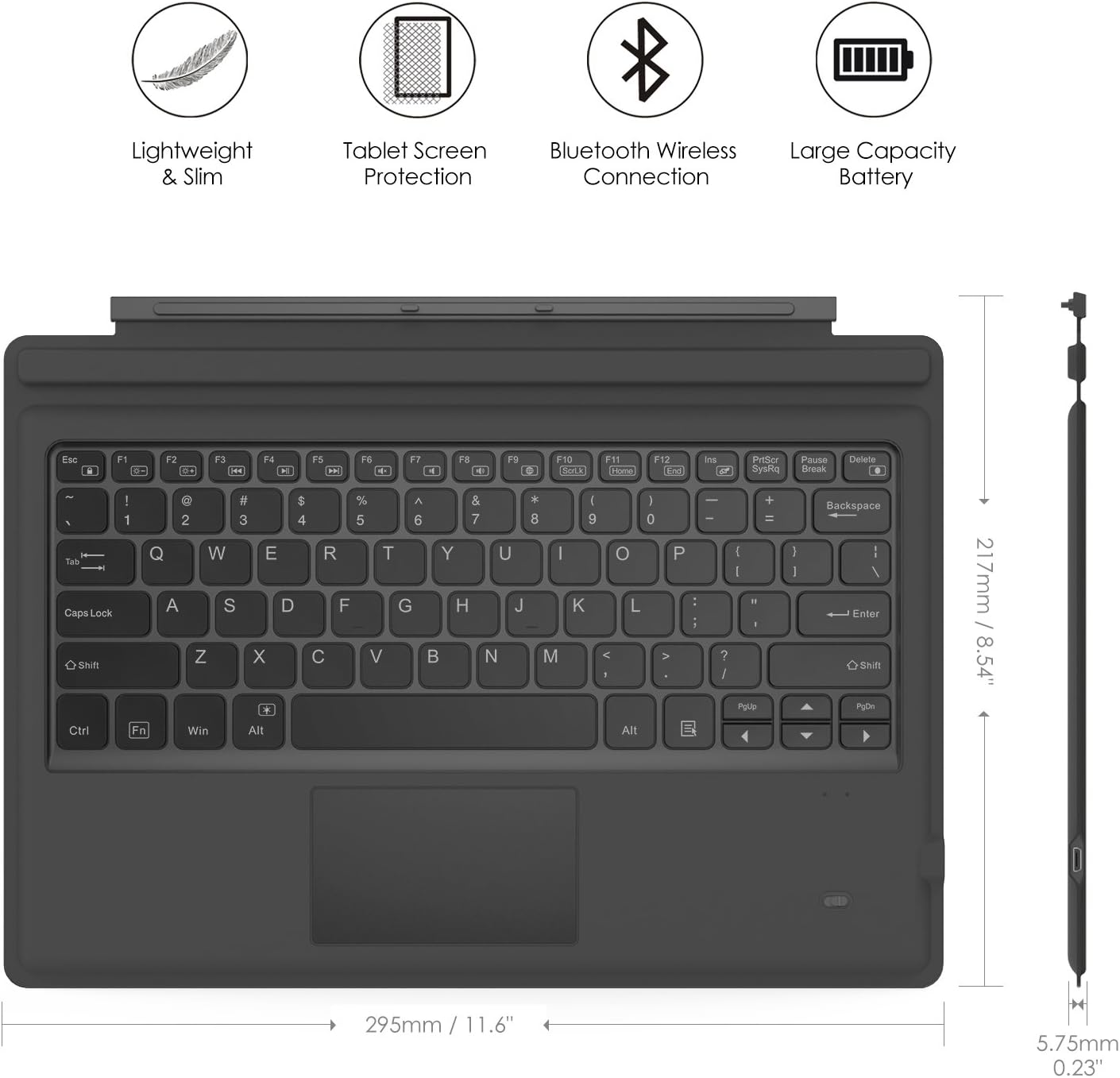
Image: A visual guide indicating compatible Microsoft Surface Pro models (Pro 7 Plus, Pro 7, Pro 6, Pro 5, Pro 4, Pro 3, Pro LTE) and incompatible models (Surface Go, Surface Go 2).
4. Կարգավորում
4.1. Ստեղնաշարի լիցքավորում
Before initial use, fully charge the keyboard. Connect the provided USB charging cable to the keyboard's charging port and a USB power source. The charging indicator light will show the charging status.
- Battery Capacity: 750mAh (rechargeable lithium battery)
- Լիցքավորման ժամանակը `մոտ 2-3 ժամ
- Working Time (backlight off): Up to 180 hours
- Working Time (backlight on): Up to 5 hours
- Սպասման ժամանակը` մինչև 180 օր

Image: An illustration depicting the keyboard's battery and charging specifications, including charge time and standby duration.
4.2. Bluetooth զուգավորում
Follow these steps to pair your keyboard with your Microsoft Surface Pro:
- Միացրեք ստեղնաշարը՝ սնուցման կոճակը սահեցնելով «ON» դիրքի վրա: Ցուցիչ լույսը կթարթի:
- Սեղմեք Fn + C keys simultaneously to activate Bluetooth pairing mode. The Bluetooth indicator light will start blinking rapidly.
- Ձեր Microsoft Surface Pro-ի վրա անցեք Կարգավորումներ > Սարքեր > Bluetooth և այլ սարքեր.
- Ensure Bluetooth is enabled and select Ավելացնել Bluetooth կամ այլ սարք.
- Ընտրեք Bluetooth տարբերակներից։
- Ընտրեք ստեղնաշարը (սովորաբար կոչվում է «Bluetooth ստեղնաշար» կամ նմանատիպ) հասանելի սարքերի ցանկից։
- Follow any on-screen prompts to complete the pairing process. Once paired, the Bluetooth indicator light on the keyboard will stop blinking.

Image: A diagram illustrating the Bluetooth wireless connection process, showing the keyboard both attached and detached from the tablet, with a note on connection distance.
5. Գործառնական հրահանգներ
5.1. Հետադարձ լուսավորության կառավարում
The keyboard features a 7-color LED backlight with adjustable brightness levels.
- To turn the backlight ON/OFF: Press the Լույսի լամպ բանալի.
- Հետին լուսավորության գույնը փոխելու համար՝ սեղմեք՝ Alt + Light Bulb key. Cycle through 7 different colors.
- To adjust backlight brightness: Press fn+alt keys. This will cycle through different brightness modes.

Image: Instructions on how to change the backlight color by pressing Alt + Light Bulb key.

Image: Instructions on how to adjust backlight brightness by pressing Fn + Alt keys.
5.2. Using the Trackpad
The integrated trackpad provides precise cursor control, similar to a mouse. It supports multi-touch gestures for enhanced navigation.
- To activate/deactivate the trackpad: Press Fn + Trackpad icon բանալի.
- Left Click: Press the left side of the trackpad or tap once.
- Right Click: Press the right side of the trackpad or tap with two fingers.
- Scrolling: Use two fingers to scroll up or down.

Image: An illustration highlighting the responsive trackpad with left and right click areas, and the scissor switch mechanism of the keys for comfortable typing.
5.3. Dual-Angle Adjustment
The keyboard features a magnetic attachment stripe that allows for two different typing angles, providing ergonomic comfort for various uses.
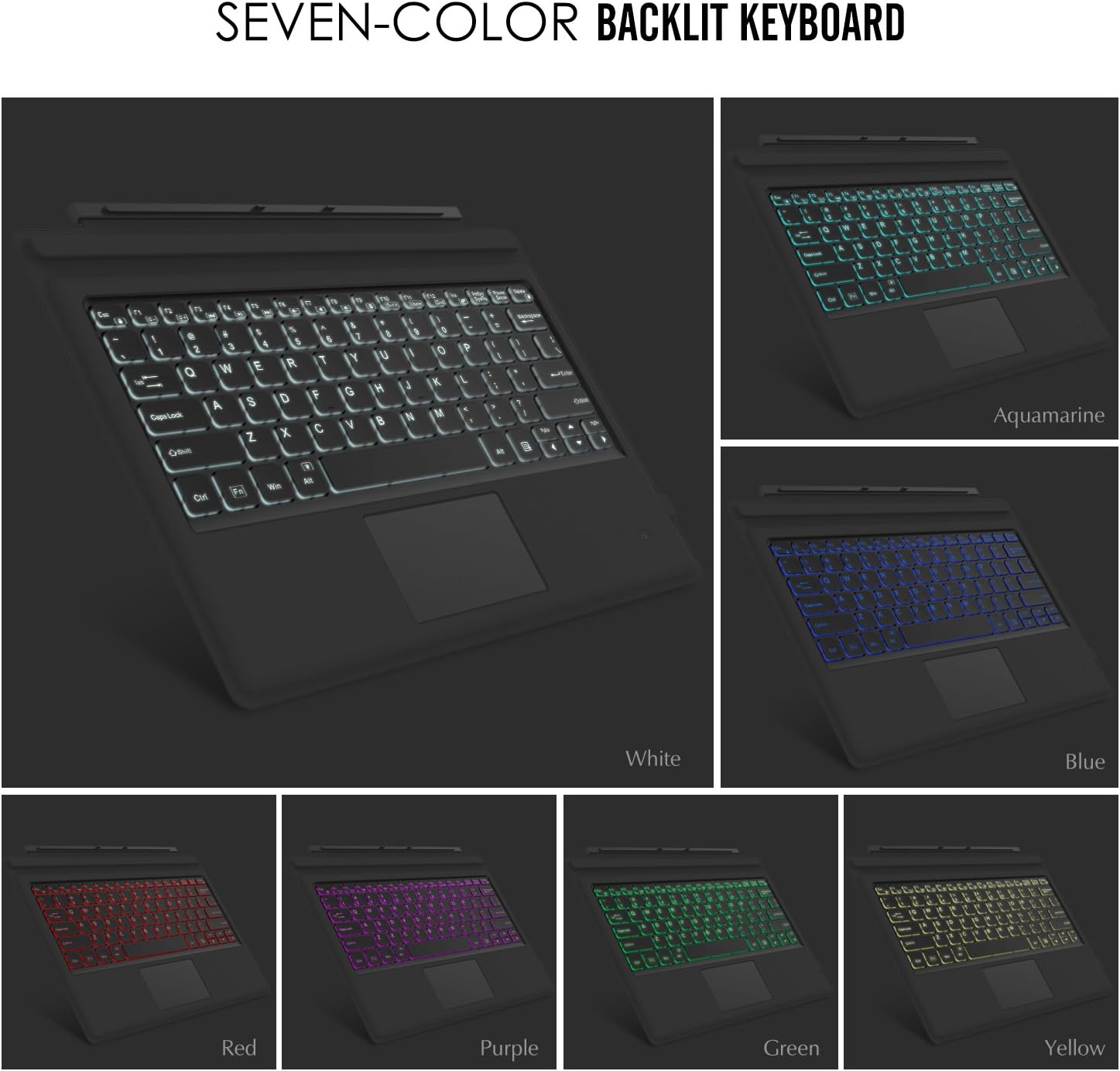
Image: A visual representation of the keyboard's dual-angle adjustment, showing two distinct positions for typing comfort.
6. Պահպանում
- Պահեք ստեղնաշարը հեղուկներից և ծայրահեղ ջերմաստիճաններից հեռու։
- Մաքրեք ստեղնաշարը փափուկ, դյույմ կտորովamp կտոր. Խուսափեք կոպիտ քիմիական նյութերից:
- Մի փորձեք ապամոնտաժել ստեղնաշարը, քանի որ դա կարող է չեղյալ համարել երաշխիքը։
- Երկար ժամանակ չօգտագործելու դեպքում պահել չոր տեղում։
7: Անսարքություն
7.1. Ստեղնաշարը չի միանում Bluetooth-ի միջոցով
- Համոզվեք, որ ստեղնաշարը լիովին լիցքավորված է։
- Make sure the keyboard's power switch is ON.
- Verify that Bluetooth is enabled on your Surface Pro.
- Re-enter pairing mode on the keyboard (Fn + C) and attempt to pair again from your Surface Pro's Bluetooth settings.
- If previously paired, try 'forgetting' the device on your Surface Pro and then re-pairing.
7.2. Հետին լույսը չի աշխատում
- Համոզվեք, որ ստեղնաշարը բավարար չափով լիցքավորված է։
- Press the Light Bulb key to toggle the backlight.
- Adjust brightness using Fn + Alt keys.
7.3. Սքեյփադը չի արձագանքում
- Ensure the trackpad is activated by pressing Fn + Trackpad icon key.
- Մաքրեք թրեքփադի մակերեսը՝ կեղտը կամ մնացորդները հեռացնելու համար։
- Restart the keyboard and your Surface Pro.
8. Տեխնիկական պայմաններ
| Առանձնահատկություն | Մանրամասն |
|---|---|
| Բրենդ | MoKo |
| Մոդելի համարը | LYSB01AJOX7LU-ELECTRNCS |
| Գույն | Մոխրագույն |
| Միացման տեխնոլոգիա | Bluetooth |
| Ստեղնաշարի նկարագրություն | Ergonomic, QWERTY US International |
| Հատուկ առանձնահատկություններ | Wireless, Magnetic, Backlit (7 Colors), Trackpad |
| Էլեկտրաէներգիայի աղբյուր | Battery (Rechargeable Lithium) |
| Մարտկոցի հզորությունը | 750 mAh |
| Մարտկոց Voltage | 3 վոլտ |
| Ապրանքի չափերը | 29.49 x 21.69 x 0.58 սմ (11.6 x 8.54 x 0.23 դյույմ) |
| Ապրանքի քաշը | 500 գ |
| Համատեղելի սարքեր | Microsoft Surface Pro 7 Plus (2021) / Pro 7 (2019) / Pro 6 / Surface Pro 5 (Pro 2017) / Pro 4 / Pro 3 |
| Օպերացիոն համակարգ | Windows |

Image: A diagram illustrating the precise dimensions of the MoKo Bluetooth Wireless Keyboard.
9. Երաշխիք և աջակցություն
For warranty information and technical support, please refer to the product packaging or contact MoKo customer service directly. Keep your purchase receipt for warranty claims.