
1. Ներածություն
This manual provides comprehensive instructions for the Huawei P Smart Plus 2019 smartphone. It covers essential information regarding product features, setup, operation, maintenance, and troubleshooting to ensure optimal use of your device. Please read this manual thoroughly before using your smartphone.
2. Ապրանքը ավարտված էview
Familiarize yourself with the physical components of your Huawei P Smart Plus 2019 smartphone.
Նկար 2.1: Հետևի view of the Huawei P Smart Plus 2019 smartphone, showing the triple camera module, fingerprint sensor, and HUAWEI branding.
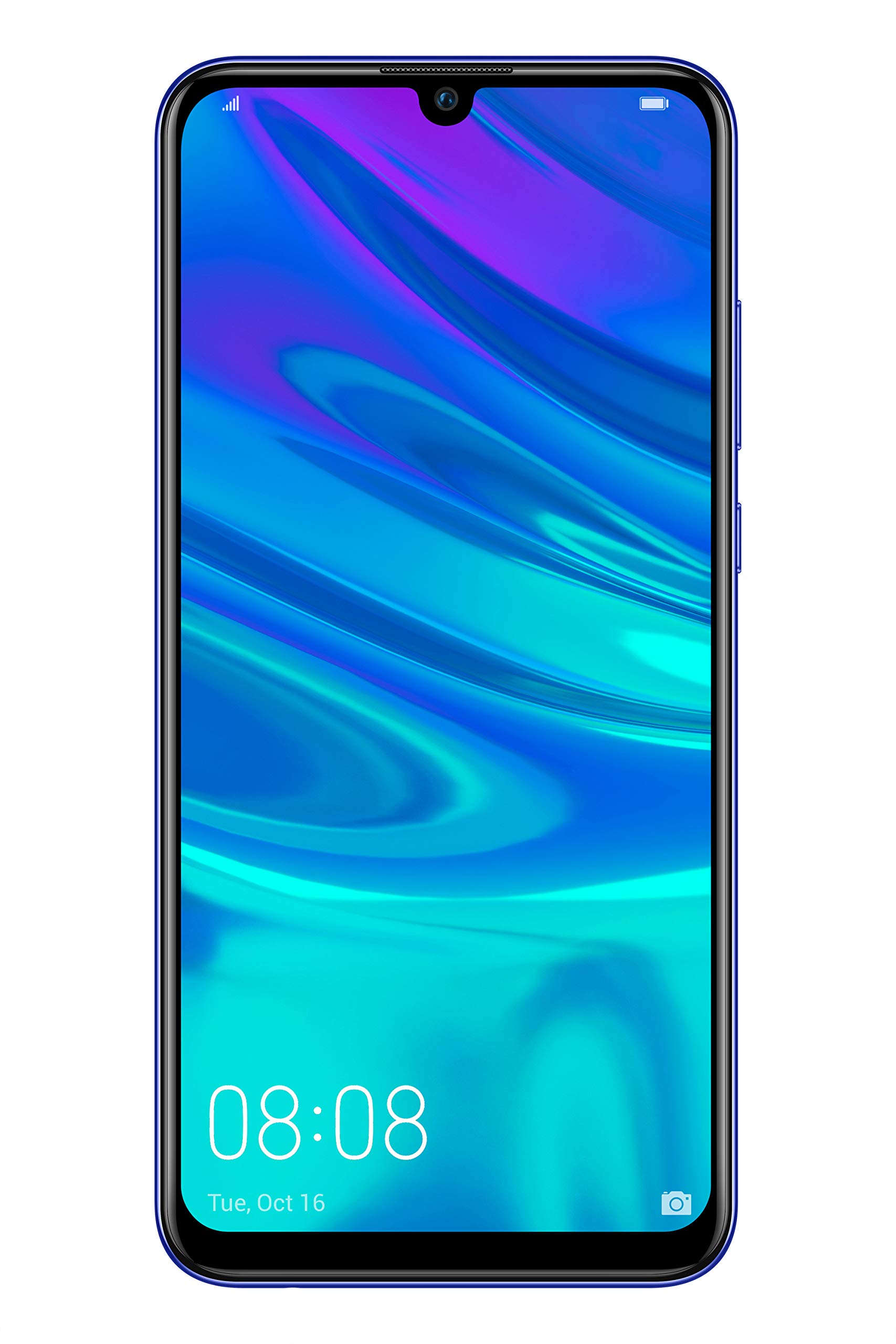
Նկար 2.2: Ճակատ view of the Huawei P Smart Plus 2019 smartphone, displaying the 6.21-inch screen with a small notch for the front camera.

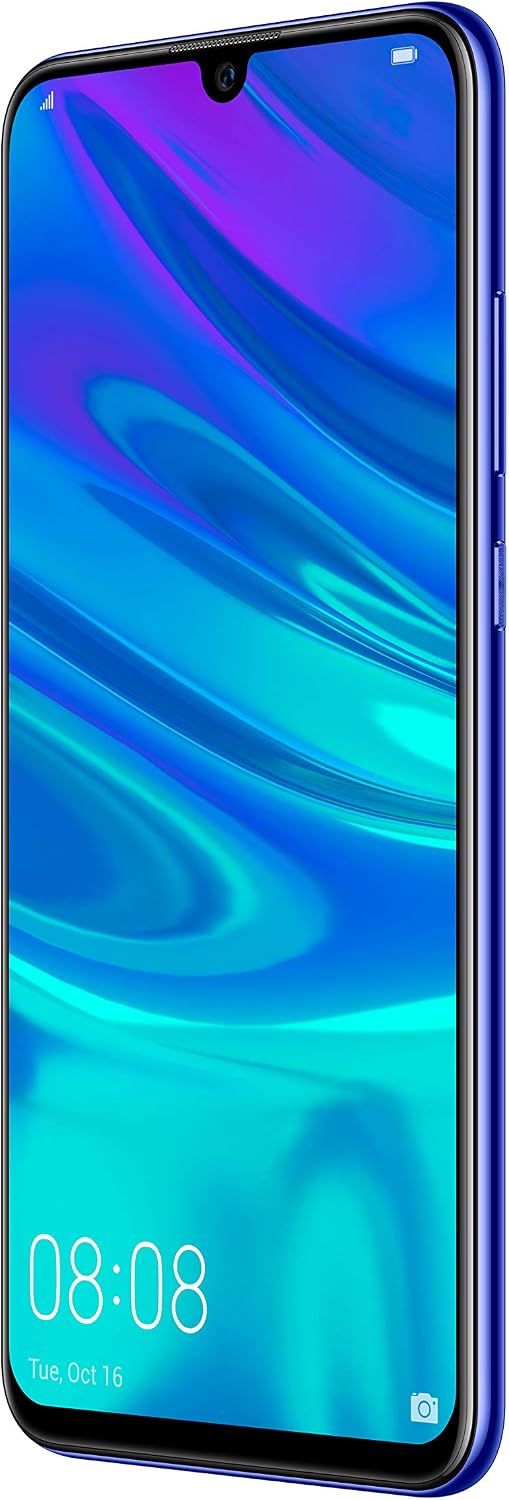
Նկար 2.3: Կողք view of the Huawei P Smart Plus 2019 smartphone, highlighting the power and volume buttons.
Հիմնական բաղադրիչներ.
- Ցուցադրել: 6.21-inch FHD+ LCD screen.
- Առջևի տեսախցիկ. Located in the display notch.
- Հետևի տեսախցիկներ. Triple camera module on the back.
- Մատնահետքի ցուցիչ: Circular sensor on the rear panel.
- Power կոճակը. Սարքի աջ կողմում։
- Ձայնի կոճակներ. Աջ կողմում գտնվող սնուցման կոճակի վերևում։
- SIM/MicroSD քարտի բնիկ՝ Typically on the left side or top edge.
- Լիցքավորման նավահանգիստ. USB Type-C, usually at the bottom.
- Բարձրախոս/Խոսափող. Գտնվում է ներքևի մասում։
3. Կարգավորում
3.1 SIM և MicroSD քարտերի տեղադրում
- Գտեք SIM քարտի սկուտեղը ձեր սարքի կողքին։
- SIM քարտի դուրսբերման գործիքը տեղադրեք սկուտեղի կողքին գտնվող փոքրիկ անցքի մեջ՝ այն բացելու համար։
- Place your Nano-SIM card(s) and/or microSD card into the tray, ensuring correct orientation as indicated on the tray. This device supports Dual SIM functionality and expandable storage up to 512GB.
- Զգուշորեն սկուտեղը հետ մղեք անցքի մեջ, մինչև այն հարթվի սարքի հետ։
3.2 Սկզբնական միացում և լիցքավորում
- To power on, press and hold the Power button until the HUAWEI logo appears.
- Հետևեք էկրանին հայտնվող հրահանգներին՝ սկզբնական կարգավորումն ավարտելու համար, ներառյալ լեզվի ընտրությունը, Wi-Fi կապը և Google հաշվի կարգավորումը:
- Before first use, it is recommended to fully charge the device. Connect the provided USB Type-C cable to the phone's charging port and the other end to a power adapter.
4. Գործառնական հրահանգներ
4.1 Հիմնական գործառույթներ
- Power On/Off/Restart: Press and hold the Power button. Select the desired option from the menu.
- Էկրանի կողպում/Բացել. Press the Power button to lock/unlock the screen. Use Face Recognition or the Fingerprint Sensor for secure unlocking.
- Զանգեր և հաղորդագրություններ. Use the Phone and Messaging applications for communication.
- Ցանցային միացում. Access Wi-Fi settings from the Quick Settings panel or Settings app. Enable mobile data for internet access via your SIM card.
4.2 Տեսախցիկի օգտագործումը
The Huawei P Smart Plus 2019 features a versatile camera system.
- Հետևի տեսախցիկ. The triple camera setup includes a 24MP main sensor, a 16MP ultra-wide sensor, and a 2MP bokeh sensor. Open the Camera app and select modes like Automatic, Portrait, or Sport.
- Առջևի տեսախցիկ. An 8MP front camera is available for selfies and video calls. Switch to the front camera within the Camera app.
- AI-ի առանձնահատկությունները. The camera utilizes AI to optimize scene recognition and enhance photo quality.
4.3 Պահեստավորում և հիշողություն
Your device comes with 64GB of internal storage, which can be expanded up to 512GB using a microSD card. It has 3GB of RAM for smooth multitasking.
4.4 Մարտկոցի կառավարում
The device is equipped with a 3400 mAh Lithium-Polymer battery. To optimize battery life, manage background apps, adjust screen brightness, and utilize power-saving modes available in the Settings app.
4.5 Օպերացիոն համակարգ
The smartphone runs on Android 9 (Pie) with Huawei's EMUI 9 interface, offering a range of features and customization options.
5. Պահպանում
5.1 Սարքի մաքրումը
Use a soft, lint-free cloth to gently wipe the screen and body of your phone. Avoid using harsh chemicals or abrasive materials, which can damage the device's finish or screen coating.
5.2 Ծրագրային ապահովման թարմացումներ
Regularly check for and install software updates to ensure your device has the latest features, security patches, and performance improvements. You can usually find this option in Settings > System > Software update.
5.3 Մարտկոցի խնամք
To prolong battery lifespan, avoid extreme temperatures. Do not leave the phone fully charged or fully discharged for extended periods. Use only approved chargers and cables.
5.4 Տվյալների կրկնօրինակում
Պարբերաբար պահուստավորեք ձեր կարևոր տվյալները (լուսանկարներ, կոնտակտներ, փաստաթղթեր) ամպային ծառայությունում կամ համակարգչում՝ տվյալների կորուստը կանխելու համար։
6: Անսարքություն
This section addresses common issues you might encounter with your Huawei P Smart Plus 2019.
6.1 Սարքը չի միանում
- Համոզվեք, որ մարտկոցը լիցքավորված է: Միացրեք լիցքավորիչը և սպասեք մի քանի րոպե, նախքան միացնելու փորձը:
- Ստիպողաբար վերագործարկելու համար սեղմեք և պահեք միացման կոճակը առնվազն 10-15 վայրկյան։
6.2 Մարտկոցի վատ աշխատանքային ժամանակ
- Փակեք ֆոնին աշխատող չօգտագործվող ծրագրերը։
- Նվազեցրեք էկրանի պայծառությունը և սահմանեք էկրանի անջատման ավելի կարճ ժամանակահատված։
- Անջատեք Wi-Fi-ը, Bluetooth-ը և GPS-ը, երբ դրանք չեք օգտագործում։
- Ստուգեք մարտկոցի օգտագործումը կարգավորումներում՝ էներգախնայող հավելվածները հայտնաբերելու համար։
6.3 Network Issues (No Signal/Wi-Fi Disconnection)
- Վերագործարկեք ձեր սարքը:
- Ensure your SIM card is correctly inserted and your mobile data plan is active.
- For Wi-Fi, try restarting your router. Forget the network on your phone and reconnect.
6.4 Հավելվածների խափանում կամ կախում
- Հարկադիր փակեք հավելվածը և նորից բացեք այն:
- Մաքրեք հավելվածի քեշը և տվյալները Կարգավորումներ > Հավելվածներ բաժնում։
- Համոզվեք, որ հավելվածը թարմացված է իր վերջին տարբերակին։
- Եթե խնդիրը շարունակվում է, խորհուրդ ենք տալիս հեռացնել և նորից տեղադրել հավելվածը։
6.5 Գործարանային կարգավորումների վերականգնում (վերջին միջոց)
If other troubleshooting steps fail, a factory reset may resolve persistent issues. Զգուշացում. This will erase all data on your device. Back up your data before proceeding. Go to Settings > System > Reset > Factory data reset.
7. Տեխնիկական պայմաններ
| Առանձնահատկություն | Մանրամասն |
|---|---|
| Մոդելի համարը | POT-LX1T, 51093RVX |
| Ցուցադրել | 6.21 inches, LCD, FHD+ (2340 x 1080 pixels), 415 PPI |
| Պրոցեսոր | Kirin 710 Octa-core (4 x 2.2 GHz, 4 x 1.7 GHz) |
| RAM | 3 ԳԲ |
| Ներքին պահեստավորում | 64 ԳԲ |
| Ընդլայնվող պահեստ | MicroSD մինչև 512 ԳԲ |
| Հետևի տեսախցիկ | Triple: 24 MP (main) + 16 MP (ultra-wide) + 2 MP (bokeh) |
| Առջևի տեսախցիկ | 8 պատգամավոր |
| Մարտկոց | 3400 mAh լիթիում-պոլիմեր |
| Օպերացիոն համակարգ | Android 9 (Pie) with EMUI 9 |
| SIM քարտի տեսակը | Nano-SIM (Dual SIM support) |
| Միացում | LTE, GSM, Wi-Fi, Bluetooth, USB Type-C |
| Կենսաչափական անվտանգություն | Fingerprint Sensor, Face Recognition |
| Չափերը | 8 x 155 x 73 մմ |
| Քաշը | 160 գրամ |
| Մարտկոցի միջին ժամկետը | 25 ժամ |
8. Անվտանգության տեղեկատվություն
Ձեր սարքի վնասվածքը կամ վնասվածքը կանխելու համար խնդրում ենք հետևել հետևյալ անվտանգության կանոններին.
- Մի՛ ենթարկեք սարքը ծայրահեղ ջերմաստիճանների, արևի ուղիղ ճառագայթների կամ խոնավության։
- Օգտագործեք միայն հաստատված լիցքավորիչներ և լրասարքեր։
- Խուսափեք սարքը վայր գցելուց կամ ուժեղ հարվածներից։
- Մի փորձեք ինքներդ ապամոնտաժել կամ վերանորոգել սարքը։ Դիմեք լիազորված սպասարկման անձնակազմի։
- Սարքը պահեք բժշկական սարքավորումներից հեռու՝ խանգարումներից խուսափելու համար։
- Սարքը և դրա մարտկոցը պատասխանատու կերպով դեն նետեք՝ համաձայն տեղական կանոնակարգերի։
9. Երաշխիք և աջակցություն
Your Huawei P Smart Plus 2019 smartphone is covered by a limited warranty. For detailed warranty terms and conditions, please refer to the warranty card included in the product packaging or visit the official HUAWEI webկայք։
For technical support, service, or further assistance, please contact HUAWEI customer service or visit an authorized service center. Contact information can typically be found on the official HUAWEI support webկայք։


