
Ներածություն
This user manual provides detailed instructions for the installation, operation, maintenance, and troubleshooting of your Xprinter XP-K200L 80mm Thermal Receipt Printer. Please read this manual thoroughly before using the printer to ensure proper function and to extend the product's lifespan. Keep this manual for future reference.
Անվտանգության տեղեկատվություն
- Միշտ օգտագործեք տպիչի հետ մատակարարվող սնուցման ադապտերը։
- Մի՛ ենթարկեք տպիչը ջրի կամ խոնավության ազդեցությանը։
- Avoid placing the printer in direct sunlight or near heat sources.
- Ապահովեք տպիչի շուրջ պատշաճ օդափոխություն:
- Do not attempt to disassemble or repair the printer yourself. Contact qualified service personnel.
- Պահել երեխաներից հեռու:
Փաթեթի բովանդակությունը
Please check the package contents upon unpacking. If any items are missing or damaged, contact your vendor.
- Xprinter XP-K200L Thermal Receipt Printer
- Power Adapter
- Հոսանքի լարը
- USB մալուխ
- Ջերմային թղթի գլանափաթեթ (սկսնակ գլանափաթեթ)
- Կանխիկի գզրոց մալուխ
- Օգտագործողի ձեռնարկ (այս փաստաթուղթը)
Ապրանքը ավարտվել էview
Familiarize yourself with the main components of your Xprinter XP-K200L thermal receipt printer.

Նկար 1. Կողք view of the Xprinter XP-K200L thermal receipt printer. On the right, the power switch is visible, and on the left, a button to open the paper cover is present.
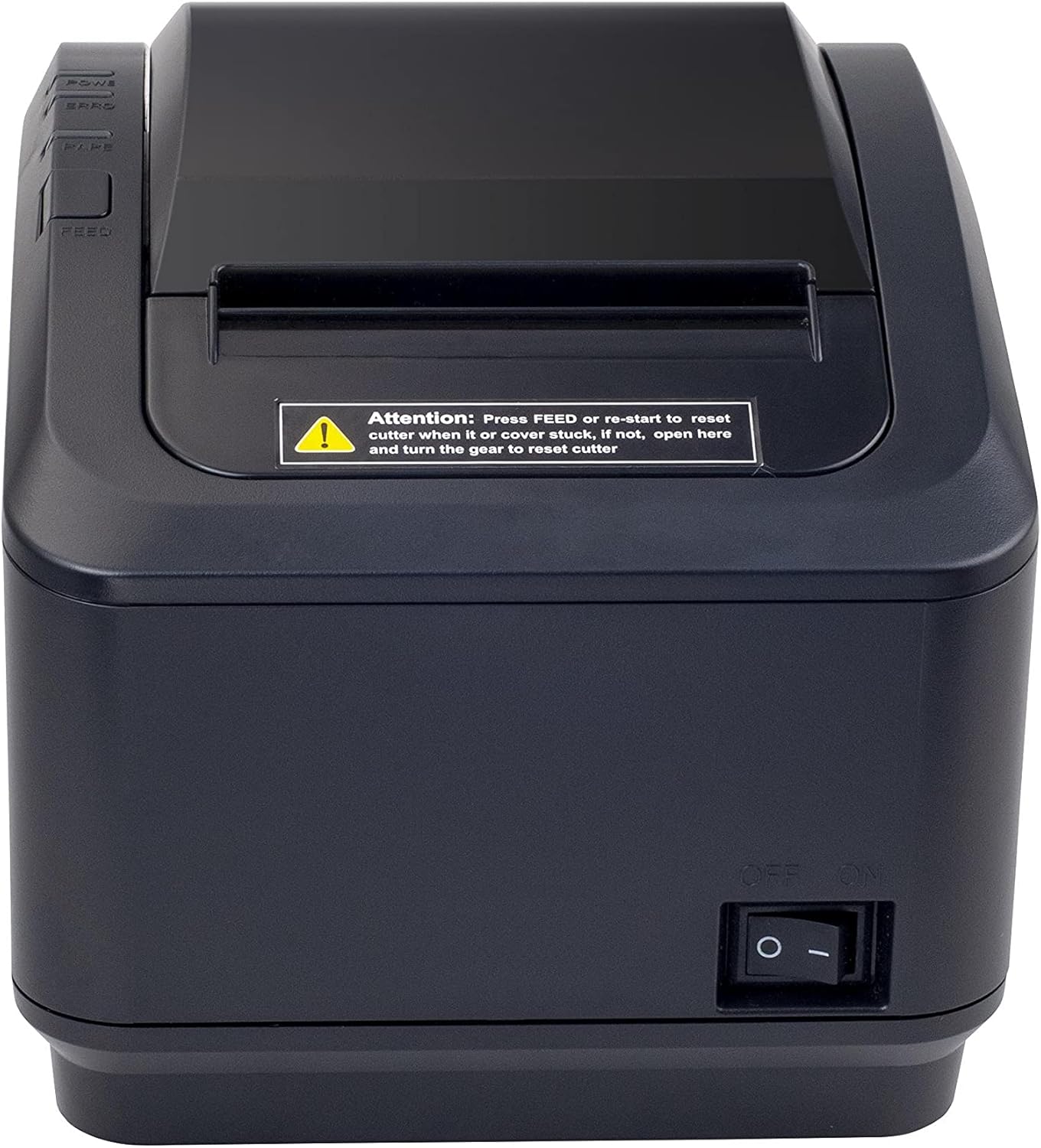
Նկար 2: Առջևի մաս view of the Xprinter XP-K200L thermal receipt printer. The paper output slot is at the top, and below it are control buttons for functions like feed and error reset. A warning label is also visible.

Figure 3: This image displays the Xprinter XP-K200L thermal receipt printer with its top cover open, showing the internal compartment where the thermal paper roll is loaded. The print head mechanism is also visible.
Կարգավորում
1. Հոսանքի միացում
- Ensure the printer's power switch is in the ԱՆՋԱՏՎԱԾ պաշտոնը։
- Connect the power adapter to the printer's power port.
- Միացրեք հոսանքի լարը համապատասխան էլեկտրական վարդակից:
2. Ջերմային թղթի բեռնում
- Press the cover open button (refer to Figure 1) to open the top cover of the printer.
- Insert a new 80mm thermal paper roll into the compartment, ensuring the paper feeds from the bottom and the leading edge extends slightly out of the printer.
- Close the top cover firmly until it clicks into place. Ensure there is no slack in the paper roll.
3. Connecting to a Computer/Network
The XP-K200L printer supports both USB and LAN (Ethernet) connectivity.
USB միացում.
- USB մալուխի մեկ ծայրը միացրեք տպիչի USB միացքին։
- Միացրեք USB մալուխի մյուս ծայրը ձեր համակարգչի հասանելի USB պորտին:
- Install the printer drivers. Drivers are typically provided on a CD or can be downloaded from the manufacturer's webկայքում: Հետևեք էկրանին տրված հրահանգներին տեղադրման համար:
LAN (Ethernet) Connection:
- Connect one end of an Ethernet cable to the printer's LAN port.
- Միացրեք Ethernet մալուխի մյուս ծայրը ձեր ցանցային երթուղիչին կամ անջատիչին:
- Configure the printer's network settings (e.g., IP address) if necessary. This usually involves printing a self-test page to get the current IP address and then accessing the printer's web interface or using a utility tool provided by the manufacturer.
- Install the printer drivers on your computer, selecting the network connection option during setup.
4. Connecting a Cash Drawer
- Connect the cash drawer cable to the dedicated cash drawer port on the printer.
- Ensure your POS software is configured to send commands to open the cash drawer via the printer.
Գործառնական հրահանգներ
Միացում/անջատում
- To power on the printer, flip the power switch (refer to Figure 1) to the ON պաշտոնը։
- To power off the printer, flip the power switch to the ԱՆՋԱՏՎԱԾ պաշտոնը։
Հիմնական տպագրություն
Once the printer is connected and drivers are installed, you can print receipts from your POS software or any application that supports printing.
- Ensure the printer is powered on and has paper loaded.
- From your application, select the print option.
- Choose the "Xprinter XP-K200L" from the list of available printers.
- Confirm print settings and click "Print".
Self-Test Page
To print a self-test page, which provides information about the printer's settings and status:
- Ensure the printer is powered off and the paper roll is loaded.
- Սեղմեք և պահեք կոճակը ԿԵՐԵԼ կոճակը։
- Պահելիս ԿԵՐԵԼ button, turn the power switch to ON.
- Ազատ արձակել ԿԵՐԵԼ button after the printer starts printing.
Տեխնիկական սպասարկում
Տպիչի մաքրում
- Տպման ղեկավար. Թեթևակի օգտագործեք բամբակյա փայտիկampened with isopropyl alcohol to gently wipe the thermal print head. Allow it to dry completely before use. Clean regularly to ensure print quality.
- Կտրիչ: If the cutter becomes jammed or dirty, carefully clean it with a soft brush or cloth.
- Արտաքին տեսք: Սրբեք տպիչի արտաքին մասը փափուկ, չոր կտորով։ Մի օգտագործեք հղկող մաքրող միջոցներ կամ լուծիչներ։
Replacing Thermal Paper
When the paper roll is depleted or near its end, replace it following the steps in the "Loading Thermal Paper" section under Setup.
Անսարքությունների վերացում
| Խնդիր | Հնարավոր պատճառ | Լուծում |
|---|---|---|
| Տպիչը չի միանում։ | Power cord or adapter not connected properly; power outlet issue. | Check all power connections. Try a different power outlet. |
| No printing. | No paper; paper loaded incorrectly; printer offline; driver issue; incorrect connection. | Load paper correctly. Check printer status. Reinstall drivers. Verify USB/LAN connection. |
| Տպման վատ որակ: | Dirty print head; low quality thermal paper. | Clean the print head (see Maintenance). Use recommended thermal paper. |
| Paper jam or cutter error. | Paper loaded incorrectly; debris in cutter mechanism. | As per printer label: Մամուլ ԿԵՐԵԼ or re-start to reset cutter. If the issue persists, open the top cover and carefully turn the gear to reset the cutter mechanism. Ensure paper is loaded correctly and remove any obstructions. |
| Դրամարկղը չի բացվում։ | Cable not connected; POS software not configured. | Check cash drawer cable connection. Verify POS software settings for cash drawer trigger. |
Տեխնիկական պայմաններ
| Առանձնահատկություն | Մանրամասն |
|---|---|
| Բրենդ | Xprinter |
| Մոդելի անվանումը | XP-K200L |
| Տպիչի տեխնոլոգիա | Ջերմային |
| Միացման տեխնոլոգիա | USB, LAN (Ethernet) |
| Հատուկ առանձնահատկություններ | Ցանցի պատրաստ |
| Գույն | Սեւ |
| Տպիչի ելք | Մոնոխրոմ |
| Նյութի քաշը | 1.5 կգ |
| Ապրանքի չափերը (DxWxH) | 19.5 սմ x 14 սմ x 13.8 սմ |
| Compatible OS/Controller Type | Android (and typically Windows/Linux via drivers) |
| Տպագիր մեդիա | Plain Thermal Paper |
| Տպել գույն | Սեւ |
| Բանաձեւ | 576 x 512 dots per inch (or dots per line) |
| Max Print Resolution B/W | 576 dpi |
| Լրացուցիչ տպիչի գործառույթներ | Միայն տպել |
| Վերահսկման մեթոդ | Հեռավոր |
| Առավելագույն մեդիայի չափը | 80 մմ |
| Թղթի չափը | 79.5 մմ |
| Իշխանություն | 60 վտ |
| Ներառված բաղադրիչներ | Power adapter, Cash drawer cable |
| Սերիա | XP-K |
| Հատուկ կիրառումներ | Restaurants, bars, cinemas, garages, transportation, hospitals, clinics |
| Ընդհանուր USB պորտեր | 1 |
Երաշխիք և աջակցություն
For warranty information and technical support, please refer to the documentation provided with your purchase or contact your vendor directly. Keep your proof of purchase for warranty claims.
For driver downloads and further support resources, visit the official Xprinter webկայք։