
1. Ապրանքը ավարտված էview
The NEJE JZ-5 is a compact and efficient 500mW USB engraving machine designed for various carving and cutting tasks. It features a unique frame and weak light automatic positioning system for precise and easy image alignment. Capable of 512x512 high-resolution prints, it can produce 3D and gradient effects on soft materials. This engraver offers fast performance, being up to 10 times faster than some alternatives, and can operate offline when connected to a 5V 1A power source via its two USB ports.
The machine is constructed from durable Acrylic, Aluminum, and Stainless Steel, ensuring stability and precision. It supports Windows 7, Windows 8, Windows 10, and Windows XP operating systems.
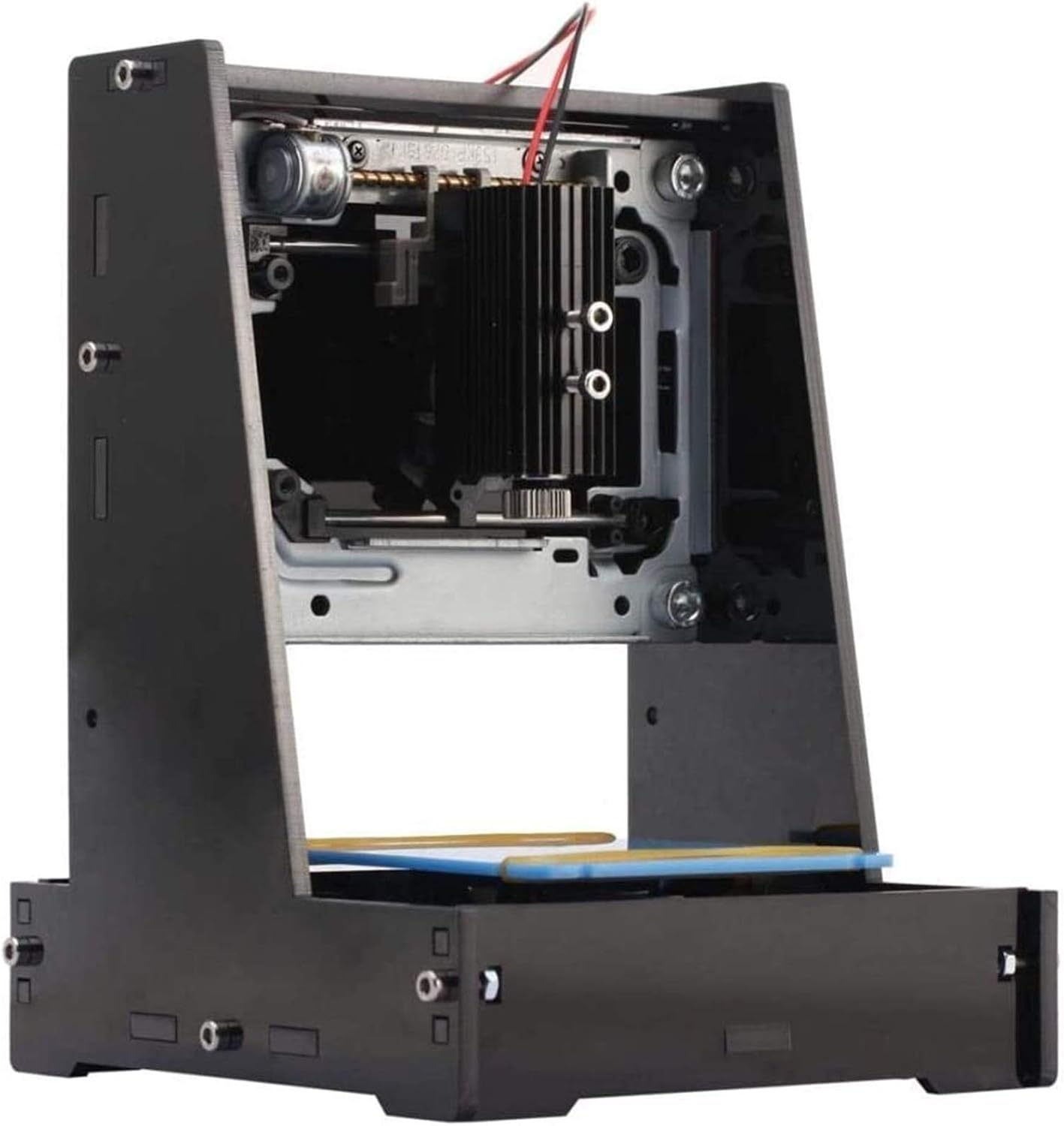
Նկար 1. Առջև view of the NEJE JZ-5 500mW USB Engraver.
2. Փաթեթի բովանդակությունը
Խնդրում ենք ստուգել, որ ստորև թվարկված բոլոր ապրանքները ներառված են ձեր փաթեթում.
- 1 x NEJE JZ-5 Engraving Machine
- 1 x Protective Glasses
- 1 x Ալենի պտուտակաբանալի
- 2 x USB մալուխներ
- 1 x 1Gb TF Card (includes User's Manual and installation software)

Figure 2: NEJE JZ-5 Engraver and its accompanying accessories.
3. Կարգավորման հրահանգներ
Follow these steps to set up your NEJE JZ-5 engraver:
- Պատրաստեք ձեր համակարգիչը. Ensure you have a computer running Windows 7, Windows 8, Windows 10, or Windows XP.
- Connect the Engraver: Connect the engraver to your computer using the two provided USB cables. Alternatively, for offline use, connect the two USB ports to a 5V 1A charger or power bank.
- Տեղադրեք ծրագրակազմ. Insert the 1Gb TF card into your computer. Locate and install the engraving software from the card.
- Գործարկման ծրագրակազմ. Start the engraving software. It should automatically detect and connect to the engraver via the USB port. If not, manually select the connection within the software settings.

Նկար 3. Կողք view of the engraver, illustrating its compact design.
4. Գործառնական հրահանգներ
Once the engraver is set up and connected, you can begin your engraving projects:
- Select or Import Image: Within the engraving software, choose an existing image or import your desired image for engraving.
- Edit and Position: Edit the image as needed. Ensure the image is positioned correctly within the print area displayed in the software. The unique frame positioning feature helps in precise alignment.
- Adjust Focal Length: For optimal engraving quality, adjust the focal length of the laser. This is typically done by rotating a knob on the laser module until the laser dot is at its smallest point on the material surface. Always wear the protective glasses when adjusting the focal length or operating the engraver.
- Սկսել փորագրությունը. Once the image is prepared and the focal length is set, initiate the engraving process from the software.

Figure 4: Adjusting the focal length for precise engraving. Protective glasses must be worn.

Figure 5: The engraving platform where materials are placed for processing.
5. Պահպանում
To ensure the longevity and optimal performance of your NEJE JZ-5 engraver, regular maintenance is recommended:
- Մաքրում: Periodically clean the engraving area and the laser lens to remove dust and debris that may accumulate during operation. Use a soft, dry cloth.
- Լազերային մոդուլ. Avoid touching the laser lens directly. If cleaning is necessary, use a specialized lens cleaning solution and cloth.
- Պահպանում: When not in use, store the engraver in a clean, dry environment away from direct sunlight and extreme temperatures.
6: Անսարքություն
If you encounter issues with your NEJE JZ-5 engraver, consider the following common solutions:
- Engraver Not Connecting:
- Ensure both USB cables are securely connected to your computer or power source.
- Verify that the software is running and attempting to connect. Try restarting the software or your computer.
- Check your computer's Device Manager to ensure the engraver is recognized and drivers are installed correctly.
- Վատ փորագրության որակը.
- Adjust the laser's focal length (refer to Section 4).
- Ensure the material is flat and securely placed on the engraving platform.
- Check the image resolution and settings within the software.
- Մաքրեք լազերային ոսպնյակը, եթե այն կեղտոտ է թվում։
- Ծրագրային ապահովման խնդիրներ.
- Ensure your operating system is compatible (Windows 7/8/10/XP).
- Try reinstalling the software from the provided TF card.
7. Տեխնիկական բնութագրեր
| Առանձնահատկություն | Հստակեցում |
|---|---|
| Բրենդ | ՆԵԺԵ |
| Մոդել | JZ-5 |
| Լազերային հզորություն | 500 մՎտ |
| Նյութ | Acrylic + Aluminum + Stainless Steel |
| Փորագրման տարածք | 38 x 38 մմ |
| Բանաձեւ | 512x512 պիքսել |
| Չափերը (մոտ.) | 18 x 13.5 x 13 սմ (7 x 5 x 5 դյույմ) |
| Օպերացիոն համակարգի աջակցություն | Windows 7 / Windows 8 / Windows 10 / XP |
| Համատեղելի սարքեր | Laptop, Smartphone (for power bank use) |
| Նյութի քաշը | 1 Grams (product specification) / 0.035 ounces (shipping weight) |
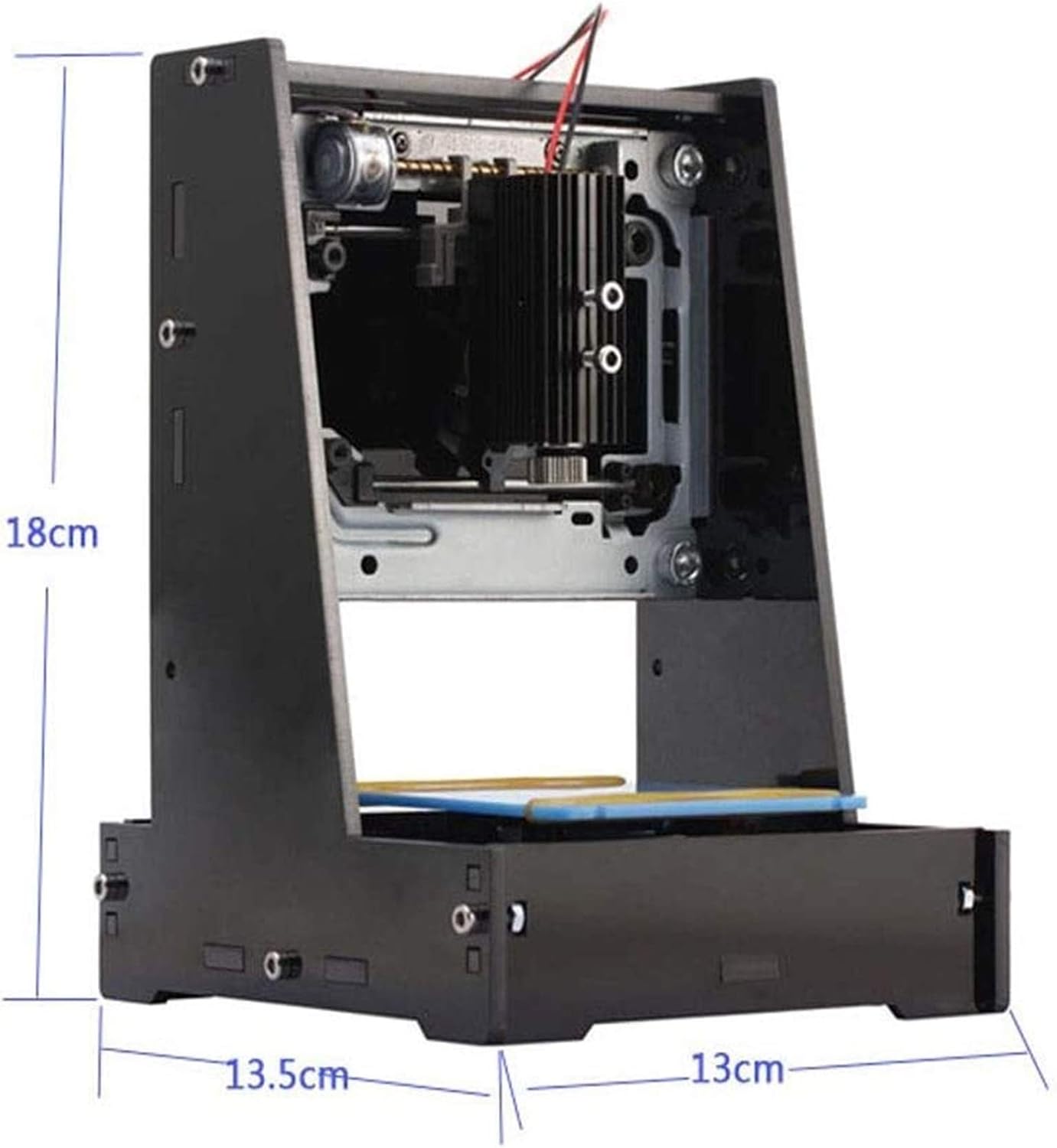
Figure 6: Approximate dimensions of the NEJE JZ-5 Engraver.
8. Անվտանգության տեղեկատվություն
Operating a laser engraving machine requires adherence to safety precautions to prevent injury:
- Always wear the provided protective glasses when the engraver is in operation or when adjusting the laser. The laser light can cause eye damage.
- Մի նայեք անմիջապես լազերային ճառագայթին:
- Ensure the engraving area is well-ventilated, as some materials may produce fumes during engraving.
- Keep the machine away from flammable materials.
- Մի թողեք փորագրիչը աննկատ շահագործման ընթացքում:
- Պահել երեխաների և ընտանի կենդանիներից հեռու:

Figure 7: Protective glasses are essential for safe operation.