
Intel NUC11BTMi9
Intel NUC 11 Extreme Kit NUC11BTMi9 Gaming Barebone System User Manual
Մոդել: NUC11BTMi9 | Ապրանքանիշը: Intel
Ապրանքը ավարտվել էview
The Intel NUC 11 Extreme Kit (NUC11BTMi9) is a high-performance barebone mini PC designed for gaming and demanding applications. It offers uncompromised performance within a compact form factor, allowing users to customize it with their preferred RAM, storage, and operating system.

Նկար 1. Առջևի անկյուն view of the Intel NUC 11 Extreme Kit, showcasing its compact design and the illuminated skull logo.
Փաթեթի բովանդակությունը
Կարգավորումը շարունակելուց առաջ ստուգեք, որ բոլոր իրերը առկա են փաթեթում։
- Intel NUC 11 Extreme Kit (NUC11BTMi9) Barebone System
- ԱՄՆ հոսանքի լարը
- Փաստաթղթեր (արագ մեկնարկի ուղեցույց, անվտանգության տեղեկատվություն)
Note: Additional components such as RAM, storage drives, and operating system are sold separately and are required for full system functionality.
Կարգավորման ուղեցույց
This section outlines the steps required to set up your Intel NUC 11 Extreme Kit. As a barebone system, it requires the installation of memory (RAM) and storage (SSD) before initial use.
1. Հիշողության (RAM) տեղադրում
- Unscrew and remove the top cover of the NUC chassis.
- Locate the DDR4 SO-DIMM slots on the motherboard.
- Align the notch on the SO-DIMM module with the notch in the slot.
- Insert the module at a 45-degree angle and press down firmly until the retaining clips snap into place.
- Repeat for additional memory modules if applicable.
2. Installing Storage (SSD)
The NUC 11 Extreme Kit supports M.2 NVMe SSDs.
- Գտեք մայրական սալիկի M.2 բնիկները։
- Տեղադրեք M.2 SSD-ն անցքի մեջ անկյան տակ։
- Զգուշորեն սեղմեք SSD-ն ներքև և ամրացրեք այն տրամադրված պտուտակով։
- The system also supports Serial ATA/600 interface for additional storage options.
3. Ծայրամասային սարքերի միացում
Connect your monitor, keyboard, mouse, and other peripherals to the appropriate ports. The system features 12 USB ports for extensive connectivity.
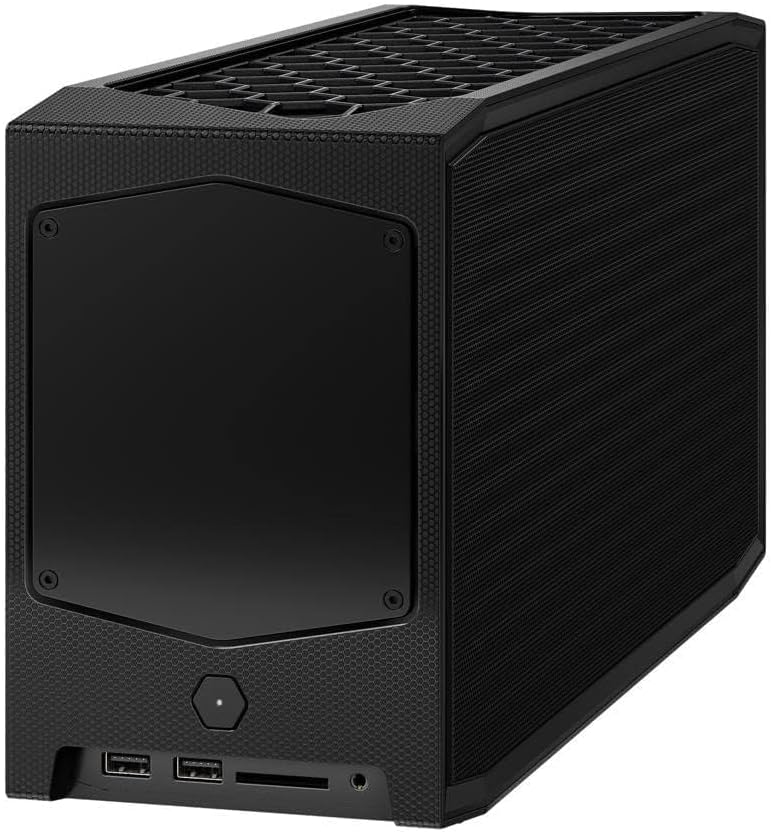
Նկար 2. Հետևի view of the Intel NUC 11 Extreme Kit, highlighting the array of input/output ports for connecting external devices.
- Ցուցադրել: Connect your monitor using HDMI or DisplayPort.
- USB սարքեր. Use the available USB ports for keyboard, mouse, external drives, etc.
- Ցանց: Connect an Ethernet cable for wired network access, or use the integrated Wi-Fi.
- Աուդիո: Միացրեք բարձրախոսները կամ ականջակալները աուդիո միակցիչներին։
4. Էլեկտրաէներգիայի միացում
Connect the provided power cord to the NUC and then to a power outlet.
5. Օպերացիոն համակարգի տեղադրում
Once RAM and storage are installed, you will need to install an operating system (e.g., Windows 10, Linux) from a bootable USB drive or disc.
Գործառնական հրահանգներ
This section provides basic instructions for operating your Intel NUC 11 Extreme Kit.
Միացում/անջատում
- Միացում՝ Press the power button located on the front of the unit. The power indicator light will illuminate.
- Անջատել:
- Ստանդարտ անջատում. Օգտագործեք օպերացիոն համակարգի անջատման գործառույթը։
- Հարկադիր անջատում. Press and hold the power button for 5-10 seconds until the unit powers off. Use this only as a last resort.
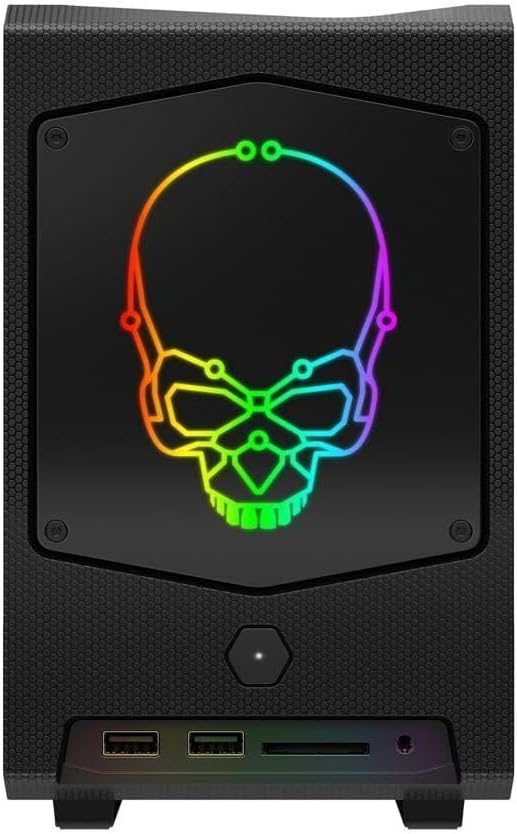
Նկար 3. Առջև view of the Intel NUC 11 Extreme Kit, showing the power button and front panel connectivity options.
USB սարքերի միացում
The NUC 11 Extreme Kit offers numerous USB ports (up to 12) for connecting various peripherals. Devices can be connected or disconnected without needing to shut down the system.
BIOS/UEFI Access
To access the BIOS/UEFI settings, power on the system and repeatedly press the F2 key during startup. This allows configuration of boot order, system settings, and hardware diagnostics.
Տեխնիկական սպասարկում
Proper maintenance ensures the longevity and optimal performance of your Intel NUC 11 Extreme Kit.
- Մաքրում: Regularly clean the exterior with a soft, dry cloth. Use compressed air to clear dust from vents and fan areas to ensure proper airflow and prevent overheating. Ensure the system is powered off and unplugged before cleaning.
- Ծրագրային թարմացումներ. Keep your operating system, drivers, and BIOS/UEFI firmware updated to the latest versions. Visit the official Intel support website for driver downloads specific to the NUC11BTMi9 model.
- Օդափոխում: Ensure the NUC is placed in a well-ventilated area, away from direct sunlight or heat sources. Do not block the ventilation openings.
- Տվյալների կրկնօրինակում. Կարևոր տվյալները պարբերաբար պահուստավորեք արտաքին սկավառակի կամ ամպային պահեստի վրա՝ տվյալների կորուստը կանխելու համար։
Անսարքությունների վերացում
This section provides solutions to common issues you might encounter with your Intel NUC 11 Extreme Kit.
Հոսանք չկա / Համակարգը չի միանում
- Ensure the power cord is securely connected to both the NUC and a working power outlet.
- Ստուգեք, որ վարդակը գործում է՝ միացնելով այն մեկ այլ սարք։
- If using a power strip or surge protector, ensure it is switched on.
Ցուցադրման ելք չկա
- Check that the monitor is powered on and the video cable (HDMI/DisplayPort) is securely connected to both the NUC and the monitor.
- Փորձեք այլ տեսահաղորդակցման մալուխ կամ մոնիտոր, եթե հնարավոր է։
- Ensure RAM modules are properly seated in their slots. Reseat them if necessary.
System Freezes or Crashes
- Ensure the system has adequate ventilation and is not overheating.
- Update your operating system and device drivers to the latest versions.
- Run a memory diagnostic tool to check for RAM issues.
- Check the health of your storage drive.
Արտաքին սարքը չի հայտնաբերվել
- Փորձեք միացնել ծայրամասային սարքը այլ USB միացքի։
- Համոզվեք, որ ծայրամասային սարքի դրայվերները տեղադրված են և թարմացված։
- Վերագործարկեք համակարգը:
Տեխնիկական բնութագրեր
Below are the key technical specifications for the Intel NUC 11 Extreme Kit (NUC11BTMi9).

Նկար 4. Կողք view of the Intel NUC 11 Extreme Kit, illustrating its physical dimensions.
| Առանձնահատկություն | Հստակեցում |
|---|---|
| Մոդելի համարը | NUC11BTMi9 |
| Պրոցեսոր | Intel Core i9-11900KB Octa-core (8 Core) @ 3.3 GHz |
| Memory (RAM) Type | DDR4 SDRAM (Barebone - user installable) |
| Պահպանման ինտերֆեյս | M.2 (SSD), Serial ATA/600 |
| Գրաֆիկական համապրոցեսոր | Intel UHD գրաֆիկա |
| Գրաֆիկական քարտ Ram Size | 8 GB (Integrated) |
| Անլար կապ | Bluetooth, WiFi |
| USB պորտեր | 12 |
| Operating System (Pre-installed) | None (Supports Windows 10) |
| Նյութի քաշը | 5 ֆունտ |
| Փաթեթի չափերը | 21.1 x 15 x 13.6 դյույմ |
| Գույն | Սեւ |
| Առաջին հասանելի ամսաթիվը | 13 հոկտեմբերի, 2021 թ |
Երաշխիք և աջակցություն
Intel provides a limited warranty for its NUC products. For detailed warranty information, technical support, driver downloads, and troubleshooting resources, please visit the official Intel support webկայք։
You can typically find support by searching for "Intel NUC support" or by visiting Intel's Official Support Page.
When contacting support, please have your product model number (NUC11BTMi9) and serial number ready.
Ask a question about this manual
Ask about setup, troubleshooting, compatibility, parts, safety, or missing instructions. Manuals+ will review the question and use this page’s manual context to help answer it.