
1. Ներածություն
This manual provides comprehensive instructions for the setup, operation, and maintenance of your Cherry MW 9100 Wireless Rechargeable Mouse. The MW 9100 is a compact, versatile mouse offering dual connectivity options (Bluetooth or 2.4 GHz USB receiver) and a convenient rechargeable battery.
Հիմնական հատկանիշները ներառում են.
- Compact design with charging functionality.
- Flexible operation: use while charging via USB-C cable.
- Dual connectivity: Bluetooth or 2.4 GHz USB receiver.
- Magnetic storage for the USB receiver, ideal for travel.
- Adjustable DPI settings for varied usage.
2. Փաթեթի բովանդակությունը
Ստուգեք, որ բոլոր իրերը առկա են փաթեթում.
- Cherry MW 9100 Wireless Rechargeable Mouse
- USB-C լիցքավորման մալուխ
- 2.4 ԳՀց USB ընդունիչ
- Պաշտպանիչ պայուսակ
- Հրահանգների ձեռնարկ (այս փաստաթուղթը)
3. Կարգավորում
3.1 Մկնիկի լիցքավորում
The Cherry MW 9100 mouse features a built-in rechargeable battery. Before initial use, or when the battery is low, connect the included USB-C cable to the mouse and to a USB power source (e.g., computer USB port, USB wall adapter). The mouse can be used normally while charging.

Պատկեր 3.1: Վերև view of the Cherry MW 9100 mouse, showing the charging indicator light.
3.2 Մկնիկի միացումը
The MW 9100 offers two connection methods: 2.4 GHz wireless via USB receiver or Bluetooth.
3.2.1 2.4 GHz անլար կապ
- Locate the USB receiver. It is magnetically stored in a compartment on the underside of the mouse.
- Տեղադրեք USB ընդունիչը ձեր համակարգչի հասանելի USB պորտի մեջ:
- On the underside of the mouse, slide the switch to the "RF" position.
- Մկնիկը պետք է ավտոմատ կերպով միանա համակարգչին։
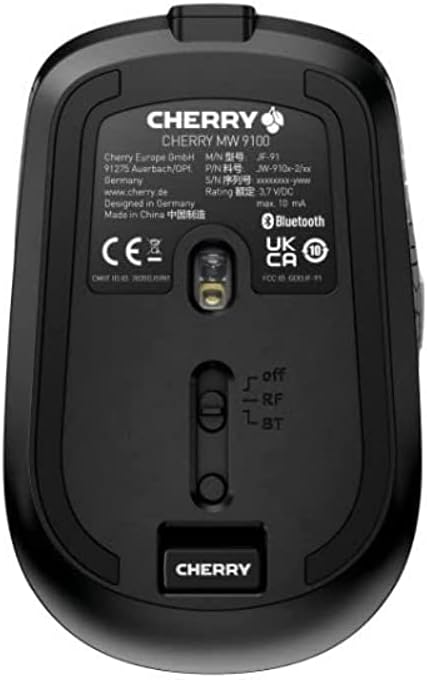
Պատկեր 3.2: Underside of the Cherry MW 9100 mouse, highlighting the USB receiver storage and the connection mode switch.
3.2.2 Bluetooth միացում
- On the underside of the mouse, slide the switch to the "BT" (Bluetooth) position.
- Press and hold the small pairing button located near the connection switch on the underside of the mouse until the LED indicator on the mouse starts blinking, indicating pairing mode.
- Ձեր համակարգչի կամ սարքի վրա բացեք Bluetooth կարգավորումները և որոնեք նոր սարքեր։
- Select "Cherry MW 9100" from the list of available devices to complete the pairing process.
4. Գործառնական հրահանգներ
4.1 Հիմնական գործառույթներ
The Cherry MW 9100 mouse features standard left and right click buttons, a scroll wheel (which also functions as a middle click button), and two side buttons for navigation (typically forward/back).
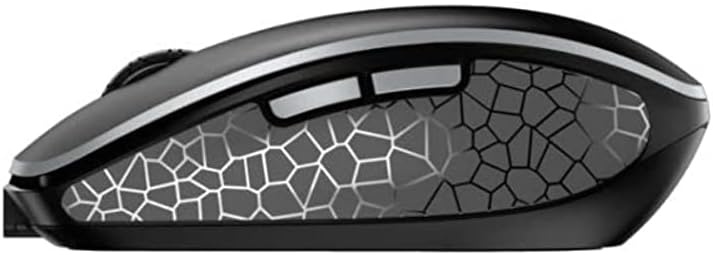
Պատկեր 4.1: Կողք view of the Cherry MW 9100 mouse, illustrating the ergonomic design and side buttons.
4.2 DPI ճշգրտում
The mouse includes a DPI (Dots Per Inch) button, usually located near the scroll wheel, allowing you to adjust the cursor sensitivity. Press this button to cycle through different DPI settings to match your preference or task requirements.

Պատկեր 4.2: A hand demonstrating the comfortable grip on the Cherry MW 9100 mouse during use.
5. Պահպանում
To ensure optimal performance and longevity of your Cherry MW 9100 mouse:
- Մաքրում: Մկնիկի մակերեսը մաքրելու համար օգտագործեք փափուկ, չոր կտոր։ Համառ կեղտի դեպքում՝ մի փոքր չոր կտոր։amp cloth can be used, but ensure no moisture enters the device. Avoid harsh chemicals or abrasive materials.
- Պահպանում: When not in use, especially during travel, store the mouse in the provided protective pouch to prevent scratches and damage.
- Մարտկոցի խնամք. Avoid fully discharging the battery frequently. Recharge the mouse when the low battery indicator appears.
6: Անսարքություն
| Խնդիր | Հնարավոր պատճառ | Լուծում |
|---|---|---|
| Մկնիկը չի արձագանքում | Low battery, incorrect connection mode, USB receiver not connected, Bluetooth not paired. |
|
| Intermittent connection (Bluetooth) | Interference, device driver issues, distance from device. |
|
| Կուրսորի շարժումը անկանոն է կամ դանդաղ | Dirty optical sensor, low battery, incorrect DPI setting. |
|
7. Տեխնիկական պայմաններ
| Առանձնահատկություն | Մանրամասն |
|---|---|
| Բրենդ | Բալի |
| Մոդելի համարը | JW-9100US-2 |
| Միացման տեխնոլոգիա | Bluetooth, 2.4 GHz USB Wireless |
| Շարժման հայտնաբերում | Օպտիկական |
| Հատուկ առանձնահատկություններ | Lightweight, Portable, Rechargeable |
| Ապրանքի չափերը | 4 x 3 x 2 դյույմ |
| Նյութի քաշը | 6.4 ունցիա |
| Գույն | Սեւ |
8. Երաշխիք և աջակցություն
For warranty information and technical support, please refer to the official Cherry website or contact Cherry customer service directly. Keep your proof of purchase for warranty claims.
Արտադրող: ԲԱԼԱ
Webկայքը: www.cherry.de