
1. Ներածություն
The Razer Barracuda X is a versatile 4-in-1 USB-C wireless headset designed for immersive home gaming and seamless on-the-go audio. It offers true versatility and freedom, backed by long-lasting comfort, powerful drivers, and a crystal-clear microphone. This manual provides essential information for setting up, operating, maintaining, and troubleshooting your headset.

Image: The Razer Barracuda X headset in a gaming environment, showcasing its sleek design and wireless capability.
2. Փաթեթի բովանդակությունը
Համոզվեք, որ ձեր փաթեթում ներառված են հետևյալ բոլոր կետերը.
- Razer Barracuda X Wireless Gaming Headset
- Type-C անլար դոնգլ
- Removable Razer HyperClear Cardioid Mic
- Type-C լիցքավորման մալուխ
- Type-A- ից Type-C ադապտերային մալուխ
- Օգտագործողի ձեռնարկ (այս փաստաթուղթը)

Image: The Razer Barracuda X headset with its included accessories: the USB-C wireless dongle and the detachable HyperClear Cardioid Mic.
3. Կարգավորում
3.1 Ականջակալների լիցքավորում
Before first use, fully charge your Razer Barracuda X headset using the provided Type-C charging cable. Connect the Type-C end to the headset's charging port and the USB-A end to a power source (e.g., computer USB port, wall adapter).
3.2 Wireless Connectivity (2.4GHz USB-C Dongle)
For low-latency gaming audio, use the 2.4GHz wireless connection:
- Plug the Type-C wireless dongle into your desired device (PC, PlayStation, Nintendo Switch, Android device). If your device only has a USB-A port, use the included Type-A to Type-C adapter cable.
- Power on your Razer Barracuda X headset. It will automatically connect to the dongle.
3.3 Bluetooth կապ
For mobile use or devices without a USB-C port, connect via Bluetooth:
- With the headset powered on, press and hold the SmartSwitch button (usually indicated by a Bluetooth icon) until the LED indicator blinks blue, indicating pairing mode.
- On your device, search for Bluetooth devices and select "Razer Barracuda X" to pair.

Image: The Razer Barracuda X headset connected to multiple devices, highlighting its SmartSwitch dual wireless capability for seamless transitions between 2.4GHz and Bluetooth.
3.4 Միկրոֆոնի միացումը
Insert the detachable Razer HyperClear Cardioid Mic into the microphone jack located on the left earcup. Ensure it is firmly seated.
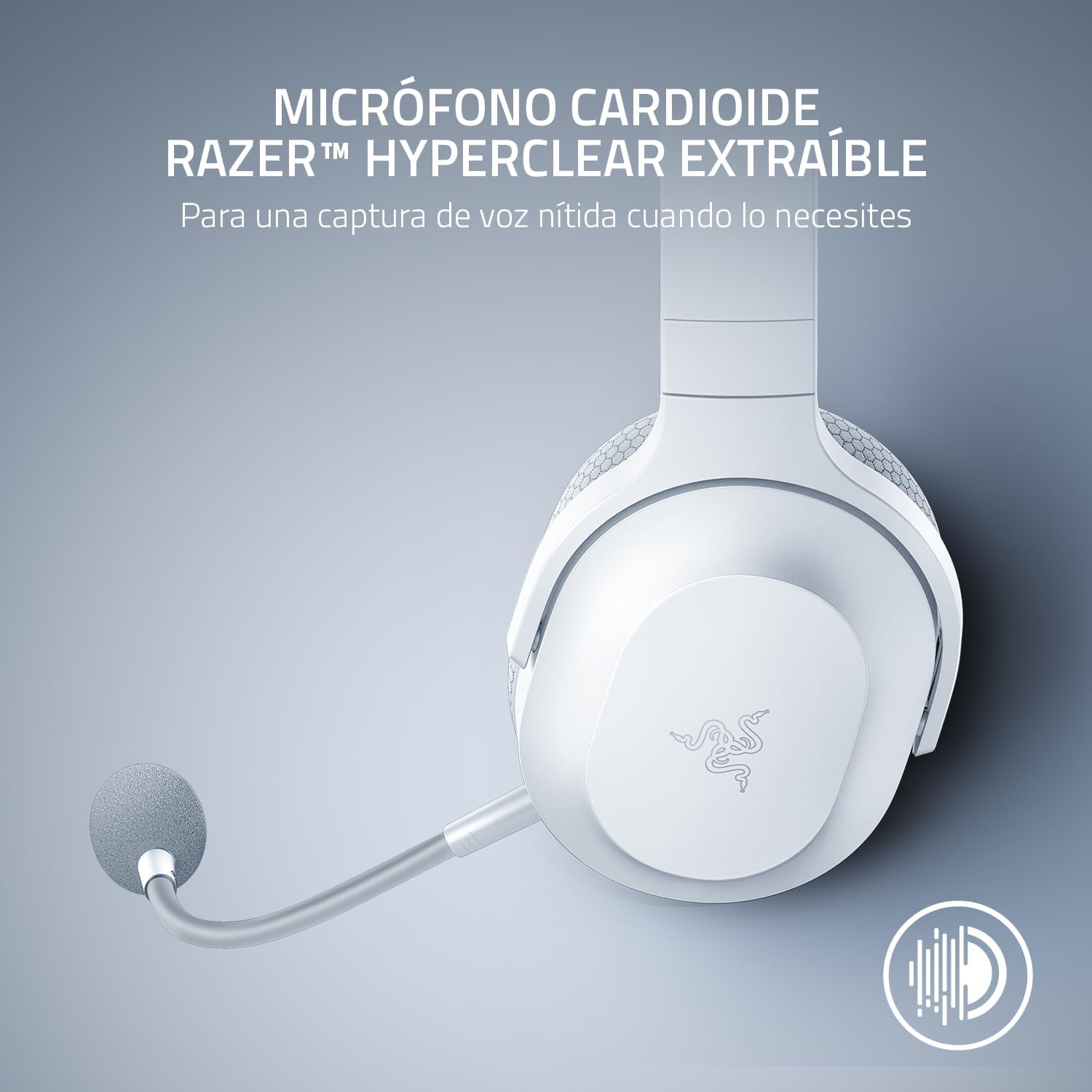
Image: The Razer Barracuda X headset with its detachable HyperClear Cardioid Mic, designed for clear voice capture.
4. Ականջակալների շահագործում
4.1 Միացում/անջատում
- Միացնելու համար՝ Սեղմեք և պահեք միացման կոճակը, մինչև LED ցուցիչը վառվի։
- Անջատելու համար՝ սեղմեք և պահեք միացման կոճակը, մինչև LED ցուցիչը անջատվի։
4.2 Ձայնի վերահսկում
Adjust the audio volume using the volume roller located on the left earcup.
4.3 Միկրոֆոնի ձայնի անջատում
Press the microphone mute button on the left earcup to toggle the microphone on or off. An LED indicator on the mic will show its status.
4.4 SmartSwitch կրկնակի անլար
The SmartSwitch feature allows you to seamlessly switch between 2.4GHz wireless and Bluetooth connections. When connected to both, the headset will prioritize the 2.4GHz connection for gaming. If a call comes in on your Bluetooth-connected phone, the headset will automatically switch to the Bluetooth connection. After the call, it will switch back to 2.4GHz.

Image: Close-up of the Razer Barracuda X headset's on-headset controls, including the volume wheel, power button, and mic mute button.
4.5 Հարմարավետություն և էրգոնոմիկա
The Barracuda X features a lightweight 250g ergonomic design with breathable memory foam ear cushions and swiveling earcups, ensuring comfort during long gaming sessions or daily commutes.

Պատկեր՝ մանրամասն view of the Razer Barracuda X headset's ergonomic design, highlighting the comfortable ear cushions and lightweight build.
5. Պահպանում
5.1 Մաքրում
- Use a soft, dry cloth to clean the headset.
- Խուսափեք կոշտ քիմիական կամ հղկող նյութեր օգտագործելուց:
- Ականջի բարձիկների համար նրբորեն սրբեք գլազուրովamp շոր և թույլ տվեք, որ ամբողջովին չորանա օդում:
5.2 Պահպանում
Store the headset in a cool, dry place away from direct sunlight and extreme temperatures. When not in use, consider storing it in a protective case to prevent damage.
6: Անսարքություն
6.1 Աուդիո չկա/ձայնի որակը վատ է
- Ստուգեք ձայնը. Ensure the headset volume is not muted or set too low.
- Միացում: Verify the 2.4GHz dongle is properly inserted and the headset is connected, or that Bluetooth is successfully paired. Try re-pairing if necessary.
- Սարքի կարգավորումներ. Confirm the Razer Barracuda X is selected as the default audio output device in your computer's or console's sound settings.
- Միջամտություն: Հեռացեք այլ անլար սարքերից, որոնք կարող են խանգարել:
6.2 Միկրոֆոնը չի աշխատում
- Ստուգեք խլացնելը. Ensure the microphone is not muted via the headset button or your device's software.
- Միացում: Re-insert the detachable microphone firmly into its jack.
- Սարքի կարգավորումներ. Verify the Razer Barracuda X microphone is selected as the default input device in your computer's or console's sound settings and application settings (e.g., Discord).
6.3 Headset Not Powering On/Charging
- Մարտկոցի լիցքավորում. Connect the headset to a power source using the Type-C charging cable and allow it to charge for at least 30 minutes.
- Check Cable/Port: Ensure the charging cable and port are not damaged. Try a different cable or USB port.
6.4 Ավտոմատ անջատում
The headset may automatically power off after a period of inactivity to conserve battery. This is a normal feature. To prevent this during active use, ensure audio is consistently playing through the headset.
7. Տեխնիկական պայմաններ
| Առանձնահատկություն | Մանրամասն |
|---|---|
| Բրենդ | Razer |
| Մոդելի անվանումը | Բարակուդա X |
| Մոդելի համարը | RZ04-04430200-R3U1 |
| Գույն | Սպիտակ |
| Միացման տեխնոլոգիա | 2.4GHz Wireless, Bluetooth 5.2, USB-C |
| Աուդիո վարորդի տեսակը | Դինամիկ վարորդ |
| Աուդիո վարորդի չափը | 40 միլիմետր (Razer TriForce) |
| Հաճախականության արձագանք | 20 Հց - 20,000 Հց |
| Դիմադրություն | 32 Օմ |
| Զգայունություն | 96 դԲ |
| Միկրոֆոն | Հանվող Razer HyperClear կարդիոիդ միկրոֆոն |
| Մարտկոցի կյանք | Մինչև 50 ժամ |
| Քաշը | 9.6 ունցիա (250 գ) |
| Ականջի տեղադրում | Ականջի վրայով |
| Կառավարման տեսակը | Մեդիա կառավարում, հպում |
| Լրացուցիչ հատկանիշներ | SmartSwitch Dual Wireless, 250g Ergonomic Design |

Պատկեր՝ Պայթյուն view diagram illustrating the Razer TriForce 40mm drivers, designed for distinct high, mid, and low audio frequencies.
8. Երաշխիք և աջակցություն
8.1 Երաշխիքային տեղեկատվություն
The Razer Barracuda X Wireless Gaming Headset comes with a 2 տարվա արտադրողի երաշխիքԽնդրում ենք պահպանել գնման ապացույցը երաշխիքային պահանջների համար։
8.2 Հաճախորդների աջակցություն
Լրացուցիչ օգնության, տեխնիկական աջակցության կամ երաշխիքային հարցերի համար այցելեք Razer-ի պաշտոնական աջակցության կայքը։ webկայքը կամ Razer խանութը Amazon-ում.