
1. Ներածություն
This manual provides essential information for setting up, operating, maintaining, and troubleshooting your Alienware X17 R2 Gaming Laptop. Please read this guide thoroughly to ensure optimal performance and longevity of your device.
The Alienware X17 R2 is designed for high-performance gaming and demanding tasks, featuring advanced cooling technologies, powerful processors, and dedicated graphics.
2. Ապրանքը ավարտված էview
The Alienware X17 R2 is engineered to deliver an immersive gaming experience in a thin 17-inch form factor. Key features include:
- Powerful Intel CPUs: Experience high-performance action across all your favorite games with 12th Gen Intel Core processors.
- Next-Gen GPUs: Game unrestrained with NVIDIA GeForce RTX 3070Ti graphics, Dynamic Boost 2.0, and Deep Learning Super Sampling technology.
- Patented Quad Cooling: An industry-first design uses four intelligently controlled and programmable fans to dissipate heat.
- Երկարացված խաղաժամանակ. Improve battery life with Advanced Optimus technology from NVIDIA—now available on all display options.
- Legend 2.0 Industrial Design: A fresh evolution in design with a high-endurance finish and customizable AlienFX lighting.

Նկար 2.1. Առջև view of the Alienware X17 R2 Gaming Laptop displaying a game.
3. Կարգավորում
3.1 Տուփից հանում և նախնական ստուգում
- Զգուշորեն հանեք նոութբուքը և բոլոր պարագաները փաթեթավորումից։
- Ստուգեք, որ «Ի՞նչ կա տուփի մեջ» բաժնում թվարկված բոլոր իրերը առկա են։
- Ստուգեք նոութբուքը՝ ֆիզիկական վնասվածքների առկայության համար։ Վնաս հայտնաբերելու դեպքում անմիջապես կապվեք ձեր վաճառողի հետ։
3.2 Հոսանքի միացում
- Connect the power adapter to the charging port located at the rear of the laptop.
- Միացրեք հոսանքի լարը պատի վարդակից:
- The power indicator light will illuminate, indicating the laptop is receiving power.
3.3 Առաջին բեռնումը և օպերացիոն համակարգի կարգավորումը
- Press the Alienware head power button to turn on the laptop.
- Հետևեք էկրանին հայտնվող հրահանգներին՝ Windows 11 Home-ի կարգավորման գործընթացն ավարտելու համար: Սա ներառում է ձեր տարածաշրջանի ընտրությունը, Wi-Fi ցանցին միանալը և օգտատիրոջ հաշիվ ստեղծելը:
- Allow the system to download and install any necessary updates.
4. Ձեր նոութբուքի շահագործումը
4.1 Ստեղնաշար և սենսորային վահանակ
The Alienware X17 R2 features a backlit keyboard and a responsive touchpad. The AlienFX lighting allows for customizable colors and effects across the keyboard and other zones.

Նկար 4.1. Մանրամասն view of the backlit keyboard and touchpad.
4.2 Էկրան և գրաֆիկա
Enjoy stunning visuals on the 17.3-inch FHD display with a 480Hz refresh rate and 3ms response time. The NVIDIA GeForce RTX 3070Ti graphics card ensures smooth gameplay and high-fidelity rendering. The laptop supports Dolby Vision for optimized color profiles.
4.3 աուդիո
Experience immersive 3D sound via Dolby Atmos, designed to deliver audio as studios intended.
4.4 Միացքներ և կապակցելիություն
The laptop offers a variety of ports for peripherals and external displays:

Նկար 4.2. Հետևի view պատկերելով տարբեր միացման միացքները։
- USB 3.0 պորտեր. 3 ports for connecting various USB devices.
- USB-C պորտեր. For versatile connectivity, including Thunderbolt 4.
- HDMI2.1: Supports up to 4K/120Hz output for external displays.
- Ethernet: Killer E3100 RJ45 Ethernet for stable wired network connections.
- Անլար: Killer Wi-Fi 6 (802.11ax) and Bluetooth for wireless connectivity.
5. Պահպանում
5.1 Մաքրում
- Էկրանը և արտաքին մակերեսները մաքրելու համար օգտագործեք փափուկ, թել չթողնող կտոր։
- Խուսափեք կոշտ քիմիական կամ հղկող նյութեր օգտագործելուց:
- Regularly clean the cooling vents to prevent dust buildup, which can affect performance.
5.2 Ծրագրային ապահովման թարմացումներ
Ensure your operating system and drivers are kept up-to-date. Windows Update will handle OS updates, and Alienware Command Center can assist with driver and firmware updates.
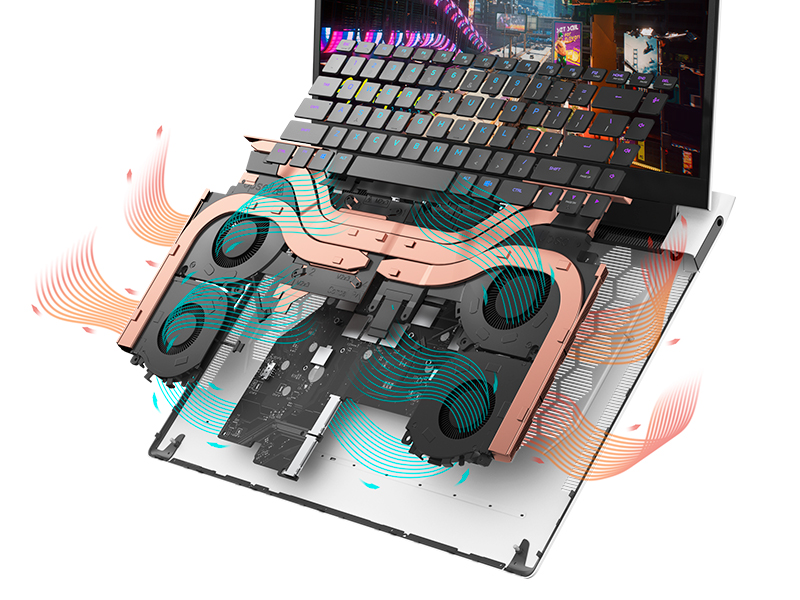
Figure 5.1: Alienware Command Center for system management.
6: Անսարքություն
If you encounter issues with your Alienware X17 R2, consider the following basic troubleshooting steps:
- Հզորություն չկա. Համոզվեք, որ սնուցման ադապտերը հուսալիորեն միացված է և՛ նոութբուքին, և՛ աշխատող վարդակիցին: Ստուգեք սնուցման ցուցիչի լույսը:
- Ցուցադրման խնդիրներ. If the screen is black, try connecting an external monitor to verify if the issue is with the laptop's display or the graphics card. Update graphics drivers.
- Գերտաքացում. Ensure cooling vents are clear of obstructions. Use Alienware Command Center to monitor temperatures and adjust fan profiles.
- Արդյունավետության դանդաղում. Փակեք ավելորդ ծրագրերը: Ստուգեք ֆոնային գործընթացները, որոնք սպառում են մեծ քանակությամբ CPU կամ RAM: Համոզվեք, որ SSD-ի վրա բավարար ազատ տարածք կա:
- Ծրագրային խնդիրներ. Restart the laptop. If issues persist, consider performing a system restore or reinstalling the problematic software.
7. Տեխնիկական պայմաններ
| Առանձնահատկություն | Հստակեցում |
|---|---|
| Էկրանի չափը | 17.3 դյույմ |
| Էկրանի լուծում | 1920 x 1080 պիքսել (FHD) |
| Պրոցեսոր | Intel Core i9-12900H (3.8 GHz, 14 Cores) |
| RAM | 16 ԳԲ DDR5 (4800 ՄՀց) |
| Կոշտ սկավառակ | 1 TB SSD (Solid State) |
| Գրաֆիկական համապրոցեսոր | NVIDIA GeForce RTX 3070 Ti (8 GB GDDR6) |
| Օպերացիոն համակարգ | Windows 11 Home |
| Անլար տեսակ | 802.11ax (Killer Wi-Fi 6), Bluetooth |
| USB 3.0 պորտեր | 3 |
| Նյութի քաշը | 6.82 ֆունտ |
| Ապրանքի չափերը | 11.79 x 15.72 x 0.58 դյույմ |
8. Ի՞նչ կա տուփի մեջ
- Alienware X17 R2 խաղային նոութբուք
- Power Adapter
- Հոսանքի լարը
- Փաստաթղթեր
9. Պաշտոնական արտադրանքի տեսանյութեր
Alienware X17 R2 Gaming Laptop Overview
Տեսանյութ 9.1. Պաշտոնյան ավարտեցview of the Alienware X17 R2 Gaming Laptop, highlighting its design, cooling, and performance features.
About Alienware X17 R2 Gaming Laptop
Video 9.2: A detailed look at the Alienware X17 R2 Gaming Laptop, showcasing its features and design elements.
10. Երաշխիք և աջակցություն
Your Alienware X17 R2 Gaming Laptop comes with a standard manufacturer's warranty. For detailed warranty information, please refer to the documentation included with your product or visit the official Alienware support webկայք։
For technical support, driver downloads, and service requests, please visit the Alienware support portal. You can also find FAQs and community forums for additional assistance.