
1. Ներածություն
Welcome to the user manual for your Havit Gaming Mouse MS1032. This document provides essential information for setting up, operating, maintaining, and troubleshooting your device. Please read it carefully to ensure optimal performance and longevity of your mouse.
The Havit MS1032 is a gaming mouse featuring six adjustable DPI settings, a comfortable ergonomic design, and a non-slip surface. It is engineered for smooth and quiet operation, aiming to reduce fatigue during extended use.
2. Կարգավորում
2.1 Փաթեթի բովանդակությունը
- Havit Gaming Mouse MS1032
- Օգտագործողի ձեռնարկ
2.2 Համակարգի պահանջներ
- Operating System: Windows XP, Windows 7, Linux
- Հասանելի USB պորտ
2.3 Մկնիկի միացումը
- Unpack the Havit Gaming Mouse MS1032 from its packaging.
- Տեղադրեք հասանելի USB պորտը ձեր համակարգչում:
- Տեղադրեք մկնիկի USB միակցիչը USB պորտի մեջ:
- Ձեր օպերացիոն համակարգը պետք է ավտոմատ կերպով հայտնաբերի և տեղադրի անհրաժեշտ դրայվերները: Այս գործընթացը կարող է մի քանի րոպե տևել:
- Տեղադրումն ավարտվելուց հետո մկնիկը պատրաստ է օգտագործման։
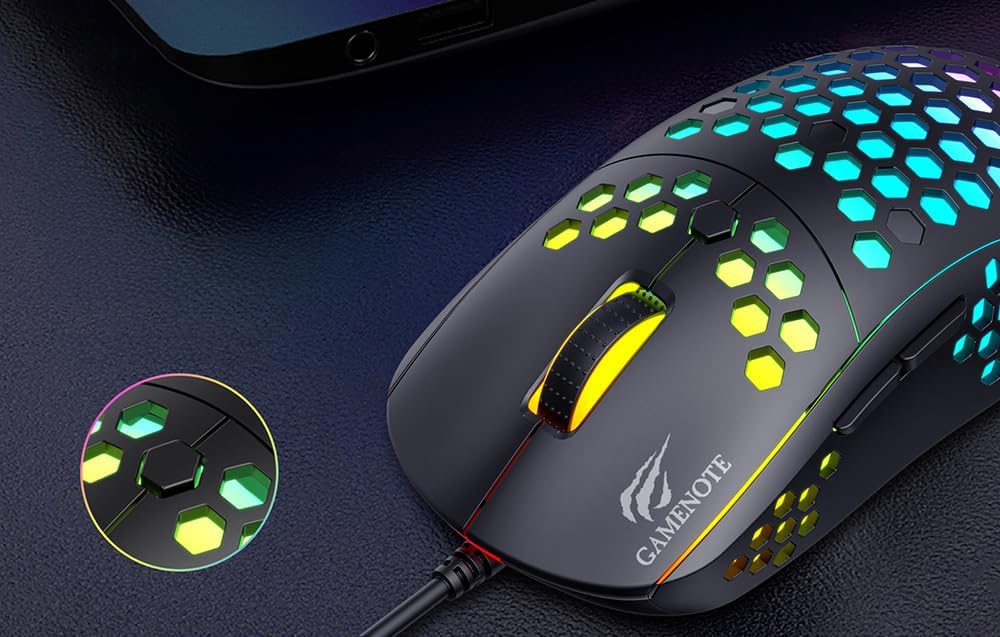
Figure 1: Havit MS1032 Gaming Mouse connected via USB.
3. Գործառնական հրահանգներ
3.1 Հիմնական գործառույթներ
- Ձախ սեղմում. Primary action, selection, activation.
- Աջ սեղմեք. Opens context menus, performs secondary actions.
- Ոլորման անիվ. Scrolls up/down documents or web էջեր։ Կարող է նաև սեղմվել միջին սեղմման գործառույթի համար։
- Կողքի կոճակներ. Սովորաբար օգտագործվում է առաջ/հետ նավարկության համար web browsers or custom functions in games.
3.2 DPI ճշգրտում
The Havit MS1032 features six adjustable DPI (Dots Per Inch) settings, allowing you to change the mouse sensitivity on the fly. This is useful for adapting to different tasks, such as precise aiming in games or fast navigation across multiple monitors.
To adjust the DPI, locate the DPI button, typically positioned behind the scroll wheel. Press this button to cycle through the available DPI settings. The LED lighting on the mouse may change to indicate the current DPI level, providing visual feedback for your selection.
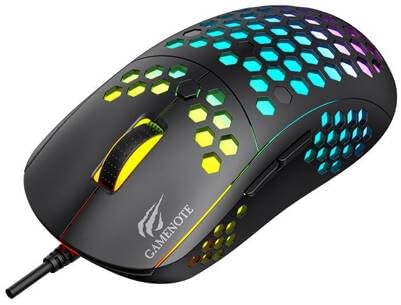
Figure 2: Location of the DPI button (behind the scroll wheel).
4. Պահպանում
4.1 Մաքրում
Օպտիմալ աշխատանքը և տեսքը պահպանելու համար պարբերաբար մաքրեք ձեր մկնիկը.
- Մաքրելուց առաջ անջատեք մկնիկը համակարգչից։
- Օգտագործեք փափուկ, առանց մզկի կտոր, թեթևակի դampջրով կամ մեղմ, ոչ հղկող մաքրող լուծույթով։
- Նրբորեն սրբեք մկնիկի մակերեսը։
- For crevices and the optical sensor, use a cotton swab or compressed air to remove dust and debris.
- Avoid using harsh chemicals, abrasive cleaners, or excessive moisture, as these can damage the mouse's finish or internal components.
4.2 Պահպանում
When not in use, store the mouse in a clean, dry environment away from direct sunlight and extreme temperatures to prevent damage.
4.3 Ընդհանուր խնամք
- Խուսափեք մկնիկը գցելուց կամ այն ուժեղ հարվածներից ենթարկելուց։
- Do not attempt to disassemble the mouse, as this will void the warranty and may cause irreparable damage.
- Keep the mouse away from liquids to prevent electrical damage.
5: Անսարքություն
If you encounter issues with your Havit Gaming Mouse MS1032, please refer to the following common solutions:
5.1 Մկնիկը չի արձագանքում
- Ստուգեք USB միացումը. Համոզվեք, որ USB մալուխը ամուր միացված է ձեր համակարգչի աշխատող USB միացքին: Փորձեք այլ USB միացք:
- Վերագործարկեք համակարգիչը. Երբեմն համակարգչի պարզ վերագործարկումը կարող է լուծել կապի խնդիրները։
- Փորձարկում մեկ այլ համակարգչի վրա. If possible, test the mouse on another computer to determine if the issue is with the mouse or your computer's setup.
5.2 Cursor Movement is Erratic or Jumpy
- Մաքուր սենսոր. Համոզվեք, որ մկնիկի ներքևի մասում գտնվող օպտիկական սենսորը մաքուր է և զերծ փոշուց կամ բեկորներից։
- Ստուգեք մակերեսը. Use the mouse on a clean, non-reflective, and uniform surface (e.g., a mouse pad). Avoid glass or highly reflective surfaces.
- Կարգավորեք DPI-ն՝ If the cursor is too fast or too slow, adjust the DPI setting using the DPI button.
5.3 Կոճակները չեն աշխատում
- Ստուգեք խոչընդոտները. Համոզվեք, որ կոճակների տակ որևէ աղբ չի կուտակվել։
- Ծրագրային կոնֆլիկտ. If you have custom mouse software installed, try uninstalling it temporarily to see if it resolves the issue.
5.4 LED լույսերը չեն աշխատում
- Ստուգեք կապը. Համոզվեք, որ մկնիկը ճիշտ է միացված համակարգչին։
- Power Cycle: Disconnect and reconnect the mouse to reset its power.
6. Տեխնիկական պայմաններ

Figure 3: Havit MS1032 Gaming Mouse design overview.
| Առանձնահատկություն | Մանրամասն |
|---|---|
| Մոդել | MS1032 |
| Բրենդ | Հավիթ |
| Չափերը | 15 x 8 x 5.2 սմ |
| Քաշը | 200 գ |
| DPI կարգավորումներ | 6 կարգավորելի մակարդակ |
| Օպերացիոն համակարգեր | Linux, Windows 7, Windows XP |
| Միացում | Լարային USB |
| Պահանջվում է մարտկոցներ | Ոչ |
7. Երաշխիք և աջակցություն
For detailed warranty information and technical support, please refer to the official Havit website or contact your local retailer where the product was purchased. It is recommended to keep your purchase receipt as proof of purchase for any warranty claims.
Արտադրող: Հավիթ
Մոդելի համարը: MS1032