
1. Ներածություն
This manual provides detailed instructions for the installation, operation, and maintenance of your Xprinter XP-370B Thermal Barcode Sticker Printer. Please read this manual thoroughly before using the printer to ensure proper functionality and to prevent damage.
2. Անվտանգության տեղեկատվություն
- Միշտ միացրեք տպիչը հողակցված վարդակիցին։
- Do not expose the printer to water or high humidity.
- Avoid placing the printer in direct sunlight or near heat sources.
- Use only Xprinter approved accessories and power adapters.
- Տպիչը հեռու պահեք երեխաներից:
- Do not attempt to disassemble or repair the printer yourself. Contact qualified service personnel for assistance.
3. Փաթեթի բովանդակությունը
Ստուգեք, որ բոլոր իրերը առկա են փաթեթում.
- Xprinter XP-370B Thermal Barcode Sticker Printer
- Power Adapter
- USB մալուխ
- Արագ մեկնարկի ուղեցույց (եթե ներառված է)
4. Ապրանքը ավարտված էview
The Xprinter XP-370B is a compact and efficient thermal printer designed for barcode and sticker printing. It features high-speed printing capabilities and supports various connectivity options.

Նկար 4.1. Առջևի աջ կողմ view of the Xprinter XP-370B Thermal Barcode Sticker Printer.

Նկար 4.2. Կողք view illustrating the power button and top cover key for accessing the media compartment.
5. Կարգավորում
5.1 Ապափաթեթավորում և տեղադրում
- Զգուշորեն հեռացրեք տպիչը իր փաթեթավորումից:
- Տեղադրեք տպիչը կայուն, հարթ մակերեսի վրա՝ բավարար օդափոխությամբ։
- Ensure there is enough space around the printer for cable connections and media loading.
5.2 Տպիչի միացում
- Միացրեք սնուցման ադապտերը տպիչի սնուցման միացքին, ապա միացրեք այն վարդակից։
- Connect the printer to your computer using the provided USB cable. The printer also supports Serial, Ethernet, and Bluetooth connectivity options depending on the model.
- Turn on the printer using the power button located on the side (refer to Figure 4.2).
5.3 Loading Print Media
- Press the top cover key (refer to Figure 4.2) to open the printer's top cover.
- Place the roll of thermal labels into the media compartment. The maximum label diameter supported is 100mm.
- Adjust the paper guide to fit the width of your labels securely.
- Pull a small length of labels past the print head.
- Փակեք վերին կափարիչը, մինչև այն կտտացվի իր տեղում։
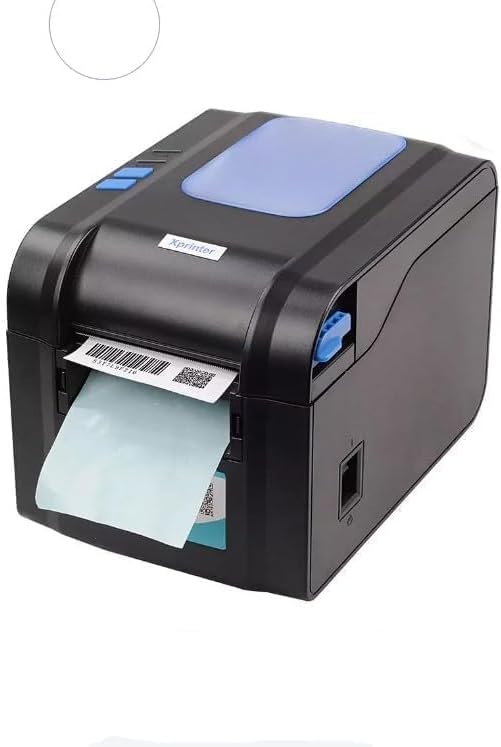
Figure 5.3: The printer demonstrating a label being fed out after printing.
5.4 Վարորդի տեղադրում
- For Windows systems, insert the driver CD (if provided) or download the latest drivers from the official Xprinter webկայքում: Հետևեք էկրանին տրված հրահանգներին տեղադրման համար:
- For Android and iOS devices, download the appropriate printing application from your device's app store.
6. Գործառնական հրահանգներ
6.1 Հիմնական տպագրություն
- Համոզվեք, որ տպիչը միացված է և միացված է ձեր սարքին։
- Open the document or application from which you wish to print.
- Select the Xprinter XP-370B from your list of available printers.
- Adjust print settings such as label size, orientation, and density as needed.
- Initiate the print command. The printer will begin printing at speeds up to 152mm/s.
7. Պահպանում
7.1 Տպիչի մաքրում
- Մաքրելուց առաջ անջատեք և անջատեք տպիչը էլեկտրական վարդակից։
- Օգտագործեք փափուկ, առանց մզկի կտոր, դampened with isopropyl alcohol to gently clean the print head.
- Clean the exterior of the printer with a soft, dry cloth.
- Մի օգտագործեք հղկող մաքրող միջոցներ կամ լուծիչներ:
8: Անսարքություն
- Տպիչը չի արձագանքում. Check power connection, USB/Serial/Ethernet/Bluetooth connection, and ensure drivers are correctly installed.
- Վատ տպագրության որակը. Clean the print head, ensure correct media type is used, and check print density settings.
- Թղթի խցան. Open the top cover, carefully remove any jammed labels, and re-load the media correctly.
- Labels not feeding: Ensure labels are loaded correctly and the paper guide is adjusted properly. Check for any obstructions.
9. Տեխնիկական պայմաններ
| Առանձնահատկություն | Հստակեցում |
|---|---|
| Բրենդ | Xprinter |
| Մոդելի համարը | XP-370B |
| Տպիչի տեխնոլոգիա | Ջերմային |
| Միացման տեխնոլոգիա | USB, Serial, Bluetooth, Ethernet (options vary) |
| Տպման առավելագույն արագություն | Մինչև 152 մմ/վրկ |
| Առավելագույն մեդիայի չափը | 4 x 6 դյույմ |
| Maximum Label Diameter | 100 մմ |
| Տպագիր մեդիա | Պիտակներ |
| Տպիչի ելք | Մոնոխրոմ |
| Նյութի չափերը (D x W x H) | 15D x 7W x 10H սանտիմետր |
| Նյութի քաշը | 300 գ |
| Աջակցվող օպերացիոն համակարգեր | Windows, Android, iOS |
10. Երաշխիք և աջակցություն
Երաշխիքային տեղեկությունների և տեխնիկական աջակցության համար խնդրում ենք դիմել ձեր գնման հետ տրամադրված փաստաթղթերին կամ այցելել Xprinter-ի պաշտոնական կայքը։ webկայք: Պահպանեք ձեր գնման կտրոնը որպես գնման ապացույց՝ երաշխիքային պահանջների համար: