
Ներածություն
This manual provides essential information for setting up, operating, maintaining, and troubleshooting your HP 14-cf2733wm laptop. Please read this manual thoroughly before using your device to ensure proper function and longevity.
The HP 14-cf2733wm is a 14-inch laptop designed for portability and everyday productivity. It features an Intel Celeron N4120 processor, 4GB of RAM, and 64GB eMMC storage, running on Windows 11 Home in S mode.
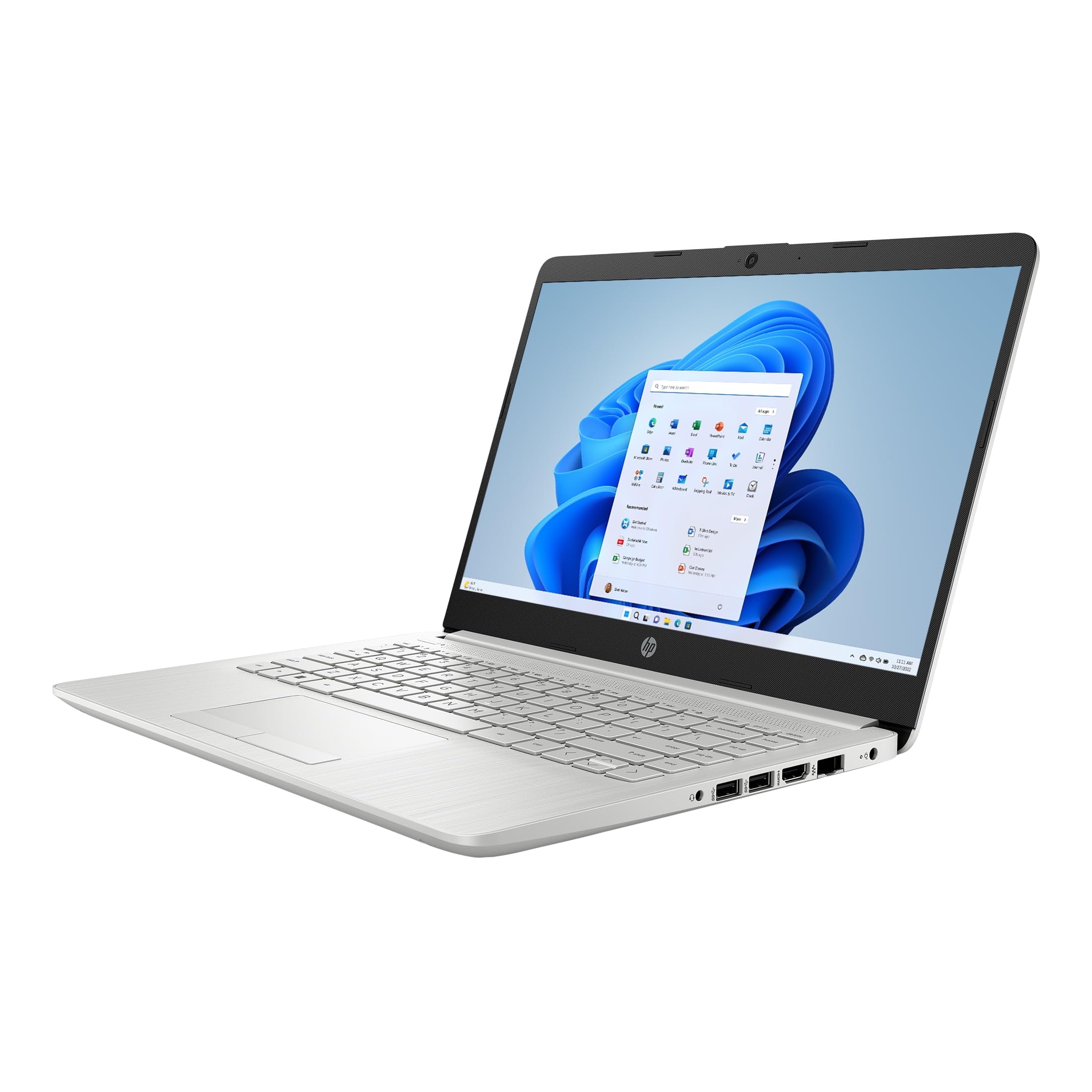
Figure 1: HP 14-cf2733wm Laptop. This image shows the silver HP laptop in a closed position, highlighting its slim design.
1. Կարգավորում
1.1 Նոութբուքի փաթեթավորումը հանելը
Զգուշորեն հանեք բոլոր բաղադրիչները փաթեթավորումից։ Համոզվեք, որ առկա են հետևյալ իրերը՝
- HP 14-cf2733wm Laptop
- Հոսանքի ադապտեր և մալուխ
- Փաստաթղթեր (արագ մեկնարկի ուղեցույց, անվտանգության տեղեկատվություն)
1.2 Հոսանքի ադապտերի միացումը
- Միացրեք հոսանքի մալուխը հոսանքի ադապտերին:
- Միացրեք հոսանքի ադապտեր պատի վարդակից:
- Insert the adapter's connector into the power port on the side of your HP laptop.
Խորհուրդ է տրվում նոութբուքը լիովին լիցքավորել առաջին օգտագործումից առաջ։
1.3 Սկզբնական միացում և Windows-ի կարգավորում
- Բացեք նոութբուքի կափարիչը:
- Սեղմեք միացման կոճակը, որը սովորաբար գտնվում է ստեղնաշարի տախտակի վրա։
- Follow the on-screen instructions to complete the Windows 11 Home in S mode setup. This includes selecting your region, language, connecting to a Wi-Fi network, and creating a user account.
- Activate the included 12-month Microsoft 365 Personal subscription as prompted during setup or later via the Microsoft Store.
2. Նոութբուքի շահագործում
2.1 Using the Touchpad
The precision touchpad supports multi-touch gestures for navigation. Common gestures include:
- Հպեք՝ Single tap to click, double tap to open.
- Երկու մատով ոլորում. Drag two fingers up or down to scroll.
- Մատներով մեծացնել՝ Մեծացնելու կամ փոքրացնելու համար երկու մատները միացրեք կամ տարածեք իրարից։
- Երկու մատով հպում. Acts as a right-click.
2.2 Արտաքին սարքերի միացում
Your laptop features various ports for connecting peripherals:
- USB պորտեր. Connect USB drives, external mice, keyboards, or other compatible USB devices.
- HDMI պորտ. Connect an external monitor or TV for extended display.
- Աուդիո Jack: Միացրեք ականջակալները կամ արտաքին բարձրախոսները:
2.3 Wi-Fi և Bluetooth կապ
Wi-Fi ցանցին միանալու համար՝
- Սեղմեք Wi-Fi պատկերակը առաջադրանքների տողում:
- Ընտրեք ձեր ցանկալի ցանցը ցանկից։
- Enter the network password if prompted and click "Connect".
Bluetooth-ը միացնելու կամ անջատելու համար՝
- Գնալ դեպի Կարգավորումներ > Bluetooth և սարքեր.
- Միացրեք կամ անջատեք Bluetooth անջատիչը։
2.4 Windows 11 Home in S mode
Windows 11 Home in S mode is a version of Windows optimized for security and performance. It exclusively runs apps from the Microsoft Store and uses Microsoft Edge for safe browsing. If you need to install apps outside the Microsoft Store, you can switch out of S mode. This is a one-way switch.
S ռեժիմից դուրս գալու համար՝
- Ձեր Windows 11-ը S ռեժիմով աշխատող համակարգչում բացեք Կարգավորումներ > Համակարգ > Ակտիվացում.
- In the "Switch to Windows 11 Home" section, select Գնալ խանութ.
- On the "Switch out of S mode" (or similar) page that appears in the Microsoft Store, click the Ստացեք կոճակը։
- After you see a confirmation message on the page, you'll be able to install apps from outside the Microsoft Store.
3. Պահպանում
3.1 Նոութբուքի մաքրում
- Էկրան: Թեթև օգտագործեք փափուկ, առանց մզկի կտորի, դampջրով կամ էկրան մաքրող միջոցով։ Խուսափեք կոշտ քիմիական նյութերից։
- Ստեղնաշար և շասսի. Օգտագործեք փափուկ, չոր կտոր։ Համառ կեղտի դեպքում՝ մի փոքրamp cloth can be used. Avoid getting moisture into openings.
- Նավահանգիստներ: Օգտագործեք սեղմված օդ՝ անցքերից փոշին նրբորեն մաքրելու համար։
Մաքրելուց առաջ միշտ անջատեք նոութբուքը և միացրեք այն էլեկտրական ցանցից։
3.2 Մարտկոցի խնամք
- Խուսափեք ծայրահեղ ջերմաստիճանից:
- Պարբերաբար մի՛ լիցքաթափեք մարտկոցը։
- Եթե նոութբուքը երկար ժամանակով եք պահում, մարտկոցը լիցքավորեք մոտ 50-70%-ով։
3.3 Ծրագրային ապահովման թարմացումներ
Համակարգի կայունությունը, անվտանգությունը և կատարողականությունն ապահովելու համար պարբերաբար ստուգեք և տեղադրեք Windows-ի թարմացումները: Անցեք Կարգավորումներ > Windows-ի թարմացում.
4: Անսարքություն
4.1 Նոութբուքը չի միանում
- Համոզվեք, որ սնուցման ադապտերը ապահով կերպով միացված է և՛ նոութբուքին, և՛ գործող պատի վարդակիցին։
- Ստուգեք, որ պատի վարդակը գործում է՝ միացնելով մեկ այլ սարք։
- Կոշտ վերագործարկում կատարելու համար փորձեք սեղմած պահել միացման կոճակը 15-20 վայրկյան։
4.2 Դանդաղ կատարողականություն
- Փակեք ֆոնին աշխատող ավելորդ ծրագրերը։
- Ստուգեք և տեղադրեք Windows-ի բոլոր սպասվող թարմացումները։
- Ensure you have sufficient free storage space on the 64GB eMMC drive.
- Գործարկեք համակարգի սկանավորում՝ վնասակար ծրագրերի կամ վիրուսների համար։
4.3 Wi-Fi կապի խնդիրներ
- Restart your laptop and your Wi-Fi router.
- Համոզվեք, որ Wi-Fi-ը միացված է Windows-ի կարգավորումներում։
- Մոռացեք ցանցը և վերամիացեք՝ կրկին մուտքագրելով գաղտնաբառը։
- Ստուգեք, թե արդյոք այլ սարքերը կարող են միանալ նույն Wi-Fi ցանցին։
5. Տեխնիկական պայմաններ
| Առանձնահատկություն | Մանրամասն |
|---|---|
| Մոդելի անվանումը | HP 14-cf2733wm |
| Պրոցեսոր | Intel Celeron N4120 (up to 2.6 GHz burst frequency) |
| Օպերացիոն համակարգ | Windows 11 Home S ռեժիմում |
| Ցուցադրել | 14-inch HD (1366 x 768) micro-edge anti-glare LED display |
| Գրաֆիկա | Ինտեգրված Intel UHD Graphics 600 |
| RAM | 4 ԳԲ DDR4 |
| Պահպանում | 64 ԳԲ eMMC |
| Անլար կապ | 802.11n Wi-Fi, Bluetooth |
| Նավահանգիստներ | 2x USB, 1x HDMI, 1x Headphone/Microphone combo |
| Մարտկոց | Lithium Ion, 45 Watt Hours |
| Չափերը (L x W x H) | 12.82" x 8.42" x 0.65" (32.56 x 21.39 x 1.65 սմ) |
| Քաշը | 3.5 ֆունտ (1.59 կգ) |
| Գույն | Արծաթե |
| Webտեսախցիկ | Ինտեգրված Webտեսախցիկ |
6. Երաշխիք և աջակցություն
6.1 Սահմանափակ երաշխիք
Your HP 14-cf2733wm laptop comes with a 1-year limited hardware warranty. This warranty covers defects in materials and workmanship under normal use. For full terms and conditions, please refer to the warranty documentation included with your product or visit the official HP support webկայք։
The warranty does not cover damage caused by accidents, misuse, unauthorized modifications, or external causes such as power fluctuations.
6.2 Տեխնիկական աջակցություն
Տեխնիկական օգնության, դրայվերների ներբեռնման կամ լրացուցիչ աջակցության համար այցելեք HP-ի պաշտոնական աջակցության էջը։ website. You will need your product's model number (14-cf2733wm) and serial number (found on the product label) when contacting support.
HP Աջակցություն Webկայքը: https://support.hp.com