
1. Ներածություն
The ORGBRO X3 is a compact and portable Bluetooth thermal printer designed for various printing needs, including study notes, labels, photos, and more. This device utilizes thermal printing technology, eliminating the need for ink or toner. Its high-resolution output ensures clear and stable prints. This manual provides detailed instructions for setting up, operating, and maintaining your ORGBRO X3 printer.
2. Փաթեթի բովանդակությունը
Խնդրում ենք ստուգել, որ բոլոր իրերը առկա են ձեր փաթեթում։
- ORGBRO X3 Mini Thermal Printer
- 1 Roll of 80mm x 3m White Sticker Thermal Paper
- 3 Rolls of 80mm x 3m Colored Thermal Paper (Yellow, Pink, Blue)
- USB լիցքավորման մալուխ
- Օգտագործողի ձեռնարկ (այս փաստաթուղթը)

Image: The ORGBRO X3 printer shown with various printed materials and included paper rolls.
3. Ապրանքը ավարտված էview
Familiarize yourself with the main components of your ORGBRO X3 printer:

Image: The ORGBRO X3 printer demonstrating Bluetooth connectivity with a smartphone and icons representing various app functions like document printing, template printing, label printing, sticker selection, scanning, and graffiti.
Հիմնական բաղադրիչներ.
- Power կոճակը. Located on the top, used to turn the printer on/off.
- Paper Exit Slot: Where printed paper emerges.
- Paper Compartment Cover: Opens to load thermal paper.
- Լիցքավորման նավահանգիստ. USB լիցքավորման մալուխը միացնելու համար։
- Ցուցանիշի լույսը. Displays printer status (e.g., charging, connected, error).
4. Կարգավորում
4.1 Տպիչի լիցքավորում
- Միացրեք տրամադրված USB լիցքավորման մալուխը տպիչի լիցքավորման միացքին։
- USB մալուխի մյուս ծայրը միացրեք ստանդարտ USB սնուցման ադապտերին (չի մատակարարվում) կամ համակարգչի USB միացքին։
- The indicator light will show the charging status. Ensure the printer is fully charged before first use for optimal battery life.
4.2 Ջերմային թղթի բեռնում
- Զգուշորեն բացեք թղթի բաժնի կափարիչը։
- Insert a roll of thermal paper into the compartment, ensuring the printing side faces the print head. The printing side is typically smoother and will produce a mark when scratched lightly with a fingernail.
- Pull a small length of paper out of the compartment, extending it past the paper exit slot.
- Թղթի բաժանմունքի կափարիչը ամուր փակեք, մինչև այն իր տեղում կտտացվի։

Image: The ORGBRO X3 printer demonstrating the maximum printing width of 3.15 inches (80mm) and examples of various paper sizes it supports, including 0.7" (18mm), 1.1" (28mm), 2.09" (53mm), and 3.15" (80mm).
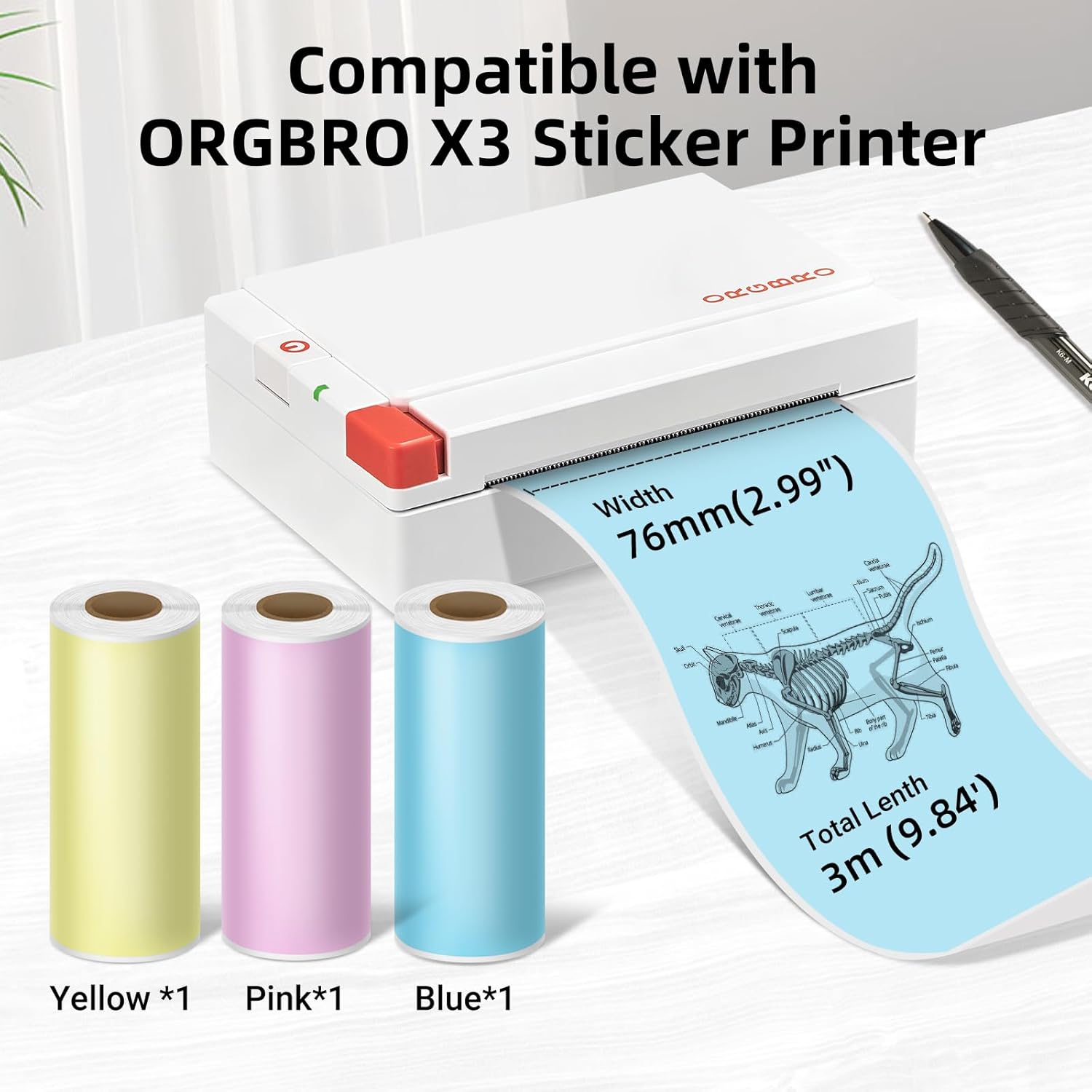
Image: The ORGBRO X3 printer shown alongside three rolls of colored thermal paper (yellow, pink, blue), indicating compatibility and dimensions of 76mm (2.99") width and 3m (9.84') total length.
4.3 Հավելվածի տեղադրում և Bluetooth զուգավորում
- Ներբեռնեք հավելվածը՝ Որոնել the 'ORGBRO' app in your smartphone's app store (Google Play Store for Android or Apple App Store for iOS). Install the application.
- Միացնել տպիչը՝ Press and hold the power button on the ORGBRO X3 printer until the indicator light illuminates.
- Միացնել Bluetooth-ը. On your smartphone, go to your device's Bluetooth settings and ensure Bluetooth is enabled.
- Զուգավորել սարքը. Open the ORGBRO app. The app should automatically detect nearby ORGBRO X3 printers. Select 'X3' from the list of available devices to establish a connection. Follow any on-screen prompts to complete the pairing process.
5. Գործառնական հրահանգներ
5.1 Printing Functions
The ORGBRO app offers various functions to maximize your printer's utility:
- Փաստաթղթերի տպագրություն. Print text documents, notes, or web pages directly from your phone.
- Template Printing: Utilize pre-designed templates for labels, lists, or decorative elements.
- Պիտակի տպագրություն. Create custom labels for organization, shipping, or personal use.
- Stickers for Selection: Access a library of stickers to enhance your prints.
- Սկանավորման գործառույթ. Convert physical documents or drawings into digital format for printing.
- Graffiti Function: Draw or write directly within the app and print your creations.

Image: The ORGBRO X3 printer illustrating its wide range of uses in daily life, including printing labels for gifts, pictures, stickers, study notes, and shopping lists.

Image: The ORGBRO X3 printer depicted as a 'Mini thermal printer - Home companion', showcasing applications such as family category labels, study notes, gift cards, and photos.
5.2 Տպագրության խորհուրդներ
- The ORGBRO X3 is a thermal printer and prints only in black. Color printing is not supported.
- Ensure the thermal paper is loaded correctly with the printing side facing the print head.
- For best results, use ORGBRO brand thermal paper.
- The included paper rolls are self-adhesive, allowing you to easily stick your prints.
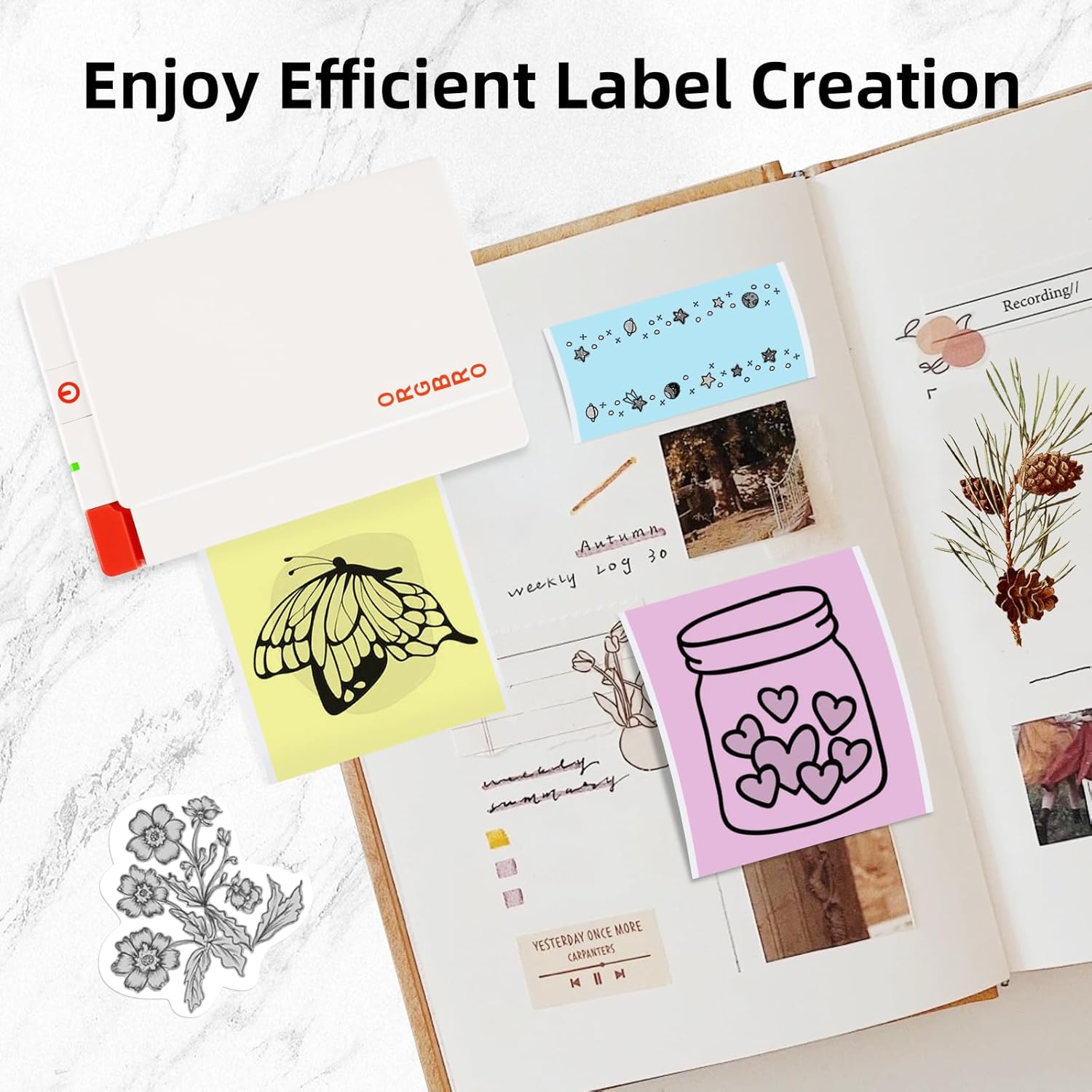
Image: Demonstrates the features of ORGBRO sticker paper, highlighting clear printing, easier tearing, and strong adhesive properties.

Image: Shows various creative labels and stickers printed with the ORGBRO X3 printer, arranged in a journal, illustrating efficient label creation.

Image: A child coloring a printed image from the ORGBRO X3 printer, emphasizing the 'Free Coloring, Free Imagination' aspect.
6. Պահպանում
6.1 Տպիչի գլխիկի մաքրում
To ensure optimal print quality, periodically clean the print head:
- Անջատեք տպիչը և անջատեք այն հոսանքի աղբյուրից:
- Բացեք թղթի խցիկի կափարիչը:
- Զգուշորեն սրբեք տպիչի գլուխը բամբակյա փայտիկով, թեթևակիampened with isopropyl alcohol. Allow it to dry completely before closing the cover and using the printer.
6.2 Թղթի պահեստավորում
Proper storage of thermal paper helps maintain its quality and longevity:
- Store thermal paper in a cool, dry place.
- Keep away from direct sunlight, high humidity, and excessive heat.
- Minimize friction or pressure on the paper rolls to prevent premature discoloration.
7: Անսարքություն
If you encounter issues with your ORGBRO X3 printer, refer to the following common problems and solutions:
- Տպիչը չի միանում. Ensure the printer is fully charged. Connect it to a power source and try again.
- Հնարավոր չէ միանալ Bluetooth-ի միջոցով.
- Ensure Bluetooth is enabled on your smartphone and the printer is on.
- Restart both the printer and your smartphone.
- Make sure the ORGBRO app has Bluetooth permissions.
- Poor print quality (faint or blank prints):
- Check if the thermal paper is loaded correctly with the printing side facing up.
- Թղթի գլանը կարող է սպառվել։ Փոխարինեք այն նորով։
- Մաքրեք տպիչի գլուխը, ինչպես նկարագրված է «Սպասարկում» բաժնում։
- Ensure the paper is not old or damaged from improper storage.
- Թղթի խցան.
- Անջատեք տպիչը:
- Open the paper compartment cover and carefully remove any jammed paper.
- Համոզվեք, որ թուղթը ուղիղ է լցված և կնճռոտված չէ։
- Տպիչը չի արձագանքում. Փորձեք վերագործարկել տպիչը՝ այն անջատելով և նորից միացնելով։ Եթե խնդիրը շարունակվում է, կապվեք հաճախորդների սպասարկման հետ։
8. Տեխնիկական պայմաններ
| Առանձնահատկություն | Հստակեցում |
|---|---|
| Մոդել | ORGBRO X3 |
| Տպագրության տեխնոլոգիա | Thermal Printing (Inkless) |
| Բանաձեւ | 300 DPI |
| Տպման լայնությունը | 2-3 inches (50-80mm), Max 3.15 inches (80mm) |
| Տպման արագություն | Up to 47 inches per minute (20 mm/second) |
| Միացում | Bluetooth |
| Թղթի տեսակը | Thermal Paper (Non-adhesive and Self-adhesive) |
| Paper Roll Dimensions | 80mm (3.15 inches) wide x 3m (9.84 feet) long |
| Էլեկտրաէներգիայի աղբյուր | Վերալիցքավորվող մարտկոց |
9. Երաշխիք և հաճախորդների աջակցություն
The ORGBRO X3 Sticker Printer comes with a standard manufacturer's warranty. For specific warranty details, please refer to the warranty card included in your package or visit the official ORGBRO website. If you have any questions, require technical assistance, or need to report a defect, please contact ORGBRO customer support through the contact information provided on the product packaging or the official website. Please have your product model and purchase date ready when contacting support.