
1. Ներածություն
The xTool F1 is a versatile 2-in-1 dual laser engraver designed for high-speed and precision engraving and cutting across a wide range of materials. It integrates a 2W infrared laser for metals and a 10W diode laser for organic materials like wood and acrylic. This manual provides essential information for safe operation, setup, maintenance, and troubleshooting of your xTool F1 device.
2. Անվտանգության տեղեկատվություն
WARNING: The xTool F1 is a Class 4 laser product. Direct exposure to the laser beam can cause severe eye and skin damage. Always follow safety guidelines.
- Աչքի պաշտպանություն. Always wear appropriate laser safety goggles when operating the device, even with the protective cover.
- Enclosed Operation: The xTool F1 features a fully enclosed cover to block smoke and filter the laser. Ensure the cover is properly closed during operation.
- Օդափոխում: Operate the device in a well-ventilated area. Utilize the built-in fan and consider an external air purifier (sold separately) to manage smoke and odors.
- Նյութի անվտանգություն. Only engrave or cut materials approved for laser processing. Avoid materials that produce toxic fumes or are highly flammable.
- Վերահսկողություն: Երբեք մի թողեք մեքենան առանց հսկողության աշխատանքի ընթացքում:
- Վթարային կանգառ: Ծանոթացեք արտակարգ կանգառի կոճակի տեղադրությանը և գործառույթին։
3. Ապրանքի բաղադրիչներ
The xTool F1 comes pre-assembled. Key components include:
- xTool F1 Main Unit (with integrated 2W Infrared and 10W Diode Lasers)
- Protective Enclosure/Cover
- Power Adapter
- USB մալուխ
- Material Pack (for testing)
- Կտրող վահանակ

Image: The xTool F1 unit shown with its pre-assembled design and included accessories such as a cutting panel and material samples.
4. Կարգավորում
The xTool F1 is designed for quick setup due to its pre-assembled nature.
- Ապափաթեթավորում. Carefully remove the xTool F1 from its packaging.
- Տեղադրում: Place the engraver on a stable, level surface in a well-ventilated area.
- Էլեկտրաէներգիայի միացում. Connect the power adapter to the engraver and then to a power outlet.
- Համակարգչային միացում. Connect the engraver to your computer using the provided USB cable.
- Ծրագրային ապահովման տեղադրում. Download and install the xTool Creative Space software from the official xTool website. Alternatively, LightBurn software is also supported.
5. Գործառնական հրահանգներ
5.1 Ծրագրային ապահովման ավարտըview
The xTool F1 is compatible with:
- xTool Creative Space: User-friendly software supporting SVG, DXF, JPG, PNG, and BMP formats.
- LightBurn: A mature engraving software for common laser cutters.

Image: The xTool F1 supports various devices including phones, iPads, and laptops, utilizing xTool Creative Space and Lightburn software for design and control.
5.2 Կենտրոնացում
Accurate focusing is crucial for optimal engraving results.
- Ավտոմատ ֆոկուս. Enter the material thickness in the software, and the laser head will automatically adjust its height to maintain focus.
- Ձեռքով ֆոկուս. Turn the knob on the device to adjust the laser head height. Ensure the two red dots projected by the laser overlap perfectly on the material surface for precise focus.
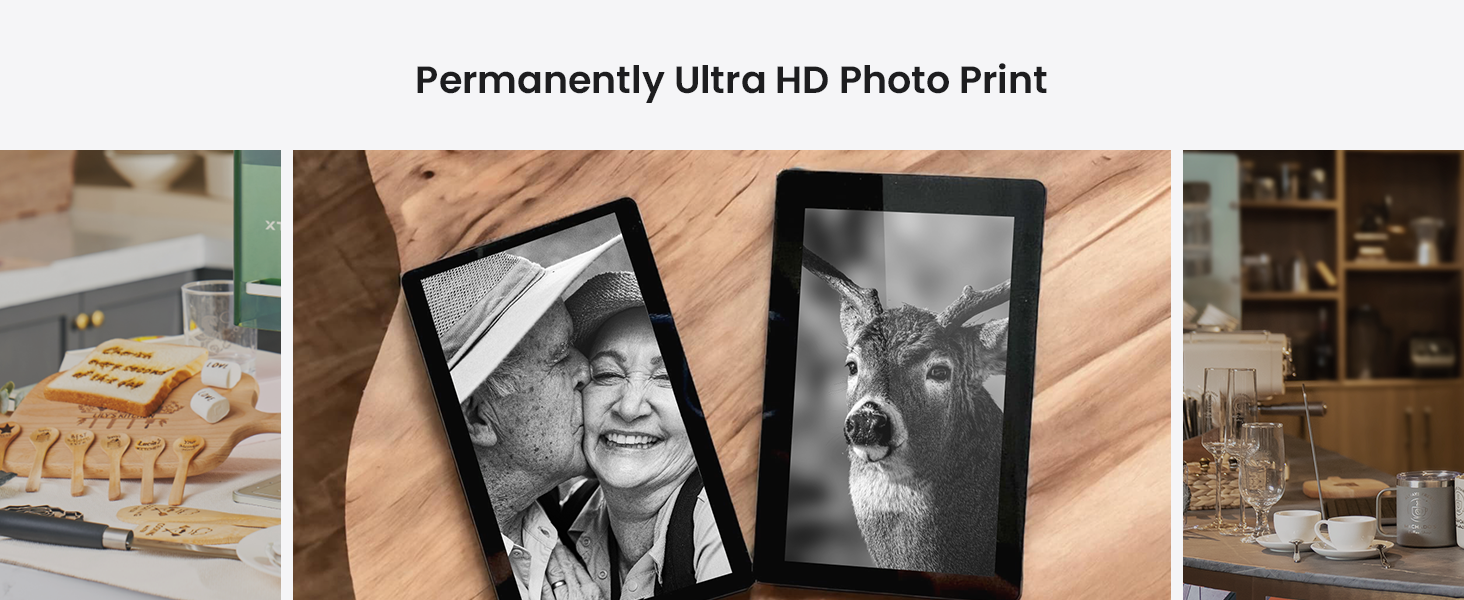
Image: Illustration of auto-focus, where material thickness is input, and manual focus, where a knob is turned to align two red laser dots.
5.3 Engraving Process (3 Steps)
Engraving with the xTool F1 is a straightforward process:
- Step 1: Design Creation: Create or import your design using xTool Creative Space or LightBurn.
- Քայլ 2: Նախview և դիրքավորումը՝ Use the live preview function to ensure your design is correctly positioned on the material. The device can project a frame preview or a graph outline preview.
- Step 3: Start Engraving: Նախնականից գոհ լինելուց հետոview, press the button on the device to begin the engraving process.
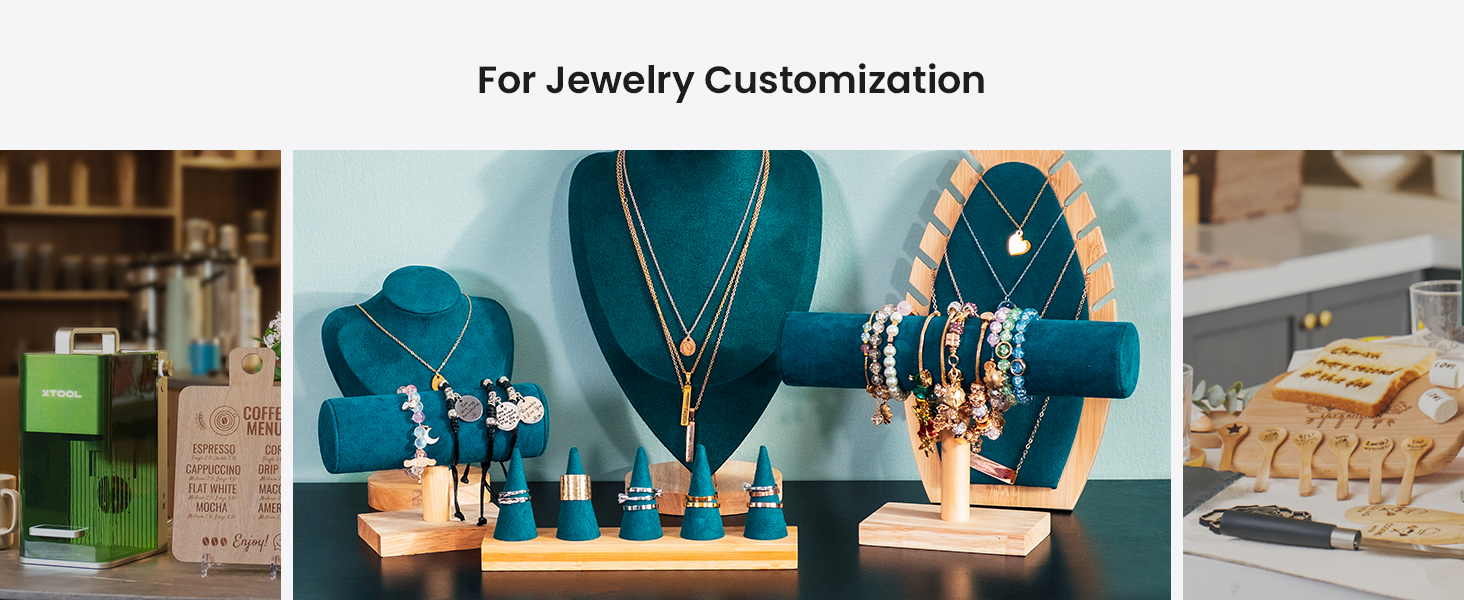
Image: A visual guide to the three-step engraving process: designing on a tablet, previewing on the machine, and pressing the start button.
5.4 Material Compatibility and Dual Lasers
The xTool F1 features two distinct lasers for broad material compatibility:
- 2W 1064nm ինֆրակարմիր լազեր: Ideal for engraving all metal materials and some plastics.
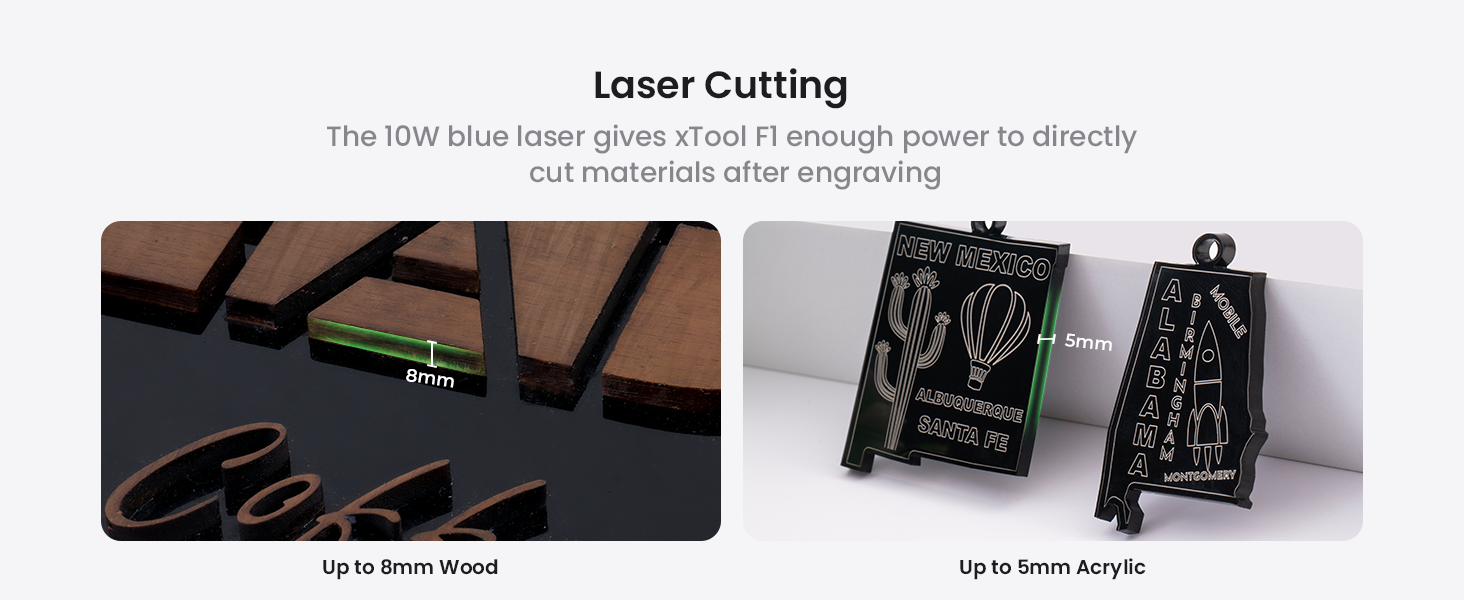
- 10W 455nm Blue Diode Laser: Suitable for cutting and engraving wood, acrylic, leather, paper, rubber, and other organic materials. It can cut up to 10mm wood and 6mm acrylic.
Պատկեր՝ Ներքին view of the xTool F1, highlighting the distinct paths of the 2W infrared laser (red) for metals and the 10W blue diode laser (blue) for other materials.
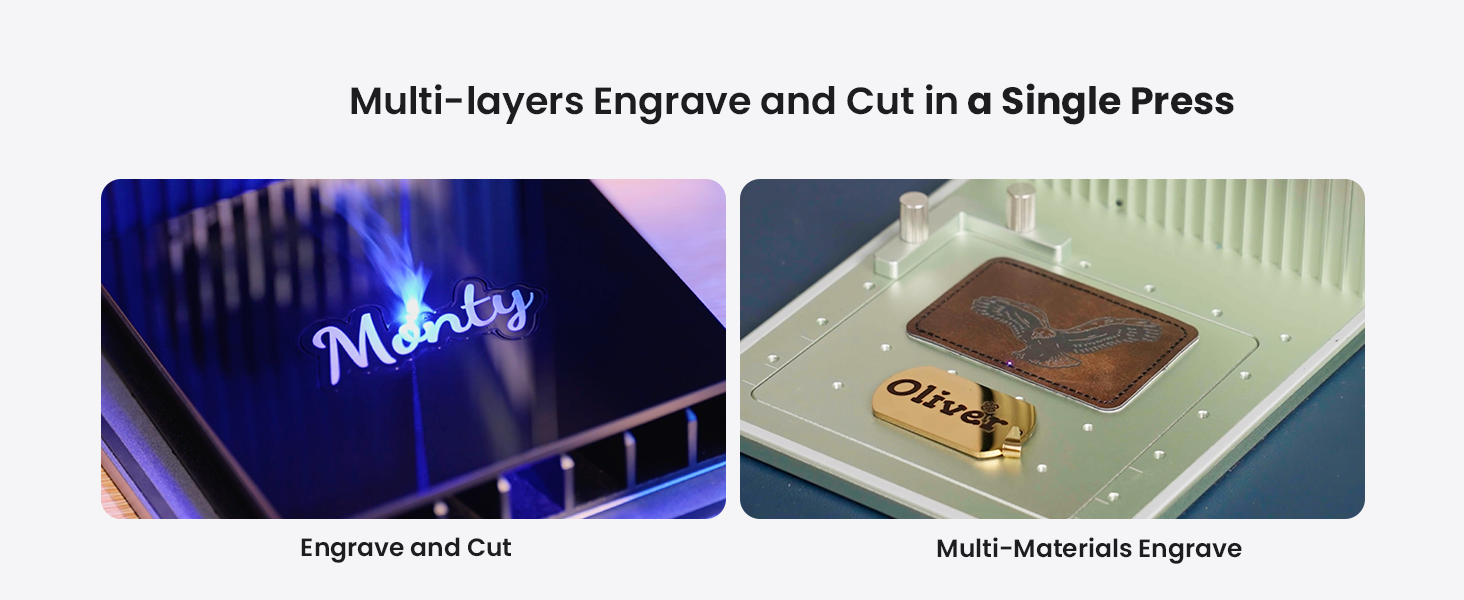
Image: A diverse collection of over 300 materials, including wood, acrylic, glass, aluminum, slate, and leather, demonstrating the xTool F1's engraving capabilities.
5.5 Expanding Working Area with Slide Extension
The xTool F1 can expand its working area for larger projects or batch processing.
- Standard Working Area: 115 մմ x 115 մմ:
- With Slide Extension: Expandable to 115mm x 400mm, allowing for 4 times the engraving area. This is ideal for batch processing multiple items simultaneously.

Image: The xTool F1 with its slide extension accessory, visually demonstrating the expansion of the engraving area from 115x115mm to 115x400mm.
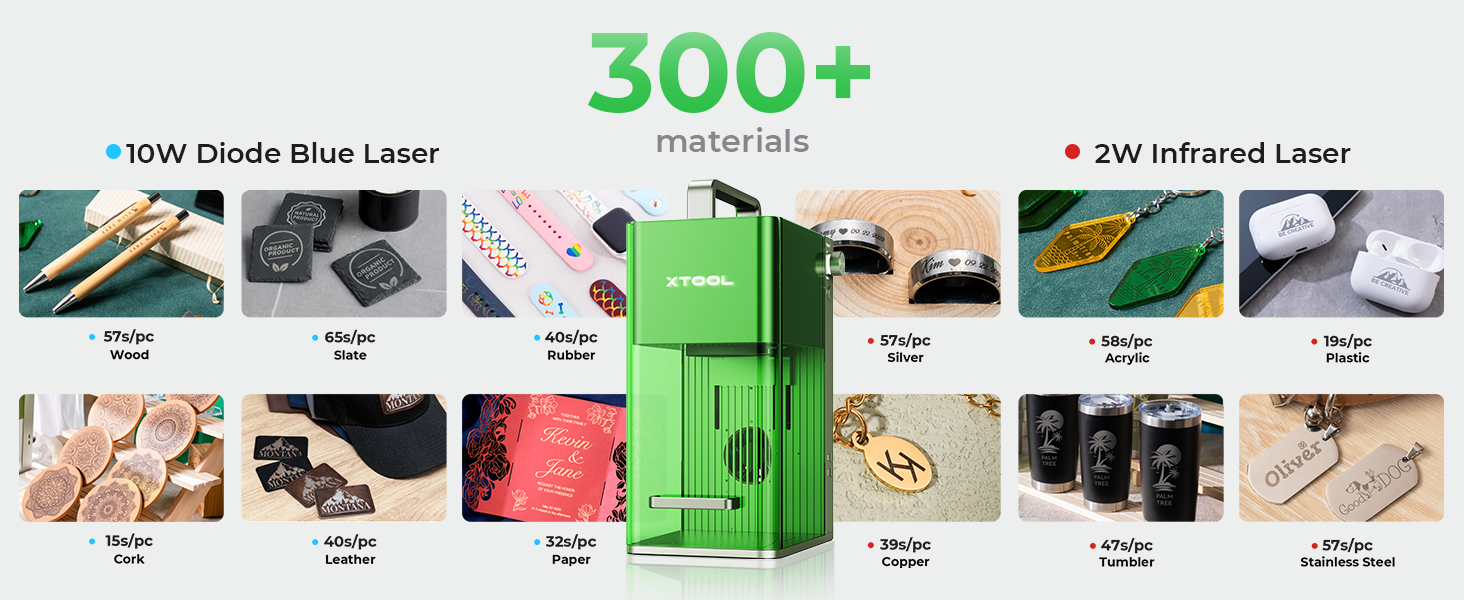
Image: The xTool F1 efficiently engraving multiple spoons in a single batch using the extended working area provided by the slide extension.
6. Պահպանում
Regular maintenance ensures optimal performance and longevity of your xTool F1.
- Մաքրում: Regularly clean the interior of the machine, especially the lens and work area, to remove dust and debris. Use a soft, lint-free cloth and lens cleaning solution if necessary.
- Օդի զտիչ. If using an air purifier, regularly check and replace its filter as recommended by the manufacturer.
- Fրագրակազմի թարմացումներ. Keep the device firmware and software updated to the latest versions for improved features and stability.
7: Անսարքություն
Այս բաժինը անդրադառնում է այն տարածված խնդիրներին, որոնց կարող եք հանդիպել։
| Խնդիր | Հնարավոր պատճառ | Լուծում |
|---|---|---|
| Լազերային չի կրակում | Power cable loose; Emergency stop engaged; Software error; Laser module issue | Check power connections; Disengage emergency stop; Restart software/device; Contact support if issue persists. |
| Վատ փորագրության որակը | Incorrect focus; Wrong material settings; Dirty lens; Material not flat | Adjust focus (auto/manual); Verify material settings in software; Clean laser lens; Ensure material is flat and secured. |
| Device not connecting to computer | USB cable issue; Driver not installed; Software conflict | Try a different USB port/cable; Reinstall drivers; Restart computer and device. |
For more detailed troubleshooting or issues not listed here, please refer to the official xTool support resources.
8. Տեխնիկական պայմաններ
| Առանձնահատկություն | Մանրամասն |
|---|---|
| Մոդել | xTool F1 |
| Լազերային տեսակ | 2W 1064nm Infrared Laser & 10W 455nm Blue Diode Laser |
| Փորագրման արագություն | Մինչև 4000 մմ/վրկ |
| Շարժման ճշգրտություն | 0.00199 մմ |
| Standard Working Area | 115 մմ x 115 մմ |
| Expanded Working Area (with Slide Extension) | 115 մմ x 400 մմ |
| Cutting Capacity (Diode Laser) | Up to 10mm wood, 6mm acrylic |
| Քաշը | 4.6 կգ |
| Միացում | USB |
| Աջակցվող ծրագրակազմ | xTool Creative Space, LightBurn |
9. Երաշխիք և աջակցություն
For detailed warranty information, product registration, and technical support, please visit the official xTool webկայքում կամ ուղղակիորեն կապվեք նրանց հաճախորդների սպասարկման ծառայության հետ: Պահպանեք ձեր գնման կտրոնը որպես գնման ապացույց՝ երաշխիքային պահանջների համար:
Առցանց ռեսուրսներ.
- Official xTool Webկայքը: www.xtool.com
- Աջակցության էջ. Տեսեք website for FAQs, tutorials, and contact options.