
Xprinter XP-420B
Xprinter XP-420B USB Direct Thermal Label Printer User Manual
Մոդել՝ XP-420B
1. Ապրանքը ավարտված էview
The Xprinter XP-420B is a high-speed direct thermal label printer designed for various applications, including shipping labels. It offers a maximum print speed of 152 mm/s (6 inches/second) and a resolution of 203 DPI, ensuring clear and precise prints. Its robust double-walled clamshell design enhances durability, and the intelligent print head temperature control system ensures stable output. This printer is compatible with both Windows and Mac operating systems, making it a versatile solution for your labeling needs.
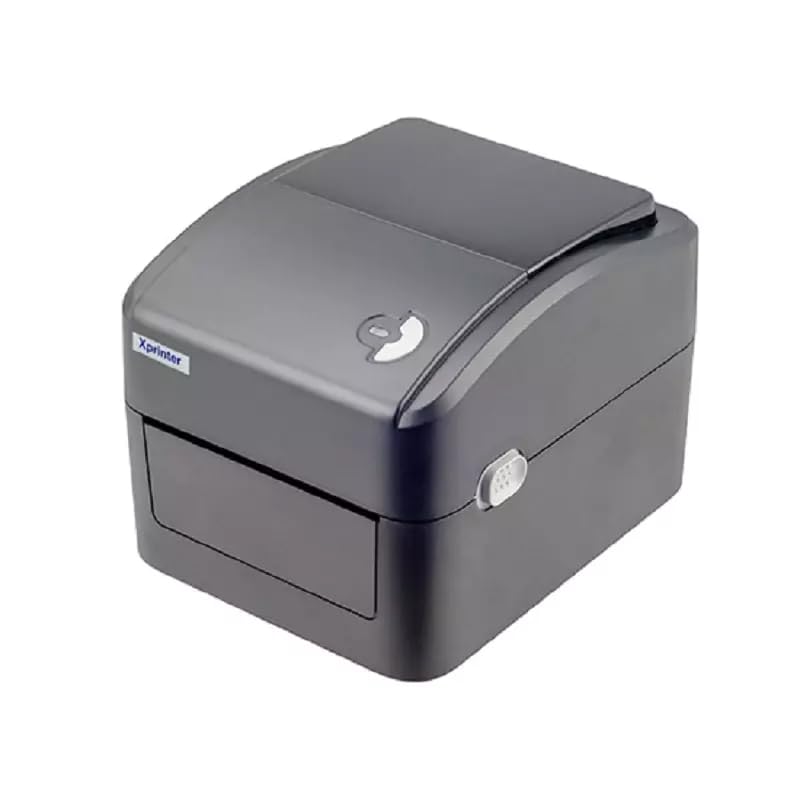
Նկար 1. Առջև view of the Xprinter XP-420B thermal label printer.
2. Կարգավորման ուղեցույց
2.1 Բացում և նախնական ստուգում
- Զգուշորեն հանեք տպիչը և բոլոր պարագաները փաթեթավորումից։
- Verify that all components are present: printer unit, power adapter, USB cable, and user manual.
- Inspect the printer for any visible damage that may have occurred during transit.
2.2 Տպիչի միացում
- Միացրեք սնուցման ադապտերը տպիչի սնուցման միացքին, ապա միացրեք այն վարդակից։
- Connect one end of the provided USB cable to the printer's USB port and the other end to an available USB port on your computer.
- Power on the printer using the power switch, usually located on the side or rear.

Figure 2: Xprinter XP-420B showing USB connectivity.
2.3 Պիտակների բեռնում
- Open the printer's top cover by pressing the release latches on both sides.
- Place the roll of thermal labels onto the label spindle, ensuring the labels feed from the bottom of the roll.
- Feed the leading edge of the labels through the label guide until it extends slightly past the print head.
- Adjust the movable label guides to fit the width of your labels snugly, without pinching them.
- Close the top cover firmly until it latches securely.
- The printer will automatically calibrate and detect the label size.
2.4 Վարորդի տեղադրում
Before printing, you must install the appropriate printer drivers on your computer. Drivers are typically provided on a CD included with the printer or can be downloaded from the official Xprinter website. The XP-420B supports both Windows and Mac operating systems.
- Windows-ի համար. Run the setup executable from the driver CD or downloaded file և հետևեք էկրանի հրահանգներին:
- Mac-ի համար. Download the Mac driver from the Xprinter website and follow the installation prompts.
3. Գործառնական հրահանգներ
3.1 Հիմնական տպագրություն
- Համոզվեք, որ տպիչը միացված է և միացված է ձեր համակարգչին։
- Open the document or application from which you wish to print (e.g., shipping software, word processor).
- Ընտրեք «Տպել» հավելվածի ցանկից։
- Choose "Xprinter XP-420B" as your printer.
- In the printer settings or preferences, ensure the correct label size is selected. The printer supports adjustable label sizes.
- Սեղմեք «Տպել»՝ աշխատանքը տպիչին ուղարկելու համար։
3.2 Adjusting Label Size
The XP-420B allows for adjustable label sizes. This adjustment is primarily done through the printer driver settings on your computer and by physically adjusting the label guides within the printer.
- Software Adjustment: In your printing application or printer driver settings, navigate to the "Page Setup" or "Paper Size" options. Select or define the custom dimensions for your labels (e.g., 4x6 inches for shipping labels).
- Physical Adjustment: As described in Section 2.3, ensure the internal label guides are set correctly to the width of your loaded labels.
4. Պահպանում
4.1 Տպիչի գլխիկի մաքրում
Regular cleaning of the print head is crucial for maintaining print quality and extending the printer's lifespan. It is recommended to clean the print head after every roll of labels or if print quality degrades.
- Անջատեք տպիչը և անջատեք սնուցման լարը։
- Բացեք տպիչի վերին կափարիչը:
- Եթե տպիչը վերջերս է օգտագործվել, սպասեք մի քանի րոպե, մինչև տպիչի գլուխը սառչի։
- Gently wipe the print head surface with an alcohol swab or a lint-free cloth lightly dampհագեցած է իզոպրոպիլային սպիրտով:
- Թողեք տպիչի գլխիկը լիովին չորանա, նախքան կափարիչը փակելը և հոսանքը վերամիացնելը։
4.2 Ընդհանուր մաքրում
- Տպիչի արտաքին մասը սրբելու համար օգտագործեք փափուկ, չոր կտոր։
- Remove any dust or label debris from the inside of the printer using a soft brush or compressed air.
- Մի օգտագործեք հղկող մաքրող միջոցներ կամ լուծիչներ:
5: Անսարքություն
| Խնդիր | Հնարավոր պատճառ | Լուծում |
|---|---|---|
| Տպիչը չի արձագանքում | Power off; USB cable disconnected; Driver issue. | Ensure power is on and connected. Check USB cable. Reinstall printer driver. |
| Poor print quality (faded, lines) | Dirty print head; Incorrect label type; Low print density setting. | Clean the print head (Section 4.1). Ensure you are using direct thermal labels. Adjust print density in driver settings. |
| Պիտակները ճիշտ չեն մատակարարվում | Labels improperly loaded; Label guides not adjusted; Sensor obstruction. | Reload labels correctly. Adjust label guides. Clean any dust or debris from sensors. |
| Printer prints blank labels | Labels loaded upside down; Not a direct thermal label. | Ensure labels are loaded with the printable side facing up. Verify labels are direct thermal. |
6. Ապրանքի բնութագրերը
| Առանձնահատկություն | Մանրամասն |
|---|---|
| Բրենդ | Xprinter |
| Մոդելի անվանումը | XP-420B |
| Միացման տեխնոլոգիա | USB |
| Տպագրության տեխնոլոգիա | Ուղղակի ջերմային |
| Բանաձեւ | 203 DPI |
| Տպման առավելագույն արագություն | 152 մմ/վ (6 դյույմ/վայրկյան) |
| Հիշողություն | 8MB SDRAM, 8MB Flash |
| Տպիչի ելք | Մոնոխրոմ |
| Նյութի քաշը | 3 կգ |
| Ապրանքի չափերը | 20D x 6W x 10H սանտիմետրեր |
| Համատեղելիություն | Windows, Mac |
7. Երաշխիք և աջակցություն
7.1 Երաշխիքային տեղեկատվություն
The Xprinter XP-420B comes with a 1 տարի երաշխիք գնման օրվանից։ Այս երաշխիքը ներառում է արտադրական թերությունները և անսարքությունները նորմալ օգտագործման դեպքում։ Խնդրում ենք պահպանել գնման ապացույցը երաշխիքային պահանջների համար։
7.2 Հաճախորդների աջակցություն
For technical assistance, troubleshooting beyond this manual, or warranty service, please contact Xprinter customer support. Refer to the contact information provided with your product packaging or visit the official Xprinter webկայքը՝ աջակցության ամենաթարմ մանրամասների համար։