
Ներածություն
This manual provides detailed instructions for the installation, operation, and maintenance of your Imagebon 11.3-inch QLED Android Car Navigation System. Please read this manual thoroughly before using the product to ensure proper function and safety. Keep this manual for future reference.
Հիմնական հատկանիշները
- High-Performance 8-Core Android System: Equipped with an 8-core Android processor, 4GB RAM, and 64GB storage for smooth operation and ampազատ տարածք հավելվածների և մեդիայի համար։
- Google Play-ի համատեղելիություն. Download and use your favorite apps directly from Google Play. Pre-installed with popular apps like YouTube and Netflix.
- Բազմախնդրություն բազմաֆունկցիոնալ ռեժիմով՝ Split-Screen-ի միջոցով. Simultaneously display navigation and entertainment apps for enhanced convenience while driving.
- Dual-Band Wi-Fi & Bluetooth: Supports 2.4GHz/5GHz Wi-Fi for stable streaming and Bluetooth for seamless smartphone connectivity and hands-free calling.
- 1080P Backup Camera: Includes a high-definition backup camera with adjustable guidelines for safe and easy parking.
- 11.3-inch IN-CELL QLED Display: Features a large, vibrant QLED screen for clear visuals and responsive touch control.
- Flexible Navigation Options: Supports CarPlay, Android Auto, and direct installation of navigation apps like Google Maps or Waze, with online and offline map capabilities.
- Ձայնային կառավարում. Operate navigation, music, and phone calls hands-free for increased safety and convenience.
- Անլար (OTA) թարմացումներ. Easily update software and apps wirelessly to ensure you always have the latest features and improvements.
Կարգավորում
Փաթեթի բովանդակությունը
Տեղադրումը սկսելուց առաջ ստուգեք, որ բոլոր բաղադրիչները առկա են.
- Imagebon 11.3-inch QLED Android Car Navigation System
- 10 մ հետևի տեսախցիկ
- AUX մալուխ
- GPS ալեհավաք
- Կպչուն լեռ
- Մեքենայի լիցքավորիչ (ծխախոտի կրակայրիչի ադապտեր)
- Օգտագործողի ձեռնարկ

Image: All components included with the Imagebon car navigation system, including the main unit, rear camera, cables, and mounts.
Տեղադրման քայլեր
- Միավորի տեղադրում. Securely attach the main unit to your dashboard using the provided adhesive mount. Ensure the unit is positioned to not obstruct your view կամ խանգարել մեքենայի կառավարմանը:
- Էլեկտրաէներգիայի միացում. Connect the car charger to your vehicle's cigarette lighter socket and the Type-C port on the navigation unit.
- GPS անտենայի միացում՝ Connect the GPS antenna to the designated port on the unit and place it in a location with a clear view երկնքից՝ ազդանշանի օպտիմալ ընդունման համար։
- Rear Camera Installation (Optional): If using the backup camera, install it at the rear of your vehicle and route the cable to the main unit. Connect the camera cable to the AV-IN port.
- Աուդիո ելք. For audio output, you can use the built-in speaker, FM transmission, AUX cable connection, or Bluetooth connection to your car's audio system.
Գործառնական հրահանգներ
Initial Power On and System Overview
Upon first power-on, the system will boot into the Android interface. You can customize the home screen, access apps, and adjust settings.
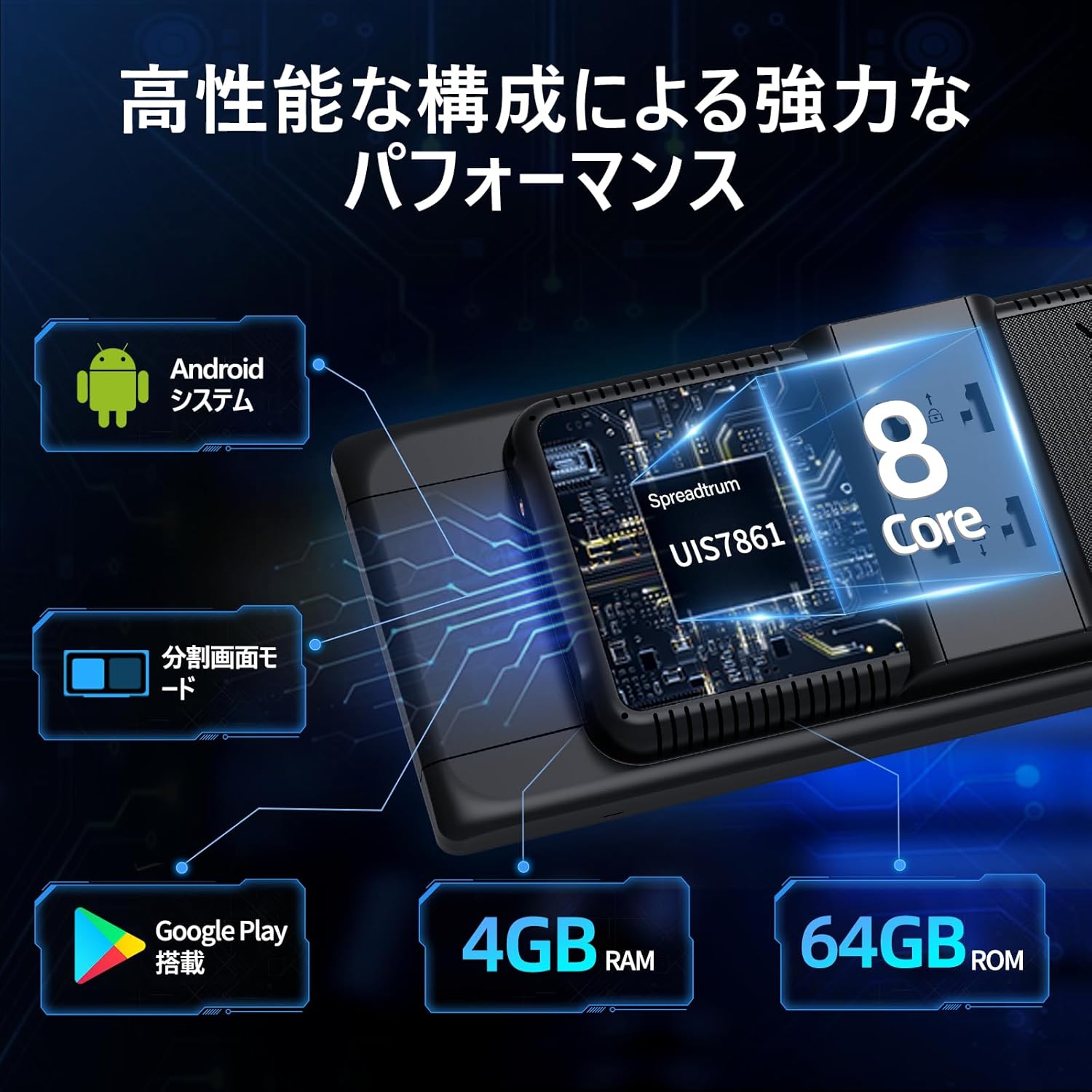
Image: The main interface of the Imagebon car navigation system, showing various app icons and the time display.
Connectivity (Wi-Fi & Bluetooth)
The unit supports dual-band Wi-Fi (2.4GHz/5GHz) and Bluetooth for seamless connectivity.
- Wi-Fi կապ. Անցեք Կարգավորումներ > Ցանց և ինտերնետ > Wi-Fi: Ընտրեք ձեր ցանկալի ցանցը և մուտքագրեք գաղտնաբառը:
- Bluetooth զույգ. Go to Settings > Connected devices > Bluetooth. Turn on Bluetooth and search for available devices. Select your smartphone to pair.

Image: The Imagebon car navigation system demonstrating dual-band Wi-Fi and Bluetooth connectivity, showing a phone call and navigation simultaneously.
Google Play and App Installation
Մուտք գործեք Google Play Store՝ լրացուցիչ ծրագրեր ներբեռնելու և տեղադրելու համար։
- Համոզվեք, որ սարքը միացված է Wi-Fi-ին։
- Tap the "Google Play Store" icon on the home screen.
- Մուտք գործեք ձեր Google հաշվի միջոցով:
- Browse or search for apps and tap "Install" to download.
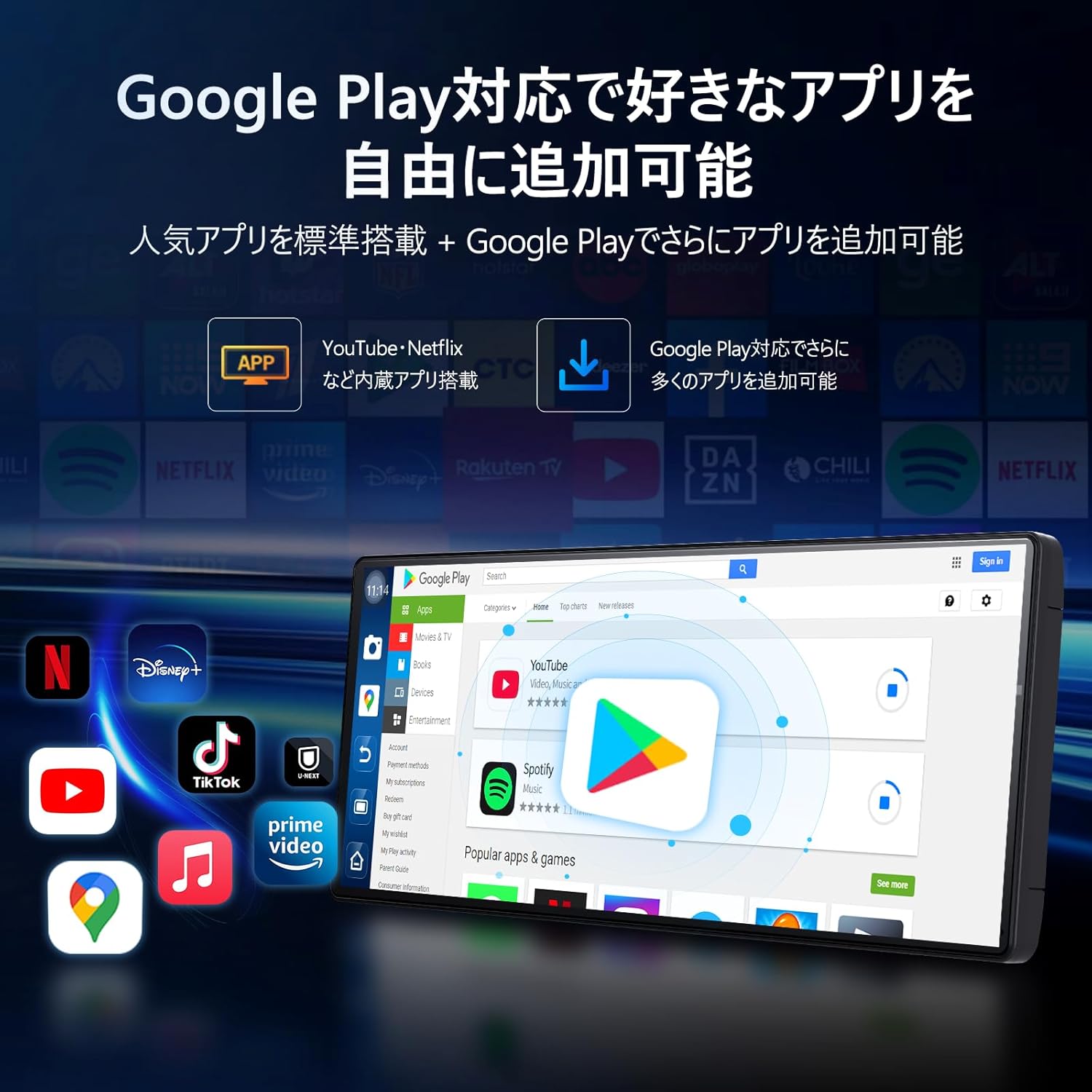
Image: The Imagebon car navigation system displaying the Google Play Store interface, showing various apps available for download.
Navigation (CarPlay / Android Auto / Built-in GPS)
The system offers multiple navigation options.
- CarPlay: Connect your iPhone via Bluetooth. A prompt will appear on your phone to allow CarPlay. Follow the on-screen instructions.
- Android Auto: Connect your Android phone via Bluetooth. A pairing request will appear. Confirm pairing and wait for the screen to cast.
- Ներկառուցված GPS. Use pre-installed navigation apps or download your preferred ones from Google Play. The system supports both online and offline maps.

Image: The Imagebon car navigation system showing both Google Maps interface and a smartphone connected via CarPlay/Android Auto for navigation.
Split-Screen Functionality
To use split-screen mode:
- Բացեք առաջին ծրագիրը, որը ցանկանում եք օգտագործել։
- Tap the split-screen button (usually represented by two rectangles) or swipe up to view վերջին հավելվածները:
- Drag the second application to the other half of the screen.
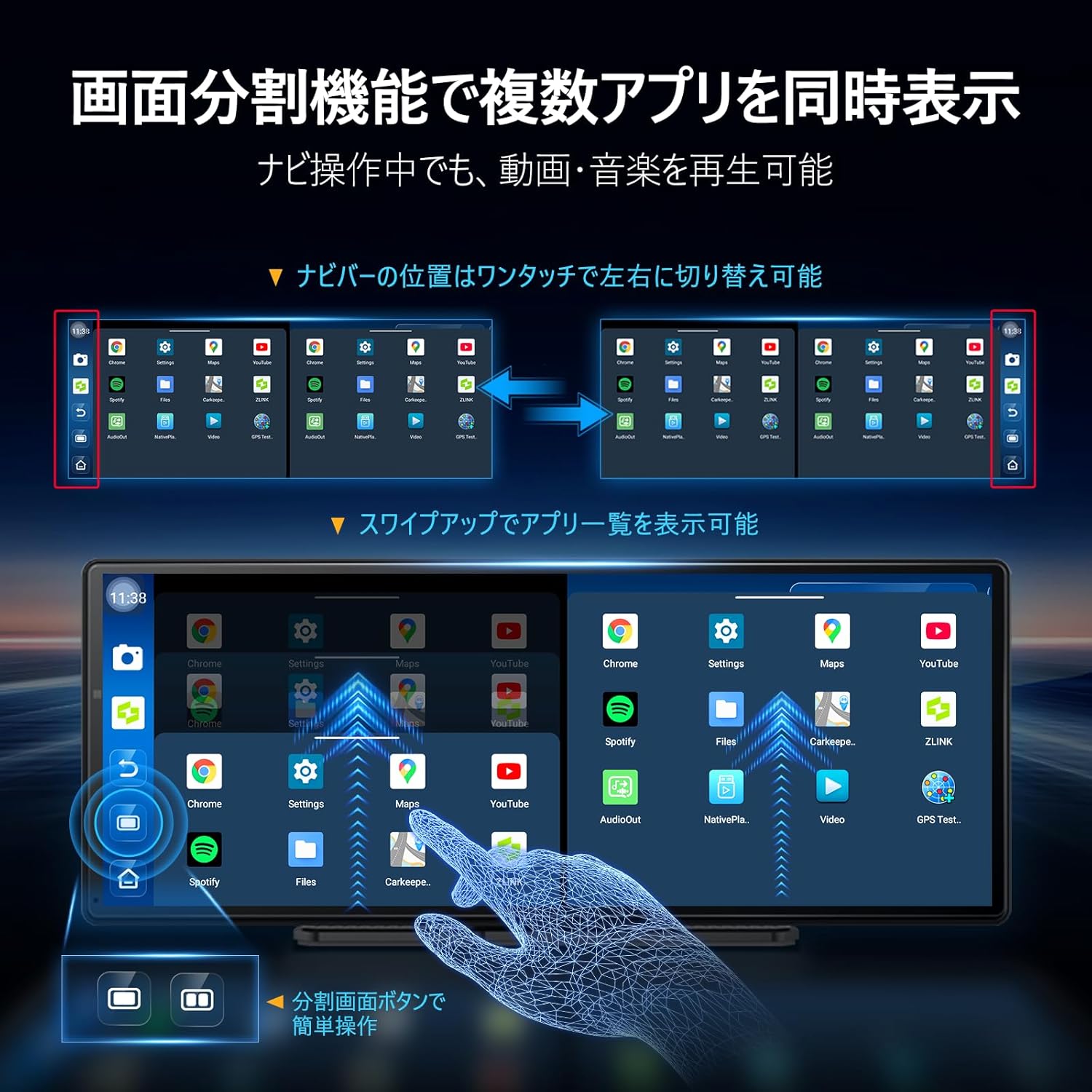
Image: The Imagebon car navigation system demonstrating split-screen functionality, showing two applications running side-by-side.
Ձայնային հսկողություն
Activate voice control by saying "Hey Siri" (for CarPlay) or "OK Google" (for Android Auto/Android system) or by tapping the microphone icon. You can issue commands such as:
- "Navigate to [destination]"
- "Play [song/artist]"
- "Call [contact name]"
- "Increase/Decrease volume"
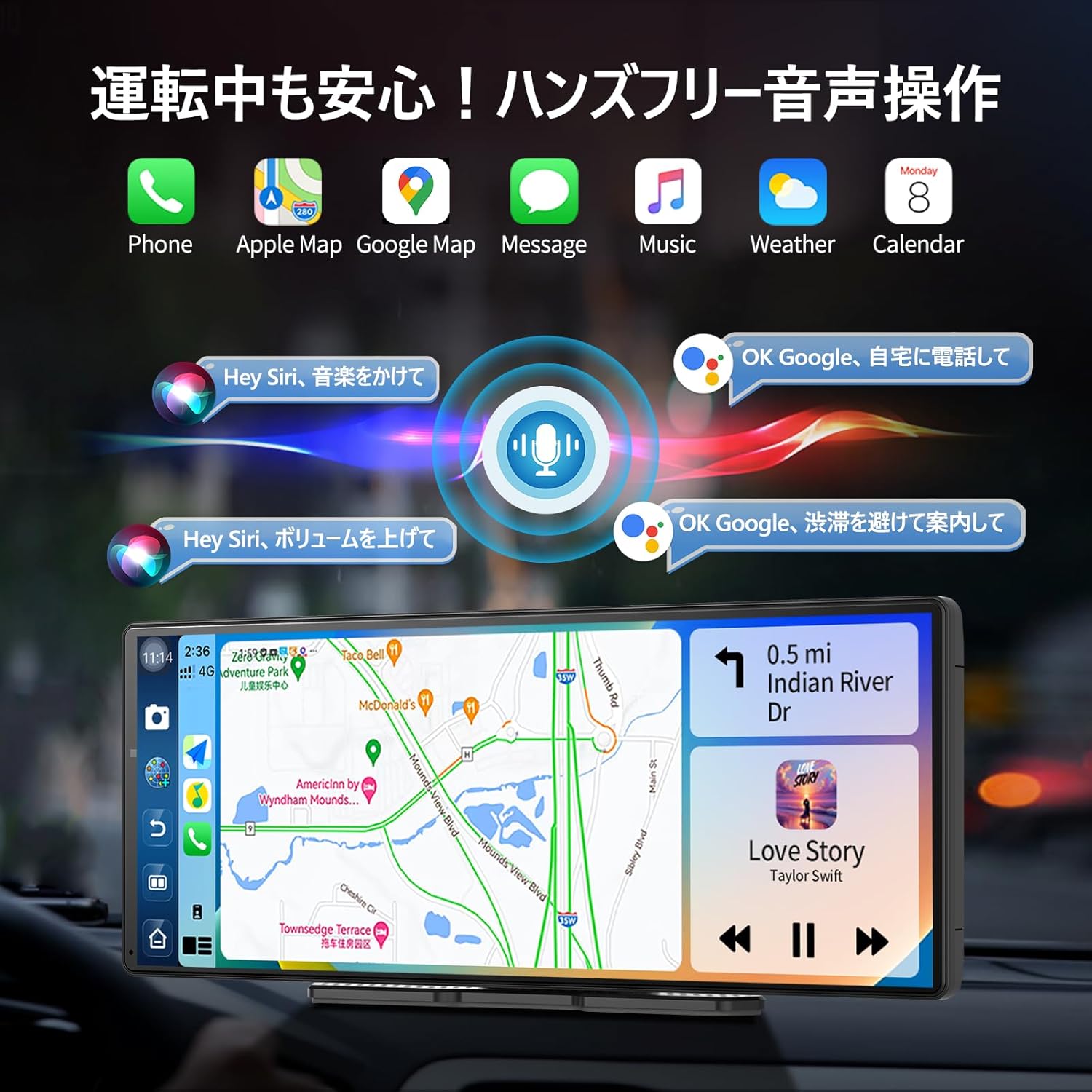
Image: The Imagebon car navigation system illustrating voice control commands for navigation, music, and calls, with a visual representation of sound waves.
Հետևի տեսախցիկի շահագործում
When the vehicle is shifted into reverse, the display will automatically switch to the rear camera view. Adjustable guidelines assist with parking.

Image: The Imagebon car navigation system displaying the 1080P rear camera view with adjustable parking guidelines, showing a car reversing into a parking spot.
OTA թարմացումներ
The system supports Over-The-Air (OTA) updates to keep your software and maps current.
- Համոզվեք, որ սարքը միացված է Wi-Fi-ին։
- Go to "App List" > "Settings".
- Select "Updater" from the "Device Information" menu.
- Follow the on-screen prompts to download and install updates. The unit will restart automatically after the update is complete.
Տեխնիկական սպասարկում
- Մաքրում: Էկրանը և արտաքին մասը մաքրելու համար օգտագործեք փափուկ, չոր կտոր։ Խուսափեք հղկող մաքրող միջոցներից կամ լուծիչներից։
- Ծրագրային թարմացումներ. Regularly check for and install OTA updates to ensure optimal performance and access to new features.
- Ջերմաստիճանը: Խուսափեք սարքը ծայրահեղ ջերմաստիճանի ենթարկելուց:
- Մալուխի կառավարում. Ensure all cables are securely connected and not interfering with vehicle operation.
Անսարքությունների վերացում
| Խնդիր | Հնարավոր պատճառ | Լուծում |
|---|---|---|
| Միավորը չի միանում | Power cable not connected or faulty; vehicle's power outlet issue. | Check power cable connection. Ensure vehicle's cigarette lighter socket is functional. |
| GPS ազդանշան չկա | GPS antenna not properly connected or obstructed view երկնքի. | Ensure GPS antenna is securely connected and placed in an unobstructed location. |
| Wi-Fi/Bluetooth connection issues | Incorrect password; device out of range; interference. | Verify password. Ensure devices are within range. Restart unit and connecting device. |
| Հետևի տեսախցիկը չի ցուցադրվում | Camera cable loose or faulty; vehicle not in reverse. | Check camera cable connection. Ensure vehicle is in reverse gear. |
| Սենսորային էկրանը չի արձագանքում | Ժամանակավոր ծրագրային ապահովման խափանում։ | Restart the unit. If problem persists, perform a factory reset (data will be lost). |
Տեխնիկական պայմաններ
| Առանձնահատկություն | Մանրամասն |
|---|---|
| Էկրանի չափը | 11.3 դյույմ |
| Ցուցադրման տեսակը | QLED |
| Պրոցեսոր | 8-Core Android |
| RAM | 4 ԳԲ |
| Պահպանում | 64 ԳԲ |
| Միացում | Bluetooth, USB, Wi-Fi (2.4GHz/5GHz) |
| Վերահսկման մեթոդ | Հպում, Ձայն |
| Հատուկ առանձնահատկություններ | Android Auto, Apple CarPlay, Built-in Bluetooth, Hands-free calling, 1080P Backup Camera |
| Աուդիո ելքի ռեժիմ | Ստերեո |
| Նյութի քաշը | 0.95 կգ |
| Չափերը (Փաթեթ) | 31.1 x 14.7 x 11.2 սմ |
| Մոդելի համարը | W60N-JP |
Երաշխիք և աջակցություն
This product comes with a standard manufacturer's warranty. For specific warranty details, please refer to the warranty card included in your package or contact Imagebon customer support.
For technical support, troubleshooting assistance, or any questions regarding your Imagebon car navigation system, please contact our customer service team. Contact information can be found on our official webկայքում կամ ապրանքի փաթեթավորման վրա։
Ապրանքի տեսանյութեր
Ապրանքը ավարտվել էview
Տեսանյութ՝ գեներալըview of the Imagebon 11.3-inch QLED Android Car Navigation System, highlighting its main features and design. (Duration: 1:15)
Split-Screen Demonstration
Video: A demonstration of the split-screen functionality, showing how to run two applications simultaneously on the display. (Duration: 0:44)
CarPlay and Android Auto Connectivity
Video: This video illustrates the process of connecting and using Apple CarPlay and Android Auto with the navigation system. (Duration: 2:07)
Ձայնի կառավարման առանձնահատկությունները
Video: A short demonstration of the voice control capabilities, showing how to issue commands for navigation and media playback. (Duration: 0:23)
Backup Camera Functionality
Video: This video showcases the 1080P backup camera in action, including the adjustable guidelines for safe parking. (Duration: 2:00)