
1. Ներածություն
The Huawei OptiXstar K251a-21 is a sub-FTTR (Fiber to the Room) unit designed to extend the high-speed network provided by the Huawei FTTR OptiXstar F50 Plus main unit. This device supports ultra-Gigabit high-speed access via upstream fiber optic lines and delivers Ultra Gigabit dual-band Wi-Fi and ultra-Gigabit network ports to users. It integrates next-generation Wi-Fi 7 technology for higher speeds and lower latency, ensuring a superior home network experience.
2. Անվտանգության տեղեկատվություն
Please read and understand all safety instructions before using this device. Failure to follow these instructions may result in injury, damage to the device, or property damage.
- Օգտագործեք միայն սարքի հետ տրվող հոսանքի ադապտեր:
- Մի՛ ենթարկեք սարքը ջրի, խոնավության կամ ծայրահեղ ջերմաստիճանների ազդեցությանը։
- Խուսափեք սարքը ջերմության աղբյուրների մոտ կամ արևի ուղիղ ճառագայթների տակ դնելուց:
- Ապահովեք պատշաճ օդափոխություն՝ գերտաքացումից խուսափելու համար:
- Do not attempt to open or repair the device yourself. Contact qualified service personnel for assistance.
- Սարքը հեռու պահեք երեխաներից և ընտանի կենդանիներից:
3. Փաթեթի բովանդակությունը
Ստուգեք, որ բոլոր իրերը առկա են ձեր փաթեթում.
- Huawei OptiXstar K251a-21 Sub FTTR Device
- Power Cable
- Արագ մեկնարկի ուղեցույց (եթե ներառված է)
4. Ապրանքը ավարտված էview
Ծանոթացեք սարքի բաղադրիչներին և ցուցիչներին։
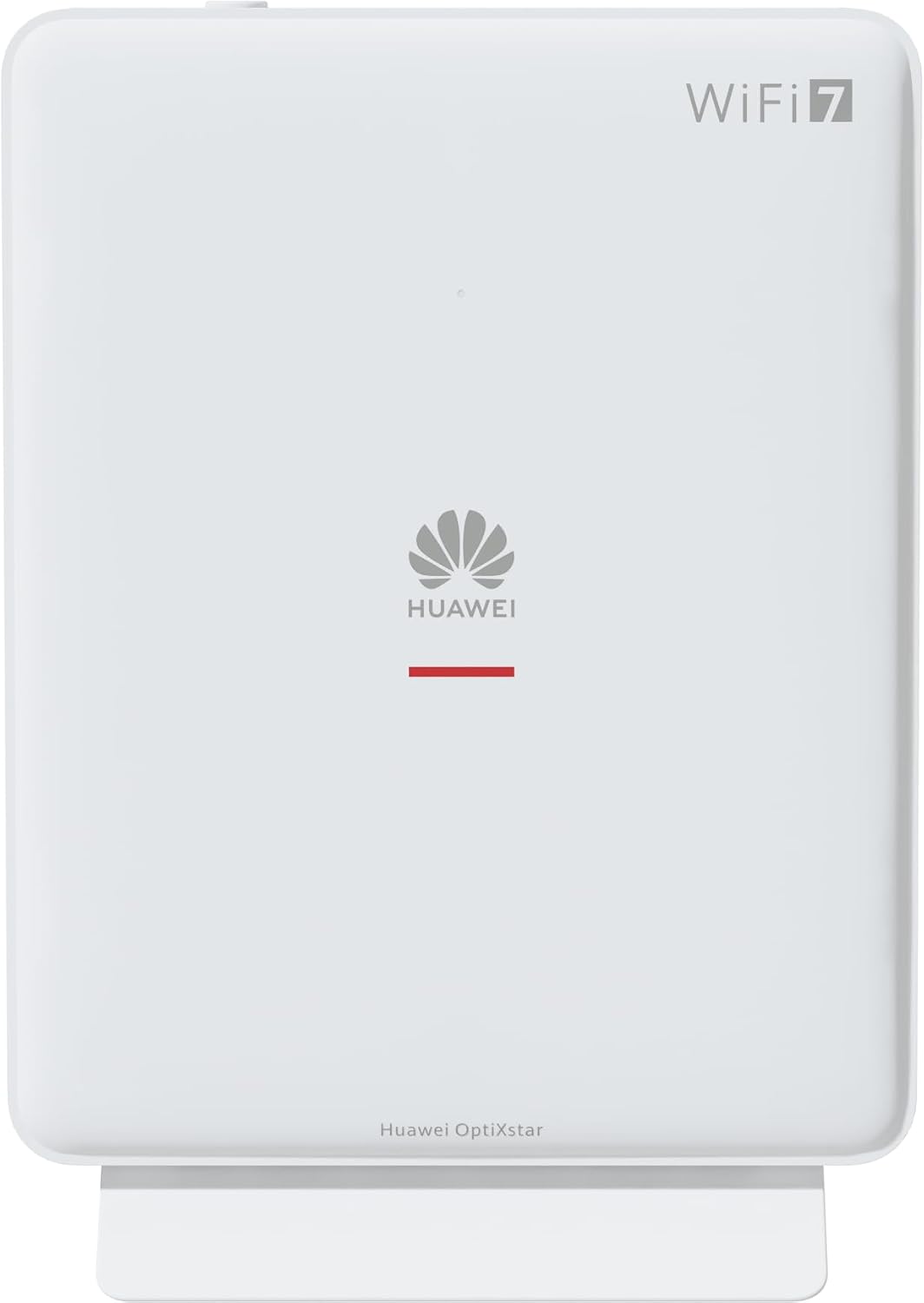
Նկար 1. Առջև view of the Huawei OptiXstar K251a-21 Sub FTTR device, showing the Huawei logo and "WiFi 7" branding.

Նկար 2. Անկյունային առջևի կողմ view of the Huawei OptiXstar K251a-21 Sub FTTR, highlighting its sleek design and ventilation.

Նկար 3. Հետևի view of the Huawei OptiXstar K251a-21 Sub FTTR, displaying the ports (Reset, 2-GE, 1-2.5GE, Power, FTTR) and mounting options.

Նկար 4: Կողային պրոfile of the Huawei OptiXstar K251a-21 Sub FTTR, showing its slim form factor and ventilation grilles.

Նկար 5. Թեքված հետևի մաս view of the Huawei OptiXstar K251a-21 Sub FTTR, providing a clear look at the port labels and layout.

Նկար 6. Վերև view of the Huawei OptiXstar K251a-21 Sub FTTR, featuring the WPS/LED button.
Նավահանգիստներ և կոճակներ.
- FTTR Port: Connects to the main FTTR unit via a fiber optic cable.
- 1-2.5GE Port: Gigabit Ethernet port for high-speed wired connections.
- 2-GE Port: Gigabit Ethernet port for wired connections.
- Power նավահանգիստ: Միանում է հոսանքի ադապտերին:
- Վերականգնման կոճակ. Used to restore factory settings (press and hold for 5-10 seconds).
- WPS/LED Button: Initiates Wi-Fi Protected Setup (WPS) for easy device connection and controls LED indicators.
5. Կարգավորում
Follow these steps to set up your Huawei OptiXstar K251a-21 Sub FTTR device:
- Տեղադրում: Choose a central location in your home for optimal Wi-Fi coverage. The device is suitable for various installation scenarios, including vertical placement on a desk, wall-mounting, plugging into a power strip, or mounting in an 86mm junction box with a bracket.
- Միացրեք օպտիկամանրաթելային մալուխը՝ Connect one end of the fiber optic cable to the FTTR port on the Sub FTTR unit and the other end to the corresponding FTTR port on your Huawei FTTR OptiXstar F50 Plus main unit or wall outlet. Ensure the connection is secure.
- Միացրեք հոսանքը. Plug the power adapter into the Power port on the Sub FTTR unit, then plug the other end into a power outlet.
- Միացում՝ The device will automatically power on. Wait for the indicator lights to stabilize, typically indicating a successful connection to the main FTTR unit and active Wi-Fi.
- Wired Connections (Optional): For wired devices, connect an Ethernet cable from the 1-2.5GE or 2-GE ports on the Sub FTTR to your computer, gaming console, or other network devices.
6. Գործում
Once set up, your OptiXstar K251a-21 provides seamless Wi-Fi 7 connectivity.
- Wi-Fi կապ. Որոնել the Wi-Fi network name (SSID) broadcast by your FTTR system on your devices (smartphones, laptops, etc.). Enter the Wi-Fi password. The system's unique SRCN (Seamless Roaming Coordinate Network) technology ensures seamless roaming throughout your home.
- C-WAN Architecture: The C-WAN architecture centrally controls and coordinates network-wide Wi-Fi resources via the Main FTTR, providing an ultra-Gigabit high-speed experience.
- IoT Casing: The device features an IoT casing designed to protect home network security and privacy.
- WPS գործառույթը. Press the WPS/LED button briefly to use Wi-Fi Protected Setup (WPS) for quick connection of compatible devices without entering the password.
- LED ցուցիչներ. The LED indicators provide status information. Refer to the main FTTR unit's manual or the device's specific documentation for detailed LED status meanings.
7. Պահպանում
Regular maintenance helps ensure optimal performance and longevity of your device.
- Մաքրում: Gently wipe the device with a soft, dry cloth. Do not use liquid cleaners or abrasive materials.
- Fրագրակազմի թարմացումներ. Huawei periodically releases firmware updates to improve performance and security. These updates are typically managed through the main FTTR unit or a dedicated mobile application. Ensure your system is always running the latest firmware.
- Օդափոխում: Համոզվեք, որ օդափոխության բացերը խցանված չեն գերտաքացումից խուսափելու համար:
- Մալուխի կառավարում. Keep fiber optic and power cables neatly organized and free from kinks or excessive bending.
8: Անսարքություն
Եթե խնդիրներ եք ունենում, փորձեք անսարքությունների վերացման հետևյալ քայլերը.
- Հզորություն չկա. Check if the power cable is securely connected to both the device and the power outlet. Try a different outlet.
- Ինտերնետ կապ չկա.
- Verify that the fiber optic cable is correctly connected to the FTTR port.
- Check the status indicators on both the Sub FTTR and the main FTTR unit.
- Restart both the Sub FTTR and the main FTTR unit by unplugging them from power for 30 seconds and then plugging them back in.
- Ensure your main FTTR unit has an active internet connection.
- Դանդաղ Wi-Fi արագություն.
- Ensure the device is placed optimally, away from obstructions and interference sources.
- Check if too many devices are connected to the network.
- Update the firmware of your FTTR system.
- Consider using a wired connection for bandwidth-intensive tasks.
- Հնարավոր չէ միանալ Wi-Fi-ին.
- Ստուգեք, որ մուտքագրում եք ճիշտ Wi-Fi գաղտնաբառը։
- Try using the WPS button to connect.
- Restart your device and the Sub FTTR unit.
- Գործարանի զրոյացում. If issues persist, you may need to perform a factory reset. With the device powered on, use a pointed object (like a paperclip) to press and hold the Reset button for 5-10 seconds until the indicators change. Note that this will erase all custom settings.
9. Տեխնիկական պայմաններ
| Առանձնահատկություն | Հստակեցում |
|---|---|
| Բրենդ | HUAWEI |
| Մոդելի համարը | K8M251a-21G02 |
| Չափերը (Փաթեթ) | 24.5 x 23.7 x 7.4 սմ |
| Քաշը (փաթեթ) | 300 գրամ |
| Հատուկ առանձնահատկություն | Ինտերնետ անվտանգություն |
| Հաճախականության տիրույթի դաս | Dual Band |
| Անլար կապի ստանդարտ | 802.11ax (Wi-Fi 7 Generation) |
| Համատեղելի սարքեր | Անհատական համակարգիչ |
| Առաջարկվող կիրառումներ | Տուն |
| Ներառված բաղադրիչներ | Power Cable |
| Միացման տեխնոլոգիա | Ethernet, FTTR, Wi-Fi, Fiberglass |
| Գույն | Սպիտակ |
| Նավահանգիստների թիվը | 4 (FTTR, 1-2.5GE, 2-GE, Power) |
| Տվյալների փոխանցման արագություն | 1 Gigabits per second |
| Խելացի տան համատեղելիություն | Compatible with smart home systems |
| Ինտերնետ կապ | Այո՛ |
| Միացման արձանագրություն | Wi-Fi |
10. Երաշխիք և աջակցություն
Երաշխիքային տեղեկատվության և տեխնիկական աջակցության համար խնդրում ենք դիմել Huawei-ի պաշտոնական կայքէջին։ website or contact your local Huawei customer service. Keep your purchase receipt for warranty claims.
Առցանց ռեսուրսներ. Visit the official Huawei support webԿայք՝ հաճախակի տրվող հարցերի, թարմացված ձեռնարկների և ծրագրաշարի ներբեռնումների համար։
Հաճախորդների սպասարկում. Contact details for customer support can typically be found on the Huawei website or in the documentation provided with your main FTTR unit.