Ներածություն
Welcome to the user manual for your Tibuta Smartpad A40 tablet. This guide provides essential information on setting up, operating, maintaining, and troubleshooting your device. The Smartpad A40 is designed for versatile use, featuring a large 10.1-inch display, a powerful quad-core processor, and the Android 14 operating system.

Image: The Tibuta Smartpad A40 tablet, shown with its protective case, highlighting its Android 14 operating system and 6GB RAM + 64GB ROM configuration.
Կարգավորման ուղեցույց
1. Ապաբոքսում և նախնական ստուգում
Carefully remove all components from the packaging. Ensure the tablet, protective case, charging cable, and power adapter are present. Inspect the tablet for any physical damage.

Image: The Tibuta Smartpad A40 tablet with its included case and headphones, illustrating its core features such as Android 14, IPS display, memory, battery capacity, and camera specifications.
2. Պլանշետի լիցքավորում
Before first use, fully charge the tablet. Connect the Type-C charging cable to the tablet's charging port and the other end to the power adapter. Plug the adapter into a wall outlet. The charging indicator will show the charging status.

Image: The Tibuta Smartpad A40 tablet connected to a Type-C charger, emphasizing its 5000mAh battery capacity and estimated usage times for video playback and overall endurance.
3. Միացում/անջատում
- Միացնել. Press and hold the Power button located on the side of the tablet until the Tibuta logo appears.
- Անջատելու համար. Սեղմեք և պահեք միացման կոճակը, մինչև հայտնվի միացման ընտրանքների ցանկը: Ընտրեք «Անջատել» և հաստատեք:
- Վերագործարկելու համար՝ Էլեկտրաէներգիայի ընտրանքների ցանկից ընտրեք «Վերագործարկում» և հաստատեք։
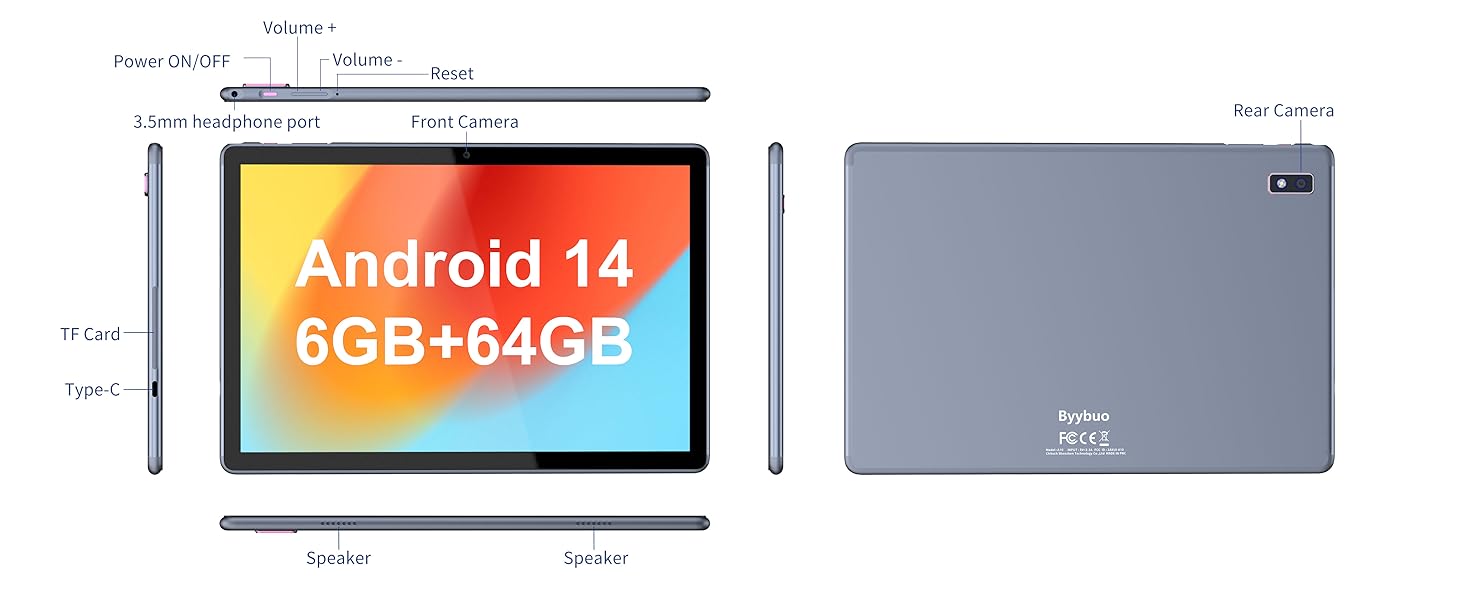
Image: A detailed diagram illustrating the physical layout of the Tibuta Smartpad A40, including the positions of its buttons, ports, and cameras for easy identification.
4. Նախնական տեղադրման մոգ
Առաջին միացման ժամանակ պլանշետը ձեզ կուղեկցի սկզբնական կարգավորման գործընթացով: Հետևեք էկրանին տրված հրահանգներին՝
- Ընտրեք ձեր լեզուն:
- Միացեք Wi-Fi ցանցին:
- Մուտք գործեք ձեր Google հաշվով կամ ստեղծեք նորը։
- Կարգավորեք էկրանի կողպեքը (PIN կոդ, նախշ, գաղտնաբառ):
- Review և ընդունեք պայմաններն ու դրույթները։
Operating Your Tibuta Smartpad A40
1. Navigation and Touchscreen Gestures
The Smartpad A40 features a responsive multi-touch display. Common gestures include:
- Հպեք՝ Տարր ընտրելու կամ հավելված բացելու համար։
- Սեղմեք և պահեք՝ Համատեքստային ընտրացանկերին մուտք գործելու կամ պատկերակները տեղափոխելու համար։
- Սահեցրեք ՝ To scroll through pages or navigate between screens.
- Մատներով մեծացնել՝ Պատկերները մեծացնելու կամ փոքրացնելու համար և web էջեր։
2. Էկրան և ձայն
Experience vibrant visuals on the 10.1-inch IPS HD display with a resolution of 1280 x 800 pixels. The tablet also features an eye protection mode to reduce strain during prolonged use. Enjoy clear audio through the integrated dual high-fidelity speakers.

Image: The Tibuta Smartpad A40 tablet showcasing its IPS Full HD display and dual speakers, emphasizing its 10.1-inch screen size, 1280x800 IPS resolution, eye protection mode, and high-fidelity audio output.
3. Performance and Operating System
Powered by a robust Quad-Core processor and running on Android 14, the Smartpad A40 delivers smooth performance for multitasking, gaming, and streaming. The Android 14 system ensures access to the latest features and security updates.

Image: The Tibuta Smartpad A40 tablet showcasing its Android 14 operating system and GMS certification, with various application icons visible on the screen.
4. Պահեստավորում և հիշողություն
The tablet comes with 6GB of RAM (2GB + 4GB virtual) and 64GB of internal storage, providing ample space for your applications, photos, videos, and documents. Storage can be expanded up to 128GB using a microSD card (not included).

Image: The Tibuta Smartpad A40 tablet highlighting its 6GB RAM and 64GB internal storage, along with the option to expand storage up to 128GB via a microSD card.
5. Տեսախցիկներ
Capture moments with the tablet's dual cameras: a 5 MP front camera for video calls and selfies, and an 8 MP rear camera for photos and videos.

Image: Demonstrates the Tibuta Smartpad A40's camera capabilities, featuring a 5.0 MP front camera for HD video and an 8.0 MP rear camera with autofocus for capturing photos.
6. Միացում
The Smartpad A40 supports Wi-Fi (802.11ac) for fast internet access and Bluetooth for connecting to wireless peripherals like headphones and speakers.
7. Versatile Use Cases
The Tibuta Smartpad A40 is designed for a wide range of activities, from entertainment to productivity. Its portability makes it ideal for on-the-go use, while its features support various daily needs.

Image: Illustrates the diverse applications of the Tibuta Smartpad A40, including watching videos, assisting with daily tasks, and serving as a tablet for both children and seniors.
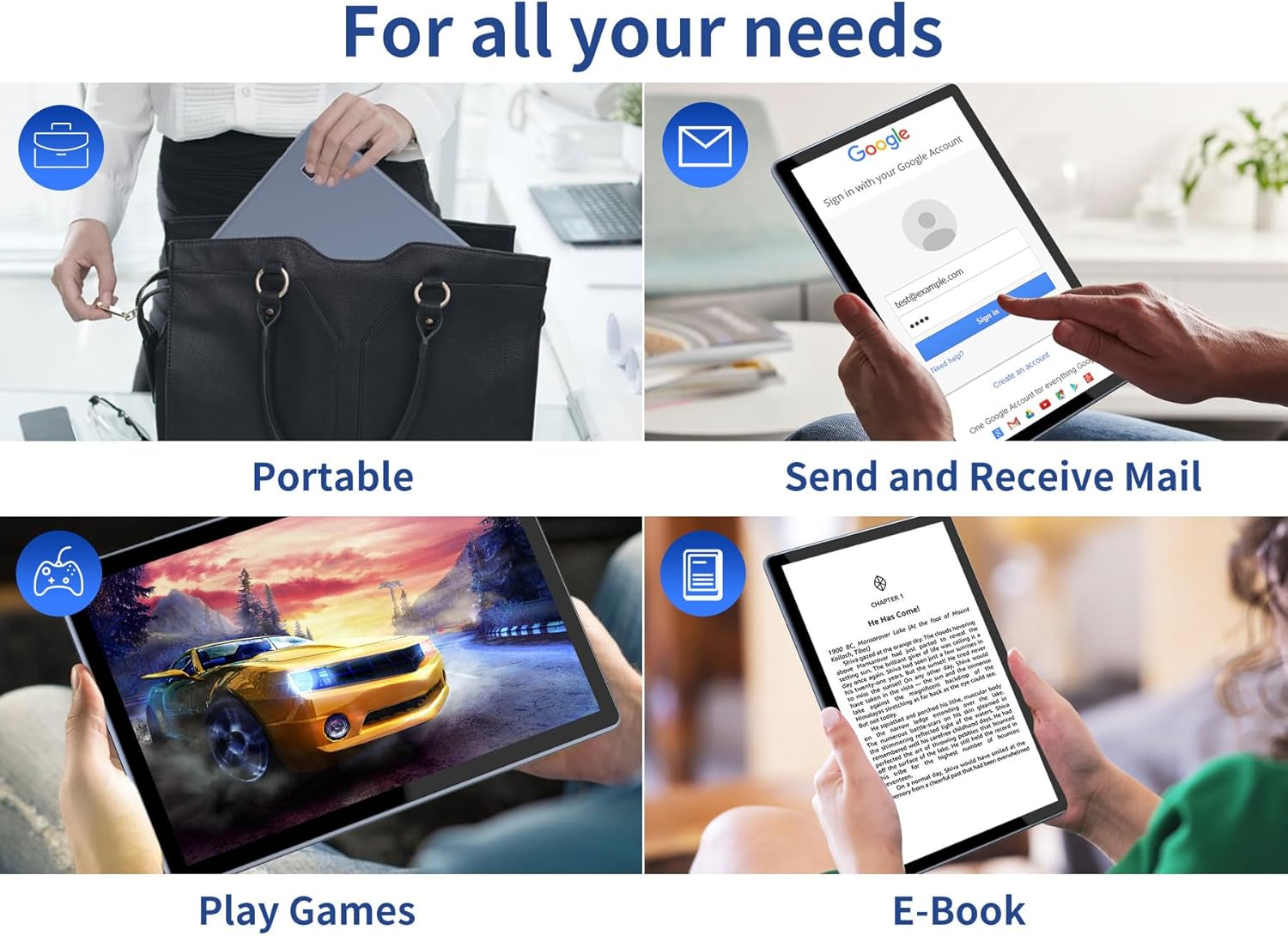
Image: Depicts the versatility of the Tibuta Smartpad A40 for various user needs, including portability, email communication, gaming, and e-book reading.
Տեխնիկական սպասարկում
1. Պլանշետի մաքրումը
Պլանշետի էկրանը և կորպուսը մաքրելու համար օգտագործեք փափուկ, թել չթողնող կտոր։ Համառ բծերի դեպքում մի փոքր սրբեքampԼվացեք կտորը ջրով կամ էկրան մաքրող միջոցով։ Խուսափեք կոշտ քիմիական նյութերի կամ հղկող նյութերի օգտագործումից։
2. Ծրագրային ապահովման թարմացումներ
Պարբերաբար ստուգեք և տեղադրեք համակարգի թարմացումները՝ համոզվելու համար, որ ձեր պլանշետն ունի ամենաթարմ գործառույթները, անվտանգության թարմացումները և կատարողականի բարելավումները: Անցեք Կարգավորումներ > Համակարգ > Համակարգի թարմացում թարմացումները ստուգելու համար:
3. Մարտկոցի խնամք
Մարտկոցի կյանքը երկարացնելու համար.
- Խուսափեք ծայրահեղ ջերմաստիճանից:
- Մի թողեք, որ մարտկոցը լիովին լիցքաթափվի հաճախակի լիցքավորելուց առաջ։
- Անջատեք լիցքավորիչը, երբ մարտկոցը լցվի։
4. Պահպանման կառավարում
Պարբերաբար վերview ձեր տեղադրված ծրագրերը և fileն. Ջնջեք չօգտագործվող հավելվածները և ջնջեք ավելորդը files to free up storage space and maintain optimal performance. Utilize the microSD card slot for additional storage if needed.
Անսարքությունների վերացում
| Խնդիր | Հնարավոր պատճառ | Լուծում |
|---|---|---|
| Պլանշետը չի միանում։ | Մարտկոցի լիցքի նվազում; համակարգի խափանում։ | Charge the tablet for at least 30 minutes. Press and hold the Power button for 10-15 seconds to force restart. If unresponsive, locate the small reset pinhole (refer to diagram in Setup Guide) and gently press it with a paperclip. |
| Wi-Fi կապի խնդիրներ։ | Incorrect password; router issue; tablet Wi-Fi off. | Ensure Wi-Fi is enabled in Settings. Re-enter Wi-Fi password. Restart your Wi-Fi router. Forget the network and reconnect. |
| Դանդաղ կատարողականություն։ | Չափազանց շատ աշխատող հավելվածներ, քիչ հիշողություն, հնացած ծրագրակազմ։ | Close background apps. Clear cache. Uninstall unused apps. Check for system updates. Restart the tablet. |
| Հավելվածների խափանում կամ կախում։ | App bug; insufficient resources. | Force close the app (Settings > Apps > [App Name] > Force Stop). Clear app cache/data. Reinstall the app. Ensure system is updated. |
Տեխնիկական պայմաններ
| Առանձնահատկություն | Մանրամասն |
|---|---|
| Բրենդ | Տիբուտա |
| Մոդելի համարը | A40 |
| Օպերացիոն համակարգ | Android 14 (Android 13 listed in some specs, but product title indicates 14) |
| Էկրանի չափը | 10.1 դյույմ |
| Էկրանի լուծում | 1280 x 800 Pixels (IPS HD) |
| Պրոցեսորի ապրանքանիշ | Allwinner (Quad-Core) |
| Տեղադրված RAM-ի չափը | 6 ԳԲ (2+4 ԳԲ) |
| Հիշողության պահպանման հզորություն | 64 ԳԲ |
| Ընդլայնվող պահեստ | Micro SD (մինչև 128 ԳԲ) |
| Առջևի տեսախցիկ | 5 պատգամավոր |
| Հետևի տեսախցիկ | 8 պատգամավոր |
| Մարտկոցի հզորությունը | 5000 mAh |
| Միացում | Wi-Fi (802.11ac), Bluetooth |
| Լիցքավորման նավահանգիստ | Type-C |
| Նյութի չափերը (L x W x H) | 25.8 x 15.8 x 2 սմ |
| Նյութի քաշը | 1.16 կգ |
Երաշխիք և աջակցություն
Երաշխիքային տեղեկատվություն
Specific warranty details for the Tibuta Smartpad A40 are typically provided with your purchase documentation or on the product packaging. Please refer to these resources for information regarding warranty period, coverage, and terms. In general, manufacturer warranties cover defects in materials and workmanship under normal use.
Հաճախորդների աջակցություն
For technical assistance, troubleshooting beyond this manual, or warranty claims, please contact Tibuta customer support through the following channels:
- Դիմեք ձեր ապրանքի փաթեթավորման մեջ նշված կոնտակտային տեղեկատվությանը։
- Visit the official Tibuta website for support resources, FAQs, and contact forms.
- If purchased through an online retailer, their customer service portal may also offer support or direct you to the manufacturer.


