1. Ներածություն
The vretti BQ1 Bluetooth Label Printer is a compact, portable thermal label printer designed for various labeling needs in home, office, school, and small business environments. It connects wirelessly to your smartphone via Bluetooth, allowing for quick and easy label creation and printing through the dedicated "xeasy label" application.
This printer utilizes thermal printing technology, eliminating the need for ink or toner, which saves on replacement costs and maintenance. It supports label sizes from 25mm to 58mm, offering flexibility for printing address labels, price tags, food labels, clothing tags, barcodes, QR codes, and more.

Image 1.1: The vretti BQ1 Bluetooth Label Printer, highlighting its Bluetooth connectivity and compatibility with iOS and Android devices.
2. Կարգավորում
2.1 Փաթեթի բովանդակությունը
Սկսելուց առաջ համոզվեք, որ բոլոր իրերը ներառված են ձեր փաթեթում.
- 1 x vretti BQ1 Label Printer
- 1 x Օգտագործողի ձեռնարկ (այս փաստաթուղթը)
- 1 x 50x30mm Label Paper Roll (pre-installed inside the machine)
- 1 x Type-C USB լիցքավորման մալուխ
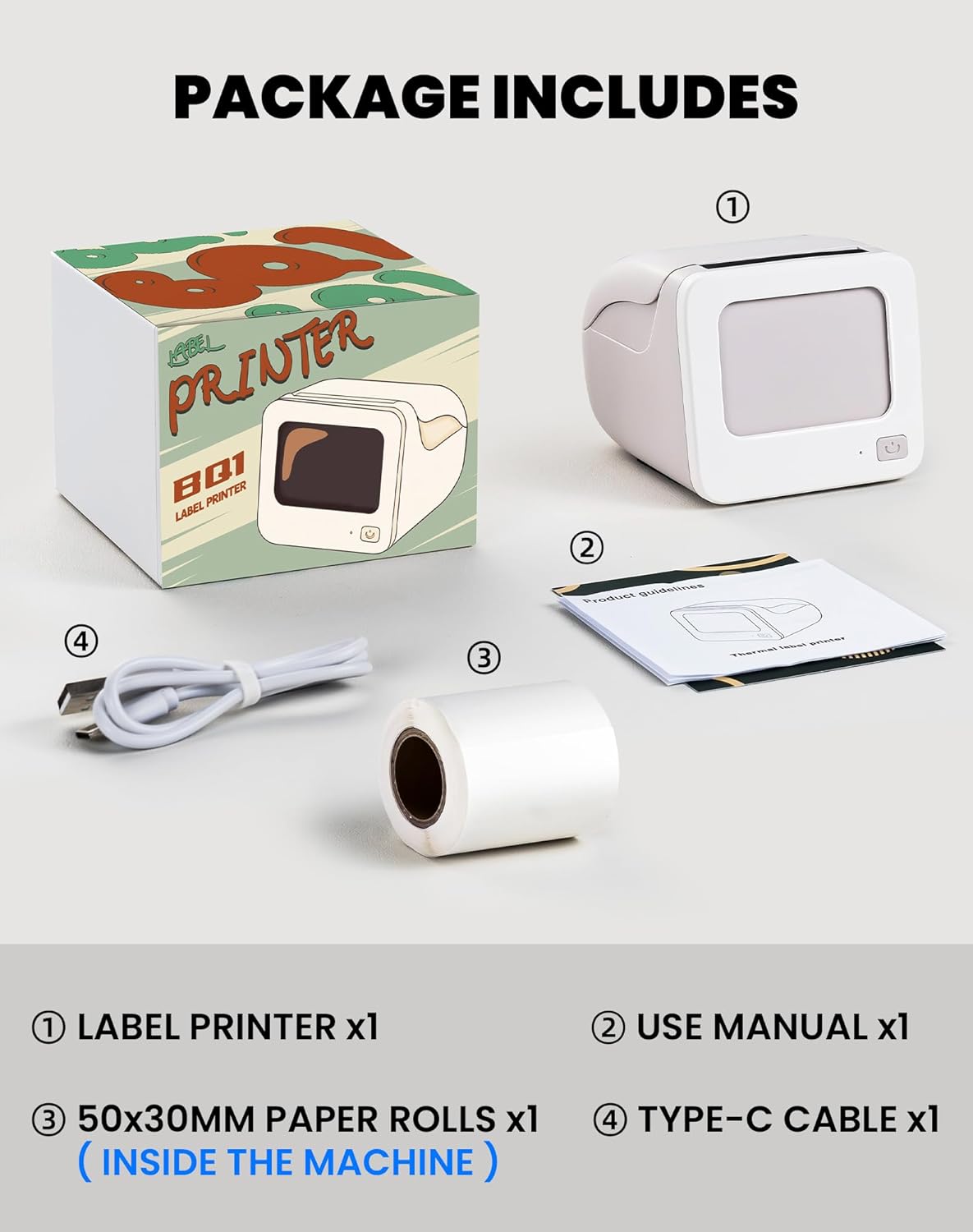
Image 2.1: Visual representation of the items included in the vretti BQ1 label printer package.
2.2 Պիտակի թղթի բեռնում
The printer comes with a label roll pre-installed. If you need to replace or load a new roll:
- Զգուշորեն բացեք տպիչի կափարիչը։
- Insert the new label roll into the compartment, ensuring the labels feed out smoothly. The printable side of the label should face upwards.
- Ապահով փակեք տպիչի կափարիչը:

Image 2.2: Proper insertion of a label roll into the vretti BQ1 printer, demonstrating the supported label width range.
2.3 Հավելվածի տեղադրում և Bluetooth միացում
To use your vretti BQ1 printer, you need to download and connect it via the "xeasy label" application.
- Ներբեռնեք հավելվածը՝ Որոնել "xeasy label" in your smartphone's app store (Google Play Store for Android or Apple App Store for iOS) and install it.
- Միացնել Bluetooth-ը. Համոզվեք, որ Bluetooth-ը միացված է ձեր սմարթֆոնի վրա:
- Բացեք հավելվածը և միացեք՝ Open the "xeasy label" app. The app will guide you to connect to your printer. Select "BQ1" from the list of available devices.
- Միացում՝ Սեղմեք և պահեք տպիչի վրա միացման կոճակը, մինչև ցուցիչի լույսը միանա:

Image 2.3: Step-by-step guide for downloading the "xeasy label" app, connecting to the printer via Bluetooth, and preparing to edit a label.
3. Գործառնական հրահանգներ
3.1 Պիտակների ստեղծում և տպում
Once connected, the "xeasy label" app provides a user-friendly interface for designing and printing labels.
- Select a Template or Create New: The app offers a variety of pre-designed templates, fonts, icons, and frames. You can choose an existing template or start a new design.
- Customize Your Label: Edit text, add images, barcodes, QR codes, and adjust the layout to fit your needs. The app supports various customization options.
- Նախview and Print: Տպելուց առաջ նախview your label to ensure it looks as desired. Then, tap the print button in the app to send the design to your vretti BQ1 printer.
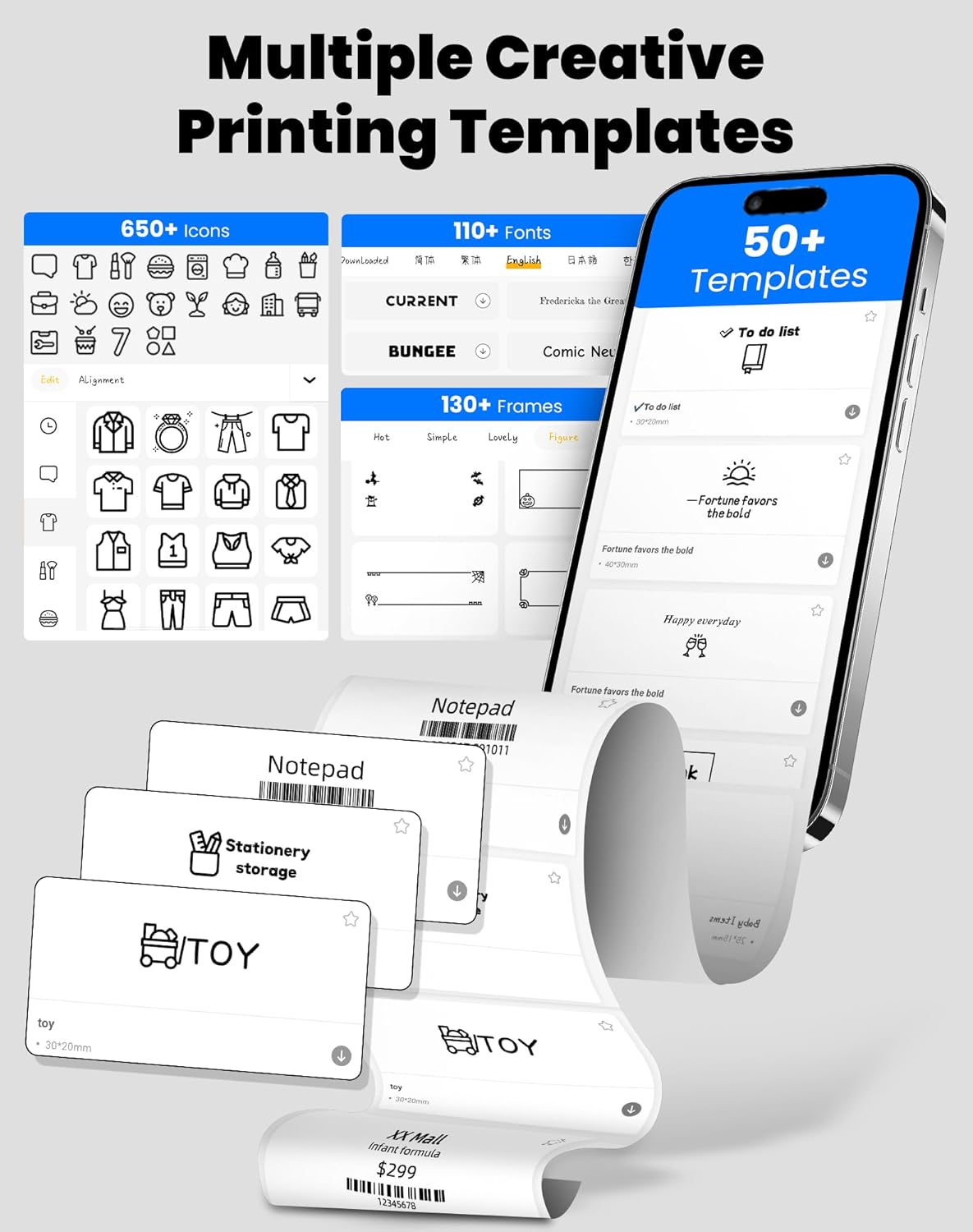
Image 3.1: The "xeasy label" app interface, showcasing a wide range of creative printing templates, icons, and fonts available for label design.

Պատկեր 3.2. Ավարտվել էview of the multi-functional applications within the "xeasy label" app, including support for barcodes, QR codes, images, various borders, font shapes, and hundreds of icons.
3.2 Common Label Applications
The vretti BQ1 printer is versatile and suitable for a wide range of applications:
- Տան կազմակերպում. Label storage bins, pantry items, spice jars, and more.
- Գրասենյակ և դպրոց. Կազմակերպել files, label stationery, create name tags, or mark assets.
- Մանրածախ և փոքր բիզնես. Print price tags, product labels, address labels for shipping, and inventory management labels.
- Անձնական օգտագործում. Create decorative labels for gifts, DIY projects, or personal items.

Նկար 3.3: Օրինակamples of the vretti BQ1 printer's versatility, showing labels used for toy classification, light switches, to-do lists, clothing, and gifts.

Image 3.4: Demonstrations of common label types that can be printed, including address labels, price labels, food labels, and customizable DIY labels.
4. Պահպանում
4.1 Տպիչի մաքրում
To ensure optimal performance and print quality, regular cleaning is recommended:
- Արտաքին տեսք: Սրբեք տպիչի արտաքին մասը փափուկ, չոր կտորով: Խուսափեք հղկող մաքրող միջոցների կամ լուծիչների օգտագործումից:
- Տպման ղեկավար. Եթե տպագրության որակը վատանում է, զգուշորեն մաքրեք ջերմային տպիչի գլխիկը սպիրտով պատված բամբակով։ Մաքրելուց առաջ համոզվեք, որ տպիչն անջատված է և սառած։
4.2 Label Roll Storage
Պիտակների գլանափաթեթները պահեք զով, չոր տեղում՝ ուղիղ արևի լույսից և չափազանց ջերմությունից հեռու՝ դրանց կպչուն հատկությունները և տպագրության որակը պահպանելու համար։
5: Անսարքություն
If you encounter issues with your vretti BQ1 printer, try the following steps:
- Printer Not Turning On: Ensure the printer is charged. Connect it to a power source using the provided Type-C cable.
- Հնարավոր չէ միանալ Bluetooth-ի միջոցով՝
- Համոզվեք, որ Bluetooth-ը միացված է ձեր սմարթֆոնի վրա:
- Համոզվեք, որ տպիչը միացված է և գտնվում է հասանելիության շառավղում։
- Restart both the printer and your smartphone.
- Try reconnecting through the "xeasy label" app.
- Տպման վատ որակ.
- Check if the label roll is inserted correctly and is not damaged.
- Մաքրեք ջերմային տպիչի գլուխը, ինչպես նկարագրված է «Սպասարկում» բաժնում։
- Ensure the label type is compatible with thermal printing.
- Պիտակների սխալ մատակարարում.
- Verify the label roll is properly seated and not jammed.
- Ensure the printer cover is fully closed.
Video 5.1: A general product overview video for the vretti BQ1 label printer, demonstrating its features and operation. If the video does not load, please ensure your browser supports HLS streaming.
6. Տեխնիկական պայմաններ
| Բրենդ | vretti |
| Մոդելի անվանումը | BQ1 |
| Միացման տեխնոլոգիա | Bluetooth |
| Տպագրության տեխնոլոգիա | Ջերմային |
| Մեդիա առավելագույն չափը | 58 mm (supports 25-58mm width) |
| Տպման բանաձեւ | 203 dpi (Monochrome) |
| Համատեղելի սարքեր | Սմարթֆոն (Android, iOS) |
| Ներառված բաղադրիչներ | 1 Label Printer, 1 Label Roll (starter), 1 Type-C Cable |
| Ապրանքի չափերը | 10.3D x 10.4W x 8H սանտիմետր |
| Հատուկ առանձնահատկություն | Elegant TV-like design |
7. Երաշխիք և աջակցություն
7.1 Երաշխիքային տեղեկատվություն
The vretti BQ1 Label Printer typically comes with a մեկ տարվա երաշխիք գնման օրվանից։ Խնդրում ենք պահպանել գնման ապացույցը երաշխիքային պահանջների համար։ Երաշխիքը ներառում է արտադրական թերությունները, բայց չի ներառում չարաշահման, վթարների կամ չարտոնված փոփոխությունների հետևանքով առաջացած վնասը։
7.2 Հաճախորդների աջակցություն
For further assistance, technical support, or warranty inquiries, please refer to the official vretti website or contact their customer service through the contact information provided on their official channels. Ensure you have your product model number (BQ1) and purchase details ready when contacting support.


